If your Mac suddenly stops showing nearby Wi-Fi networks, the problem can be caused by a simple settings issue, a temporary network glitch, or a more specific macOS configuration problem. In many cases, you can get the Wi-Fi list back without needing advanced troubleshooting.
This guide covers three effective fixes, starting with the quickest checks and moving to deeper network resets if needed.
1. Confirm Wi-Fi Is Turned On and the Network Is in Range
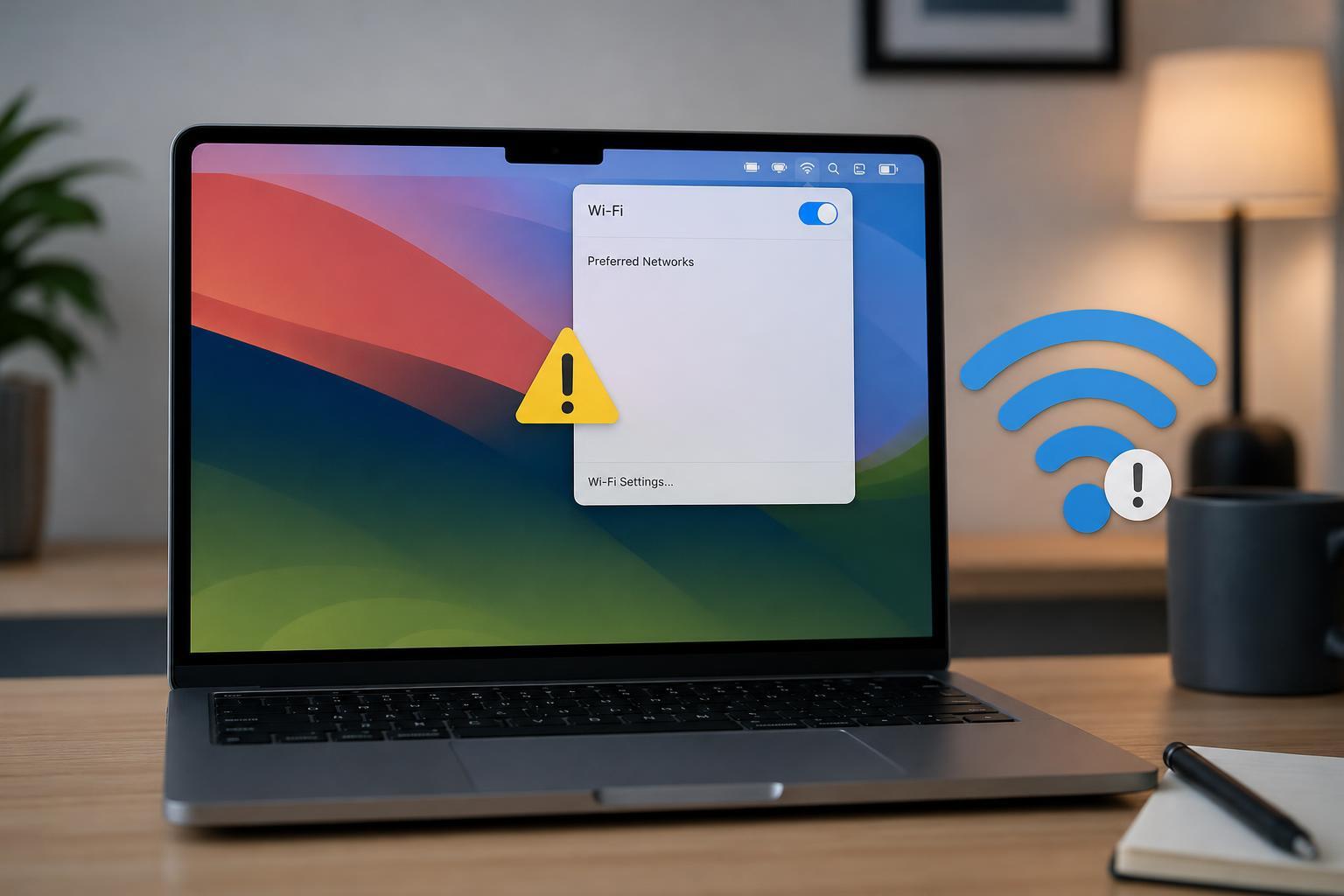
Before changing anything else, make sure Wi-Fi is actually enabled on your Mac and that the network you expect to see is close enough to detect. If the Wi-Fi icon in the menu bar is missing or disabled, macOS may not be scanning for networks at all.
- Click the Wi-Fi icon in the menu bar and make sure Wi-Fi is turned on.
- If there is no Wi-Fi icon, open System Settings or System Preferences and check the Network or Wi-Fi section.
- Move closer to the router or access point to rule out weak signal strength.
- Confirm that other devices can see the same network, which helps show whether the issue is with the Mac or the router.
2. Turn Wi-Fi Off and On, Then Renew the Network Connection
If Wi-Fi is enabled but the list is still empty, the wireless connection may be stuck. Turning Wi-Fi off and back on forces the Mac to rescan for available networks and rebuild the connection state.
- Open the Wi-Fi menu in the menu bar.
- Turn Wi-Fi off.
- Wait a few seconds, then turn Wi-Fi back on.
- If networks appear, try connecting again.
- If the problem continues, disconnect from the current network if one is saved and choose the Wi-Fi network again from the list.
If you still do not see networks, a network settings refresh may help. You can also try forgetting the problematic network and reconnecting later with the password, which can clear a corrupted saved profile.
3. Reset the Mac’s Network Settings
When Wi-Fi still does not show any networks, the Mac’s network configuration may be corrupted. Resetting network settings can clear bad preferences and force macOS to create fresh network files.
- Open System Settings or System Preferences and go to the Wi-Fi or Network section.
- Look for options to remove or manage saved network services, depending on your version of macOS.
- If available, remove the Wi-Fi service and add it again.
- Restart the Mac after applying the change so the system can rebuild the wireless configuration.
- Reconnect to your Wi-Fi network and test whether nearby networks now appear.
On some macOS versions, a more complete reset may involve deleting saved network preference files or using a network location reset. This is more advanced and should be done carefully, because it can clear saved connections and custom network settings.
If the Wi-Fi List Is Still Missing
If none of these fixes work, the issue may be hardware-related or tied to a deeper macOS problem. At that point, check whether Wi-Fi works in Safe Mode, whether the Mac can detect any networks at all, and whether a USB or external wireless adapter works if you are using one.
- Check whether Bluetooth and other wireless features are also acting strangely, which may point to a broader hardware issue.
- Look for macOS updates, since wireless bugs are sometimes fixed in system updates.
- If the Mac cannot see any networks anywhere, the Wi-Fi hardware or antenna may need service.
- If the problem started after a software change, a recent profile, VPN, or security tool could be interfering with network scanning.