
A good Wi-Fi adapter can make a big difference for gaming if your PC cannot use Ethernet. The best options give you a stable connection, strong signal reception, and support for modern Wi-Fi standards that help reduce lag and drops during play.
This guide covers five kinds of Wi-Fi adapters that are well suited to gaming PCs, along with the key features that matter most when you are choosing one for your setup.
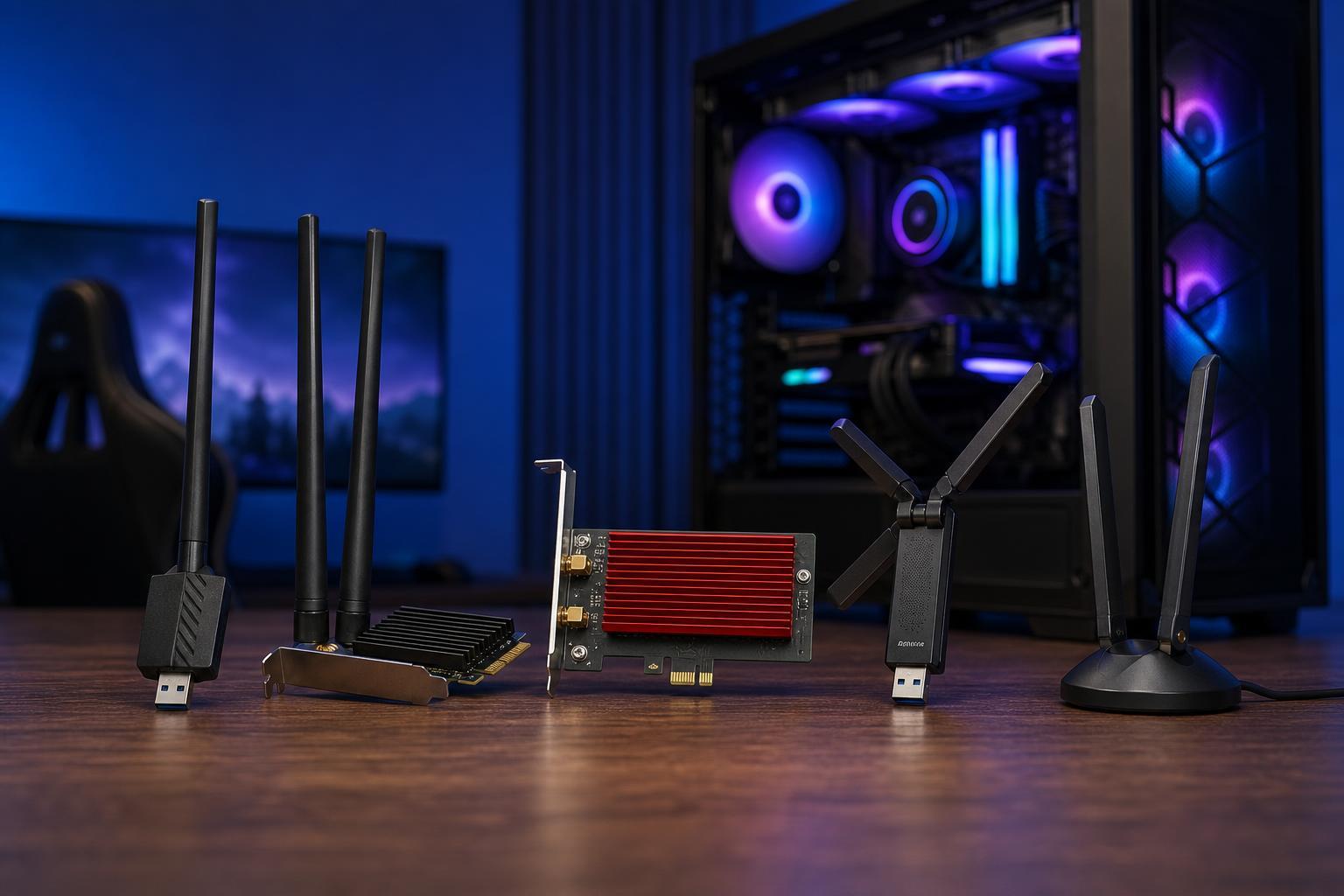
What Matters Most in a Gaming Wi-Fi Adapter
For gaming, speed alone is not the only thing that matters. A fast adapter on paper can still perform poorly if it has weak signal reception, poor driver support, or limited antenna placement. The most useful features are the ones that improve stability and reduce latency in real-world use.
- Wi-Fi 6 or Wi-Fi 6E support for better performance on modern routers
- External antennas for stronger reception and easier positioning
- PCIe cards for desktop PCs when you want the best internal upgrade
- USB adapters for quick setup and portability
- Reliable driver support for Windows 10 and Windows 11
- Bluetooth support if you also want wireless peripherals on the same adapter
1. ASUS PCE-AXE58BT
This style of adapter is a strong choice if you want an internal desktop solution with good wireless performance and antenna flexibility. PCIe adapters typically outperform small USB dongles because they use larger antennas and offer a more stable connection path inside the PC.
- Good choice for desktops with open PCIe slots
- External antennas help improve signal placement
- Useful if you want both Wi-Fi and Bluetooth support
- Better suited to gaming than basic low-cost USB adapters
2. TP-Link Archer TXE75E
This type of adapter is a practical pick for many gaming desktops because it balances modern wireless features with a straightforward installation. It is especially appealing if you want better wireless performance without moving into more expensive niche options.
- Wi-Fi 6E support for newer routers
- External antenna base can help with positioning
- Typically a good balance of performance and price
- Suitable for gaming, streaming, and everyday use
3. Intel Wi-Fi 6E AX210-Based PCIe Adapter Cards
Many third-party PCIe adapters use Intel wireless chipsets, and that is worth paying attention to because the chipset often matters as much as the brand on the box. An AX210-based adapter is a solid modern option for gaming PCs, especially if you want broad driver support and well-tested hardware.
- Strong choice for Windows gaming desktops
- Often uses widely supported Intel wireless drivers
- Can deliver very good performance on Wi-Fi 6E networks
- Usually includes Bluetooth support
4. Netgear Nighthawk A8000
A premium USB adapter is useful when you want a simpler setup or when your desktop is not convenient to open. Higher-end USB models can perform very well, especially when they include a large antenna or dock-like design that lets you place the receiver in a better location.
- Easy plug-and-play style installation
- Useful for desktops and laptops
- Good choice when you cannot or do not want to open the PC
- Larger external antenna design can improve reception
5. TP-Link Archer TX20U Plus
This type of adapter is a sensible lower-cost option when you need better wireless performance without paying for a full internal upgrade. It is especially useful for casual or mid-level gaming setups where Ethernet is not available and you want a simple plug-in solution.
- Affordable way to upgrade wireless on a desktop or laptop
- External antenna design usually helps with range
- Good for general gaming and streaming
- Simpler installation than a PCIe card
PCIe vs USB: Which Type Is Better for Gaming?
For most desktop gaming PCs, PCIe adapters are the better choice because they usually offer stronger reception, larger antennas, and more consistent performance. They are also less likely to be affected by nearby USB ports, cables, or interference.
- Choose PCIe if you want the best desktop performance and do not mind installing hardware
- Choose USB if you want a quick upgrade, a portable option, or you cannot open the PC
- Choose an adapter with external antennas if your PC is far from the router or in another room
- Choose Wi-Fi 6E if you have a compatible router and want access to the 6 GHz band
How to Get the Best Gaming Performance From Any Wi-Fi Adapter
- Place the PC or antenna base where it has a clear line of sight to the router if possible.
- Use the 5 GHz or 6 GHz band instead of 2.4 GHz when your router and adapter support it.
- Update the Wi-Fi adapter drivers from the manufacturer or chipset maker if performance seems weak.
- Avoid plugging a USB adapter into a crowded hub if you can connect it directly to the PC.
- Check that the router firmware is up to date if the wireless connection keeps dropping or lagging.
How to Choose the Right One for Your PC
The best choice depends on your PC, your room layout, and how important low-latency gaming is for you. A desktop with room for expansion usually benefits most from a PCIe card, while a laptop or compact PC may be better suited to a USB adapter.
- Pick a PCIe adapter for the best all-around desktop gaming experience
- Pick a USB adapter for simplicity and portability
- Look for external antennas if the router is not nearby
- Do not pay extra for Wi-Fi 6E unless your router can use it
- Make sure the adapter includes Bluetooth only if you actually need it
Bottom Line
For gaming, the best Wi-Fi adapter is the one that gives you the most stable connection in your room, not just the highest number on the box. PCIe cards are usually the strongest choice for desktop PCs, while high-quality USB adapters are the easiest upgrade for laptops and compact systems.
If you want the shortest path to better wireless gaming, start by choosing a model with strong antennas, modern Wi-Fi support, and reliable driver compatibility. Those details matter more than marketing claims and can make a noticeable difference in real gameplay.





