If you need to hide a face, license plate, email address, or other sensitive detail in a photo on Mac, blurring part of the image is one of the easiest ways to do it. The best method depends on whether you want a quick one-time edit, a more polished result, or a tool that lets you keep working on the file later.
Below are four useful ways to blur part of a picture on Mac, ranging from built-in options to more flexible editing apps.
1. Use the Photos app for a quick blur-style edit
The macOS Photos app does not include a true blur brush for selectively blurring part of an image, but it can still help if your goal is to partially obscure something in a simple way. You can use markup tools, shapes, or cropping for basic redaction-style edits, especially when you only need to hide a small area.
- Open the image in the Photos app.
- Click Edit, then select the Markup tools if available from your macOS version or workflow.
- Use a shape, annotation, or a solid colored block to cover the part you want to hide.
- Adjust the size and position so the sensitive area is fully covered.
- Save the edited version as a copy if you want to preserve the original photo.
2. Blur part of an image in Preview with markup tools
Preview is built into macOS and is often the easiest no-install option for image edits. Like Photos, it does not offer a true selective blur tool, but it does let you cover areas cleanly with shapes, use the sketch tools, and save the result quickly.
- Right-click the image file and choose Open With > Preview.
- Click the Markup toolbar button if it is not already visible.
- Choose a shape tool, such as a rectangle or oval, and place it over the area you want to hide.
- Set the fill color to match the background as closely as possible, or use a solid black bar for redaction.
- Resize the shape until the sensitive detail is fully covered, then save the file.
3. Use a dedicated editor like Pixelmator Pro or Photoshop
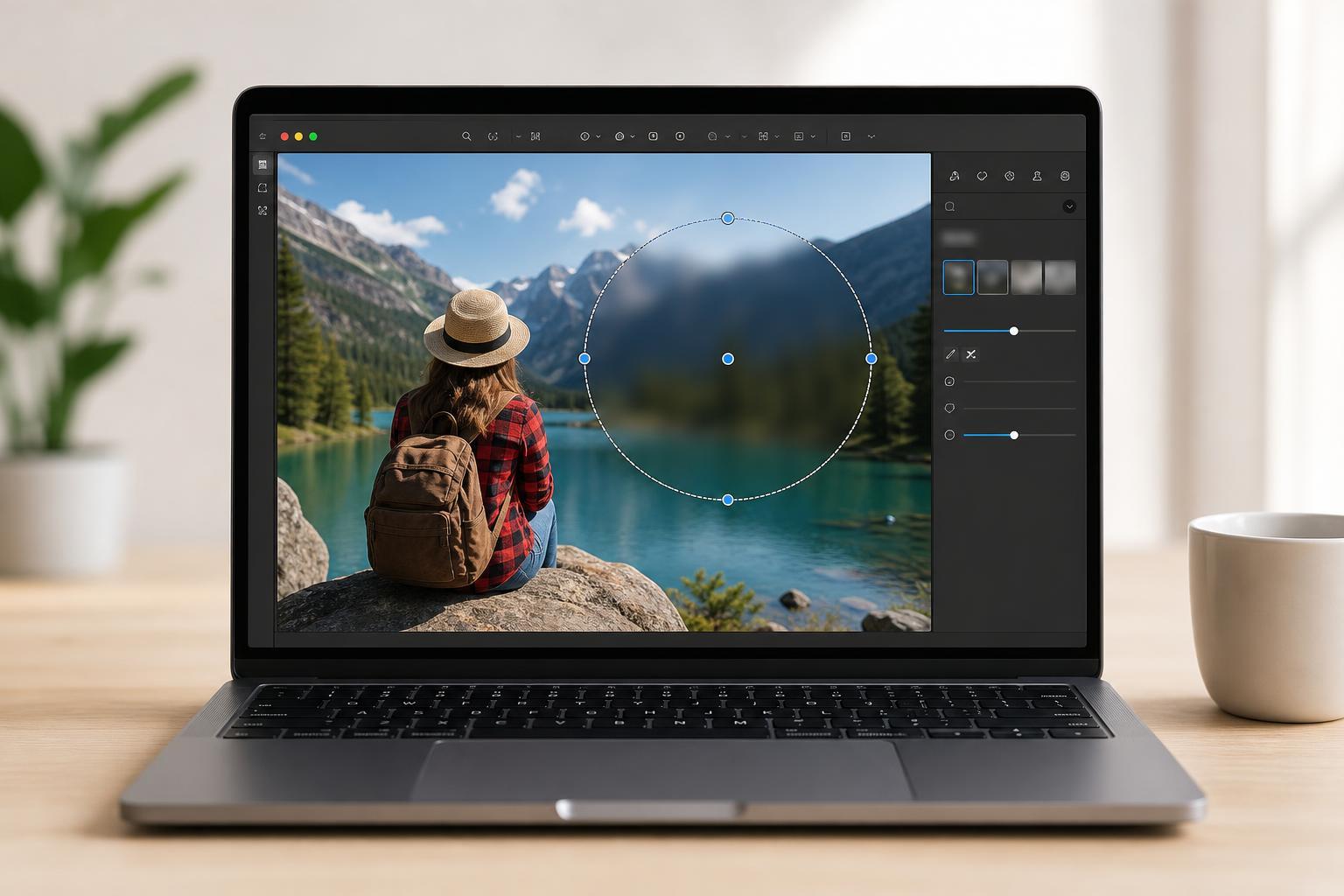
If you want a real blur effect, a proper image editor is the best choice. Apps such as Pixelmator Pro and Adobe Photoshop let you blur only the portion of the image you select, which is ideal for faces, backgrounds, signs, or private details.
- Open the photo in your editor.
- Select the area you want to blur using a lasso, rectangle, or brush selection tool.
- Apply a blur filter such as Gaussian Blur, Lens Blur, or a similar effect.
- Increase or decrease the blur strength until the detail is no longer readable but the image still looks natural.
- Save the edited image as a copy to preserve the original file.
4. Use an online photo editor if you do not want to install software
Web-based editors can also blur part of a picture on Mac. These tools are useful when you are working on a shared or borrowed computer, or when you only need to edit a single image quickly. Many online editors include a blur brush or a blur selection tool.
- Open a trusted online photo editor in your browser.
- Upload the image you want to edit.
- Choose a blur tool, brush, or selection-based blur effect.
- Paint over the area you want hidden or apply blur to the selected region.
- Download the finished image to your Mac.
Which method should you use?
- Use Preview if you just need a simple mask or redaction-style cover-up and want a built-in Mac tool.
- Use Photos if the edit is quick and basic, and you are already managing the picture in your library.
- Use Pixelmator Pro, Photoshop, or another editor with blur tools if you want a true blurred area.
- Use an online editor if you need a fast temporary option and the image is not sensitive.
A better workflow for sensitive images
For important files, it is smart to keep an untouched original and work on a copy. That way, if the blur is not strong enough or the wrong area was edited, you can start over without losing the original image.
- Duplicate the file before editing.
- Use stronger blur than you think you need for sensitive details.
- Zoom in and check the image after saving.
- Export a flattened copy if you do not want editable layers left behind.