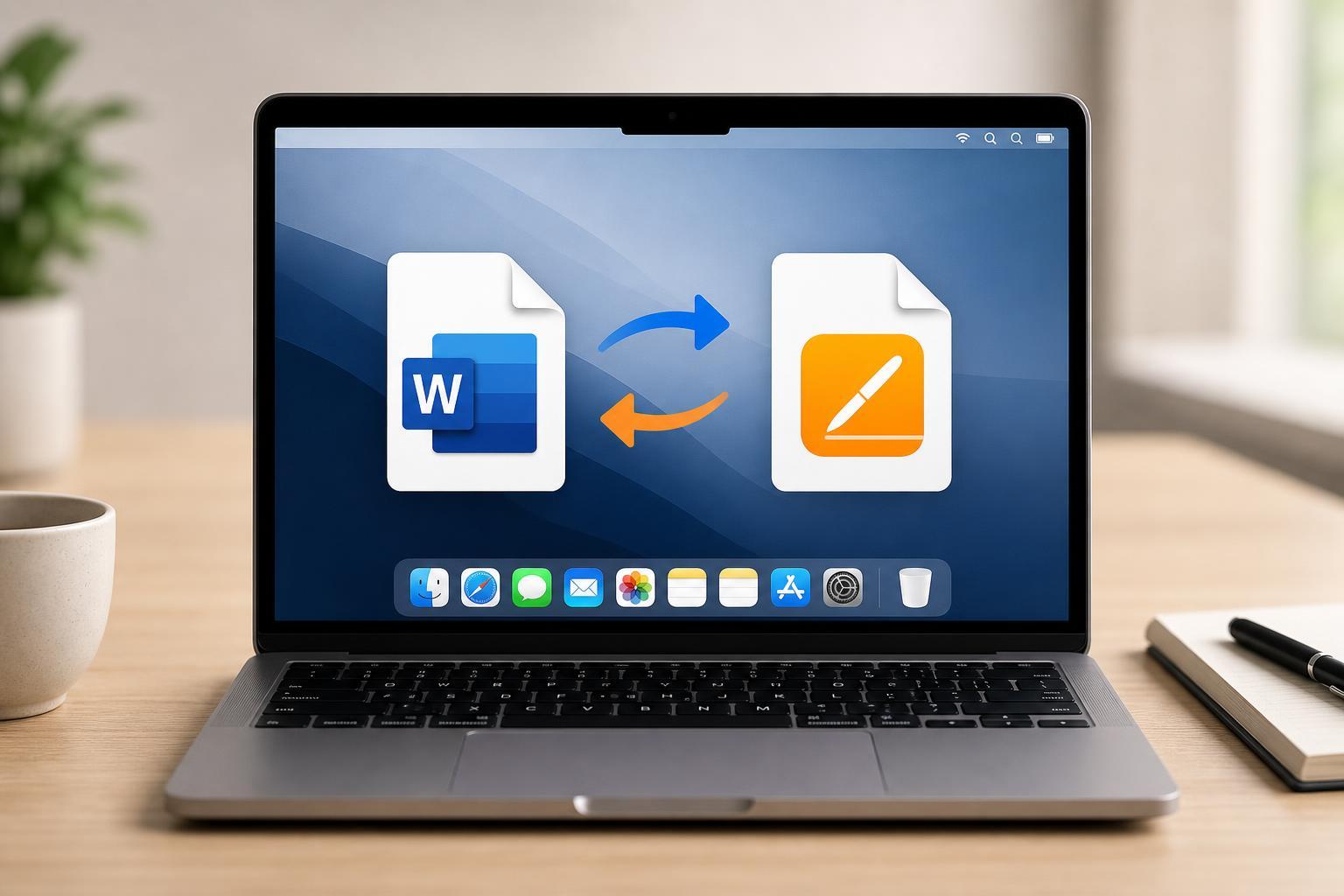
If you work between Mac and Windows, you may need to switch documents between Microsoft Word and Apple Pages. The good news is that Pages can open Word files, and it can also export files in Word format for easy sharing.
This guide shows you how to convert Word documents to Pages and Pages documents back to Word on a Mac, along with a few formatting tips to help avoid surprises.
What You Need Before You Start
You do not need any special conversion tool for basic file conversion. On a Mac, the Pages app can handle most of the work as long as it is installed and updated.
- Pages installed on your Mac
- A Word document saved as .docx or .doc
- A Pages document you want to share as .docx
- Enough free storage space to save the converted file
How to Open a Word Document in Pages
- Find the Word document in Finder.
- Double-click the file if Pages is the default app, or right-click the file and choose Open With > Pages.
- Wait for Pages to import the document.
- Review the file for layout changes, since some Word formatting may not transfer perfectly.
Once the file opens in Pages, you can edit it like any other Pages document. At this stage, the file is still not a native Pages file until you save it in Pages format.
How to Save a Word Document as a Pages File
- Open the Word document in Pages.
- Click File in the menu bar.
- Choose Save to keep working in Pages format.
- If prompted, enter a new file name and choose a location to save it.
Saving in Pages format creates a native .pages file. This is useful if you plan to keep editing the document on your Mac or use Pages-specific features later.
How to Export a Pages Document to Word on Mac
- Open the Pages document you want to convert.
- Click File in the menu bar.
- Select Export To, then choose Word.
- Choose whether you want a .docx file and click Next.
- Pick a file name and save location, then click Export.
Pages usually exports to .docx, which is the standard modern Word format and the easiest version to share with most people.
How to Convert a Pages File to Word Without Opening It First
If you already have a Pages file and just need a Word copy, the easiest method is still to open it in Pages and export it. That gives you the best chance to check the document before sending it.
If you receive a Pages file from someone else and do not have Pages installed, you may need the sender to export it to Word, because Word cannot reliably open every Pages file directly.
How to Keep Formatting Intact During Conversion
- Use common fonts if the file will move between Pages and Word.
- Avoid relying on very complex text boxes or layered objects.
- Check page breaks, headers, and footers after conversion.
- Review tables, images, and bullet spacing carefully.
- Export a PDF if you need the layout to stay exactly the same.
What Can Change During Conversion?
Most simple documents convert well, but some formatting differences are normal. This is especially true with files that use Word-specific features or custom layouts.
- Fonts may change if the same font is not available on both apps
- Spacing and line breaks can shift
- Some Word shapes, charts, or SmartArt elements may not translate perfectly
- Headers, footers, and margins may need a quick check
- Track changes and comments may not behave the same way in every case
Which Method Should You Use?
Quick Troubleshooting Tips
- If a file will not open, confirm it is actually a .doc, .docx, or .pages file.
- If formatting looks broken, try opening the file in Pages and exporting again.
- If Word cannot open the exported file, make sure you saved it as .docx and not another format.
- If the document is large or complex, try converting a simpler copy first to isolate the problem.