If your iPhone connects to Wi-Fi only when you choose the network manually, the problem is usually tied to saved network settings, Auto-Join behavior, or a router issue. In many cases, you can fix it without resetting the phone or changing anything major.
This guide walks through three reliable fixes to help your iPhone reconnect to trusted Wi-Fi networks on its own again.
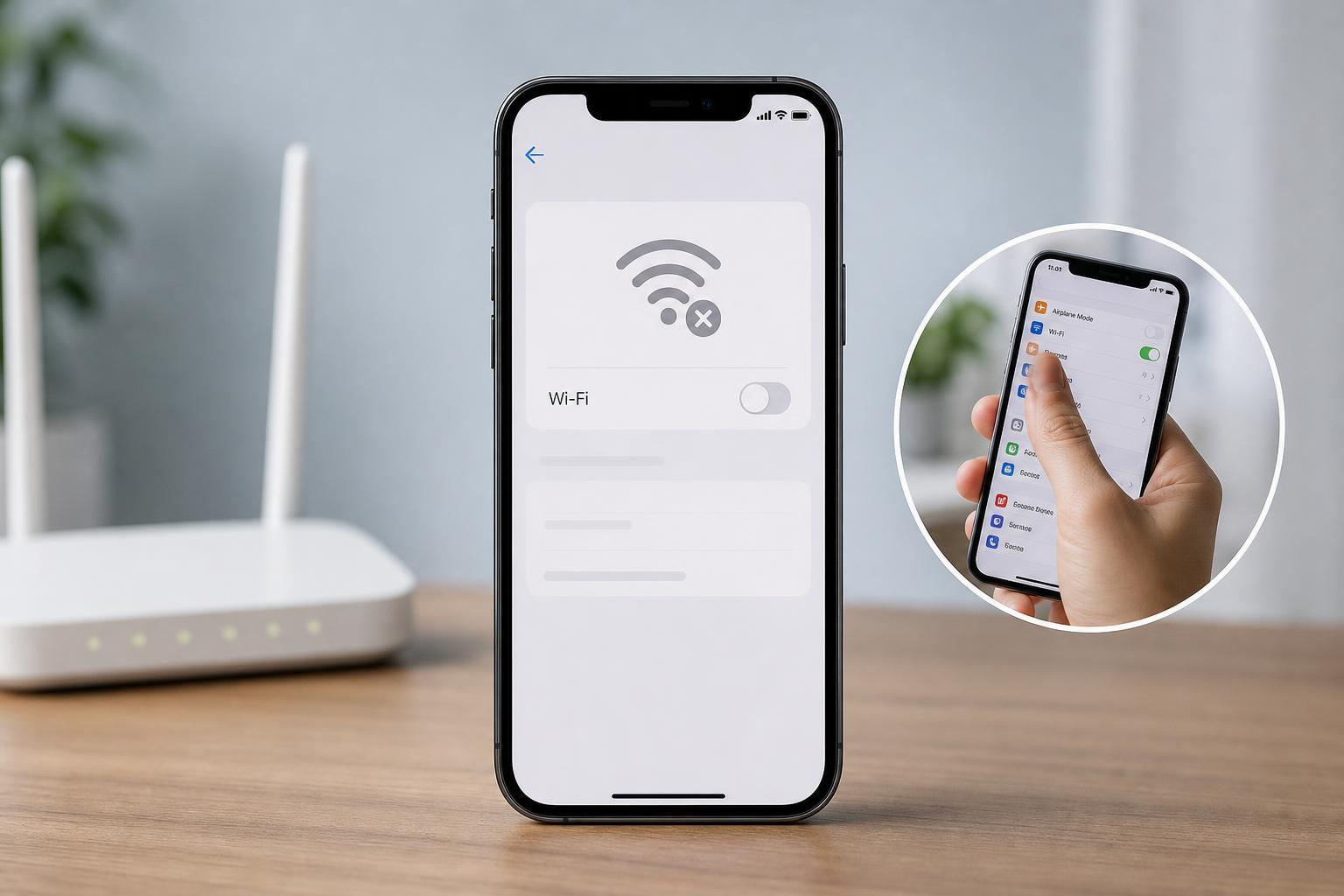
1. Make Sure Auto-Join Is Enabled for the Network
The most common reason an iPhone does not reconnect automatically is that Auto-Join has been turned off for that specific Wi-Fi network. When this happens, the phone remembers the network, but it will not switch back to it unless you tap it manually.
- Open Settings on your iPhone.
- Tap Wi-Fi.
- Find your saved network and tap the information button next to it.
- Check whether Auto-Join is turned on.
- If it is off, turn it on and then reconnect to the network once manually if needed.
2. Forget the Network and Reconnect
If the iPhone still refuses to connect automatically, the saved Wi-Fi profile may be outdated or corrupted. Forgetting the network forces the phone to rebuild that connection from scratch, which often clears up stubborn connection behavior.
- Go to Settings > Wi-Fi.
- Tap the information button next to the problem network.
- Select Forget This Network.
- Confirm the choice.
- Reconnect to the Wi-Fi network by selecting it again and entering the password.
3. Check for Router, iPhone, or Network Conflicts
If the Wi-Fi setting is correct but the phone still does not reconnect on its own, the issue may be caused by the router or by a conflict between the iPhone and the network. This is especially likely if other devices also hesitate to reconnect or if the problem happens only on one Wi-Fi network.
- Make sure the router is broadcasting the Wi-Fi network normally and that the SSID has not changed.
- Check whether the router has separate 2.4 GHz and 5 GHz network names, since the iPhone may treat them as different networks.
- Look for MAC address filtering, access control, or device limits on the router.
- If the Wi-Fi password was changed recently, remove the old saved connection and reconnect.
- Make sure Low Data Mode, VPN profiles, or network management apps are not interfering with the connection.
If the problem appears on multiple Wi-Fi networks, the issue is more likely on the iPhone side. In that case, updating iOS can help if the bug is software-related.
When to Use Network Reset
If none of the three fixes works, you can try resetting network settings on the iPhone. This is more aggressive because it removes saved Wi-Fi networks, Bluetooth pairings, and VPN-related network settings, so it should be used only after the simpler fixes above.
- Open Settings.
- Go to General.
- Tap Transfer or Reset iPhone.
- Choose Reset.
- Select Reset Network Settings and confirm.
Which Fix Should You Try First?
Start with Auto-Join, because it is the simplest and most common cause. If that does not solve it, forget the network and reconnect. If the issue continues, check the router and other network settings before moving on to a full network reset.