When a Roku stops connecting to Wi‑Fi, the problem can come from the router, the network settings, the Roku itself, or even the signal strength in the room. The good news is that most connection issues can be fixed without replacing the device.
This guide walks through 10 practical fixes, starting with the fastest checks and moving to deeper troubleshooting if your Roku still cannot get online.
1. Confirm the Wi‑Fi Network Is Working
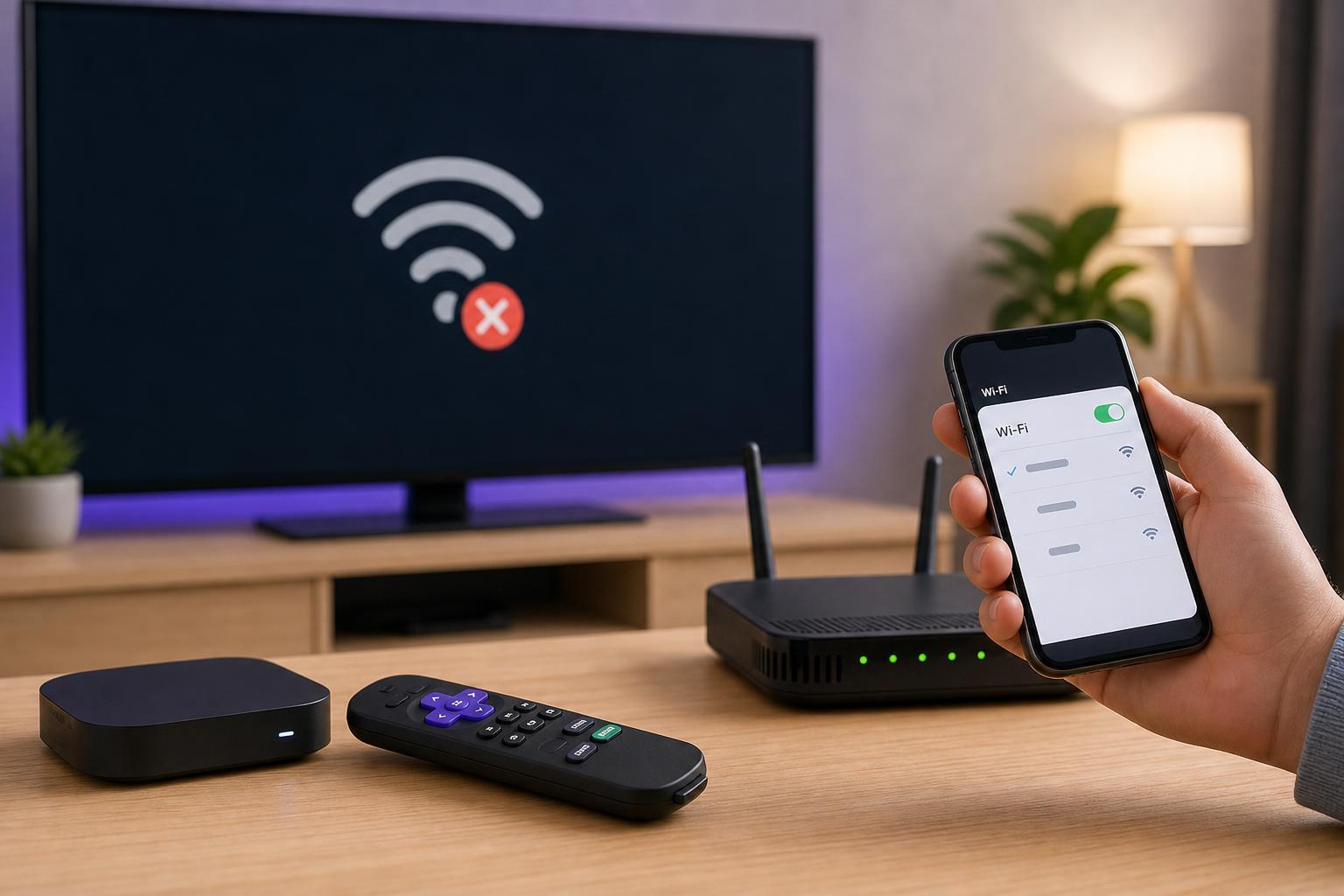
Before changing anything on the Roku, make sure the wireless network itself is online. Try connecting another device such as a phone, laptop, or tablet to the same Wi‑Fi. If nothing can get online, the issue is probably with the router, modem, or internet service rather than the Roku.
- Check whether other devices can browse the web on the same network.
- Look at the router’s status lights for signs of an internet or Wi‑Fi problem.
- If your internet is down everywhere, contact your ISP or check the modem and router first.
2. Move the Roku Closer to the Router
Weak signal is one of the most common reasons a Roku fails to connect or keeps dropping off Wi‑Fi. If the Roku is far from the router, behind a TV, or in a room with thick walls, the signal may be too weak for a stable connection.
- Temporarily move the Roku and TV closer to the router if possible.
- Remove obstructions such as metal furniture, cabinets, or large electronics.
- If the signal improves in a different location, distance or interference is likely the issue.
3. Reconnect to the Wi‑Fi Network Manually
Sometimes Roku remembers a network incorrectly or gets stuck on an old connection profile. Removing the saved network and reconnecting can clear that problem.
- On the Roku home screen, go to Settings.
- Select Network, then Set up connection.
- Choose Wireless and wait for available networks to appear.
- Select your Wi‑Fi network again and enter the password carefully.
- Make sure you choose the correct network name if your router broadcasts separate 2.4 GHz and 5 GHz bands.
4. Check the Wi‑Fi Password and Network Name
A small typo in the password or selecting the wrong SSID can make it look like Roku has a connection problem when it is really just an authentication issue. This is especially common if your router has multiple network names or a guest network.
- Make sure the password is entered exactly as it appears, including capital letters and special characters.
- Choose the main home network, not a guest network unless that is the one you use intentionally.
- Avoid confusing similar network names if your router broadcasts both 2.4 GHz and 5 GHz versions.
5. Restart the Router and Modem
Network equipment can get stuck in a bad state, especially after outages or long uptime. Power-cycling the router and modem can refresh the connection and clear temporary glitches.
- Unplug the modem and router from power.
- Wait at least 30 seconds.
- Plug the modem back in first and wait until it fully reconnects.
- Then plug in the router and wait for the wireless network to come back online.
- Try reconnecting the Roku after the network is stable.
6. Restart the Roku
If the Roku’s network services are stuck, a restart can clear temporary software issues. This is a simple step, but it is worth trying before more advanced changes.
- Go to Settings.
- Select System.
- Choose Power if available, then System restart.
- If you do not see a Power menu, choose System restart directly.
- After the Roku restarts, try connecting again.
7. Check for Router Security or Band Settings Issues
Some Roku connection failures happen because the router is using settings the Roku does not like, such as unusual security modes, unsupported bands, or overly aggressive filtering. This is especially likely if the network works for phones and laptops but not for Roku.
- Use a standard Wi‑Fi security mode such as WPA2 if your router allows it.
- If your router has a separate 5 GHz and 2.4 GHz network, try the other band.
- Avoid hidden SSIDs while troubleshooting, since visible networks are easier to connect to.
- Check whether MAC address filtering or access control is blocking the Roku.
8. Forget the Network and Set It Up Again
If the Roku keeps trying to use a bad saved connection, forgetting the network and starting fresh can resolve repeated connection errors.
- Open Settings on the Roku.
- Go to Network.
- Select the wireless network and choose the option to forget or disconnect if available.
- Return to Set up connection and reconnect to the Wi‑Fi network.
- Enter the password again and test the connection.
9. Update the Roku Software
Outdated Roku software can cause bugs, including wireless connection problems. If the Roku can connect briefly or has another way to get online, check for system updates.
- Go to Settings.
- Select System.
- Choose System update.
- Select Check now.
- Install any available update and test Wi‑Fi again.
10. Try an Ethernet Connection or a Different Network
If your Roku model supports Ethernet, using a wired connection can help you determine whether the issue is with Wi‑Fi specifically or with the device’s network setup more broadly. If Ethernet works, the Roku itself is probably fine and the wireless connection is the main problem.
- Test with Ethernet if your Roku model has a port or supports an adapter.
- Try a mobile hotspot briefly to see whether the Roku can connect to another wireless network.
- If the Roku connects elsewhere, the issue is likely with your home router or Wi‑Fi configuration.
When You May Need to Reset the Roku or Router
If none of the steps above work, a factory reset may be the next option, but it should be treated as a last resort. A Roku reset erases saved settings and requires you to set the device up again from scratch.
- Use a factory reset only after ruling out signal, password, router, and software issues.
- If other devices also struggle on the same Wi‑Fi, focus on the router or ISP before resetting the Roku.
- If the Roku still cannot connect after a reset, the wireless hardware may be failing.
Which Fix Should You Try First?
The fastest path is usually: check whether the internet works on other devices, move the Roku closer to the router, re-enter the Wi‑Fi password, then restart the router and Roku. Those four steps solve a large share of Roku Wi‑Fi problems without any advanced changes.
If the Roku still refuses to connect after that, the next most useful checks are router security settings, saved network data, and software updates. At that point, you should have a much clearer idea of whether the problem is with the Roku, the Wi‑Fi network, or the internet connection itself.