
Audio sync problems on the Samsung Galaxy Buds 3 usually show up as a small but distracting delay between what you see on screen and what you hear in your earbuds. It can happen in videos, games, calls, or streaming apps, and the cause is often a Bluetooth setting, app issue, or connection problem rather than a hardware defect.
This guide walks through the most practical fixes first, starting with simple checks and moving to deeper troubleshooting if the delay keeps coming back.
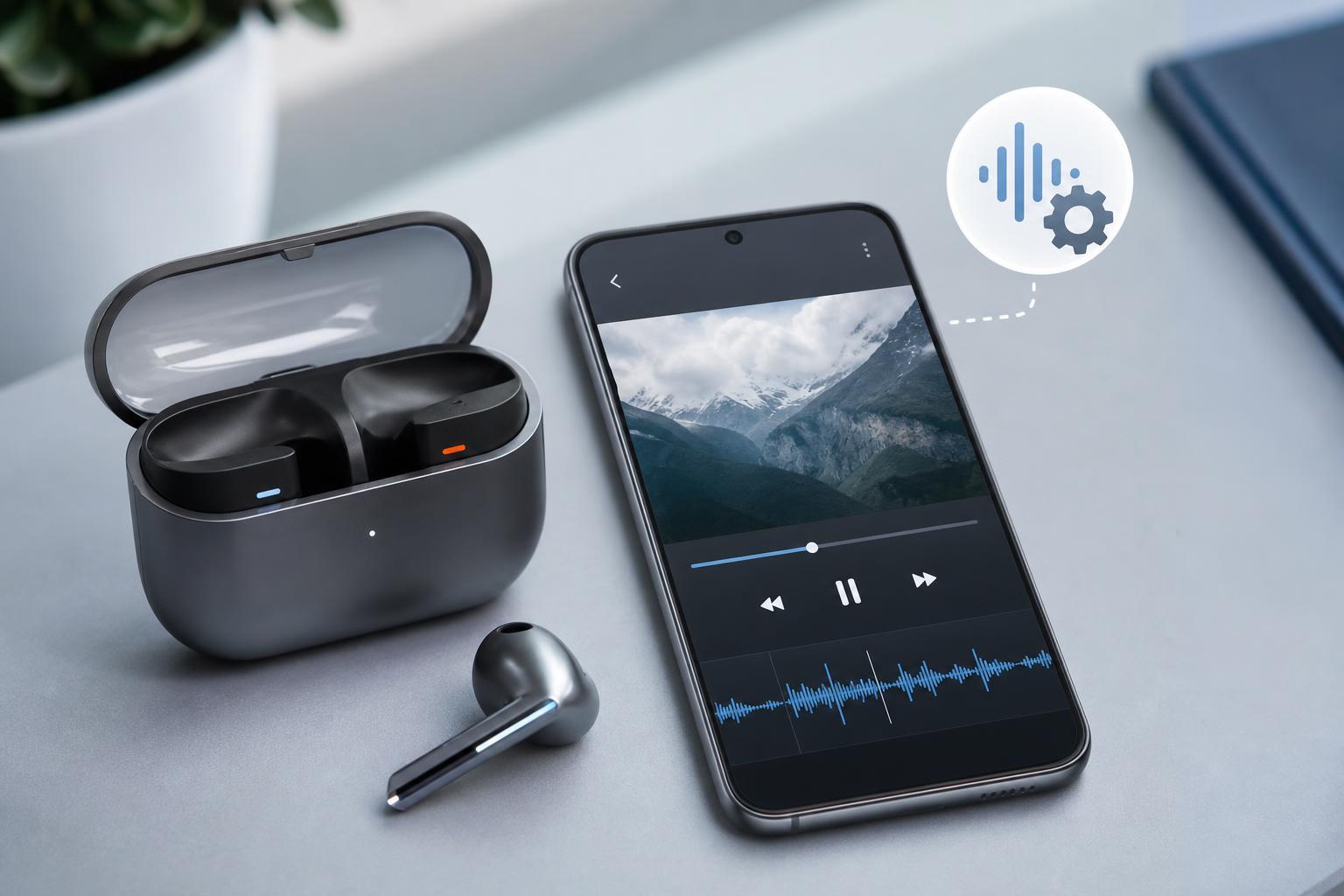
What Audio Sync Problems Usually Look Like
Audio sync issues are not always caused by the earbuds themselves. The problem can come from the phone, the app, Bluetooth interference, or a mismatch between the app’s video playback and the audio path used by the Galaxy Buds 3.
- Sound arrives slightly after lip movements in videos
- Gunfire, footsteps, or effects feel delayed in games
- Speech sounds off during video calls or livestreams
- The delay changes depending on the app you use
- Audio seems fine in one app but out of sync in another
Check the Basics First
Before changing advanced settings, confirm that the connection is stable and that nothing simple is throwing off the timing.
- Put both Galaxy Buds 3 back in the case for a few seconds, then reconnect them.
- Make sure the earbuds are charged enough to stay connected reliably.
- Test the earbuds with a different video or app to see whether the problem is app-specific.
- Move closer to your phone or tablet to rule out a weak Bluetooth connection.
- Turn off other nearby Bluetooth audio devices that may be competing for the connection.
Turn Bluetooth Off and Back On
A brief Bluetooth reconnect can clear temporary pairing glitches that affect timing. This is more useful than it sounds because even a stable-looking connection can develop a small sync error.
- Open your phone’s Bluetooth settings.
- Turn Bluetooth off.
- Wait a few seconds.
- Turn Bluetooth back on.
- Reconnect the Galaxy Buds 3 and test audio again.
Forget the Buds and Pair Them Again
If the delay continues, remove the old pairing and set the earbuds up again. This can refresh the connection profile and clear corrupted pairing data.
- Open Bluetooth settings on your phone.
- Find the Galaxy Buds 3 in the paired devices list.
- Choose Forget, Unpair, or Remove device.
- Place the earbuds in the case, then take them out again to enter pairing mode.
- Pair them again and test a video or game.
Check the App You Are Using
Some apps handle wireless audio better than others. Video players, social media apps, and games may each use different buffering or sync methods, which is why the same earbuds can seem fine in one place and delayed in another.
- Try a different streaming app or video file to compare behavior
- Look for an audio delay or sync setting inside the app
- Update the app from the Play Store or Galaxy Store
- Close and reopen the app after reconnecting the earbuds
- If possible, test the same content on another phone or tablet
Update the Galaxy Buds 3 Firmware
Firmware updates can improve Bluetooth stability, timing, and compatibility with your phone or tablet. If your earbuds are running older firmware, syncing issues may be more noticeable in certain apps or devices.
- Open the Galaxy Wearable app on your phone.
- Connect your Galaxy Buds 3 if they are not already connected.
- Check for available updates in the earbuds settings.
- Install any firmware update and keep the earbuds in the case if prompted.
- Test audio again after the update completes.
Update Your Phone or Tablet Too
A Bluetooth or media playback issue on the phone can cause delay even when the earbuds themselves are working correctly. System updates often include fixes for wireless audio compatibility and performance.
- Install the latest Android or One UI update available for your device
- Update the Galaxy Wearable app and related Samsung plug-ins
- Restart the app after updating so it loads the newest settings
- Retest with the same video or game you used before
Try Another Codec-Friendly Setup
On some Android devices, certain Bluetooth audio paths can make delay more noticeable, especially in games or fast-action video. While you may not always be able to choose a codec manually, changing the device or app can reveal whether the issue is tied to the current playback path.
- Test the earbuds with a different phone or tablet if available
- Try a locally stored video instead of a streamed one
- Check whether game mode or low-latency mode exists inside the app
- Avoid using screen recording or casting while testing sync issues
Reduce Bluetooth Interference
Bluetooth can be affected by crowded wireless environments, physical obstruction, and nearby devices. Interference can make the delay worse or more inconsistent, which is especially noticeable when the audio appears to drift in and out of sync.
- Keep the phone in a pocket or hand on the same side as the active earbud if that helps stability
- Move away from Wi-Fi routers, USB hubs, and crowded wireless areas
- Avoid using the earbuds far from the connected device
- Remove thick cases or accessories only if they seem to block the signal significantly
Reset the Galaxy Buds 3 if the Problem Stays
If pairing again does not help, a reset can clear deeper connection issues. This is more aggressive than simply reconnecting, but it can fix stubborn sync problems caused by bad stored settings.
- Open the Galaxy Wearable app and look for the earbuds reset option.
- Follow the prompts to reset the Galaxy Buds 3.
- Remove the earbuds from Bluetooth on your phone after the reset if they remain listed.
- Set them up again from scratch and test audio sync with a known video or game.
When to Suspect a Hardware Problem
If audio sync problems happen across multiple devices, multiple apps, and after updating, re-pairing, and resetting, the earbuds may have a hardware issue or a persistent compatibility fault.
- The delay happens on every device you test
- One earbud connects or plays differently than the other
- Audio drops out or stutters along with the sync issue
- The problem started after physical damage or exposure to moisture
- The earbuds still misbehave after a full reset and firmware update
What to Try First in Order
If you want the fastest path to a fix, work through these steps in order:
- Test a different app or video to see whether the delay is app-specific.
- Toggle Bluetooth off and on, then reconnect the earbuds.
- Forget the Galaxy Buds 3 and pair them again.
- Check for firmware updates in Galaxy Wearable.
- Update your phone and the Galaxy Wearable app.
- Test in a low-interference location closer to the phone.
- Reset the earbuds if the problem still remains.
If the Sync Problem Only Happens in Games
Game audio is more sensitive to latency than video streaming, so a tiny delay that is barely noticeable in movies can feel much worse in games. If the issue is limited to games, focus on the game’s own audio settings and any low-latency or performance options it offers.
- Check for a built-in audio delay slider
- Look for gaming or performance mode settings
- Lower background recording or streaming features if enabled
- Test a different game to see whether the behavior is consistent
Getting the Best Result From Your Galaxy Buds 3
Most Galaxy Buds 3 audio sync issues are caused by pairing glitches, outdated firmware, app-specific playback behavior, or wireless interference. Start with the simplest checks, compare multiple apps, and update both the earbuds and your phone before moving to a reset.
If the earbuds still lag after all of those steps, the issue is likely deeper and may need Samsung support or service, especially if it affects every device you connect to.





