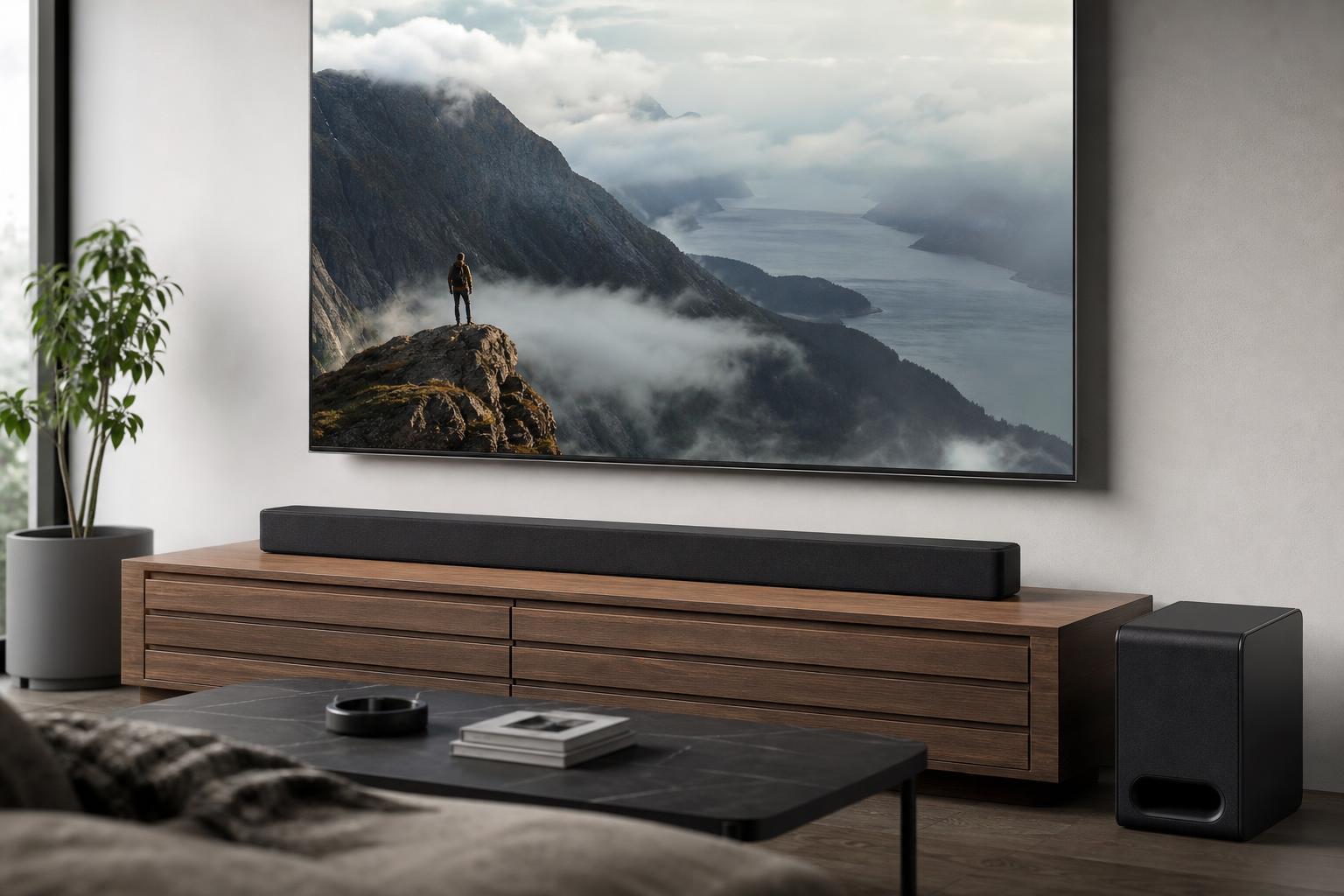
A Samsung TV black screen can be caused by anything from a loose cable or wrong input to a backlight, power, or board problem. The good news is that many black-screen issues are easy to narrow down before you assume the TV needs repair.
This guide walks through the most useful fixes in a logical order, starting with the quickest checks and moving toward deeper troubleshooting when the screen stays dark but the TV still seems to be on.
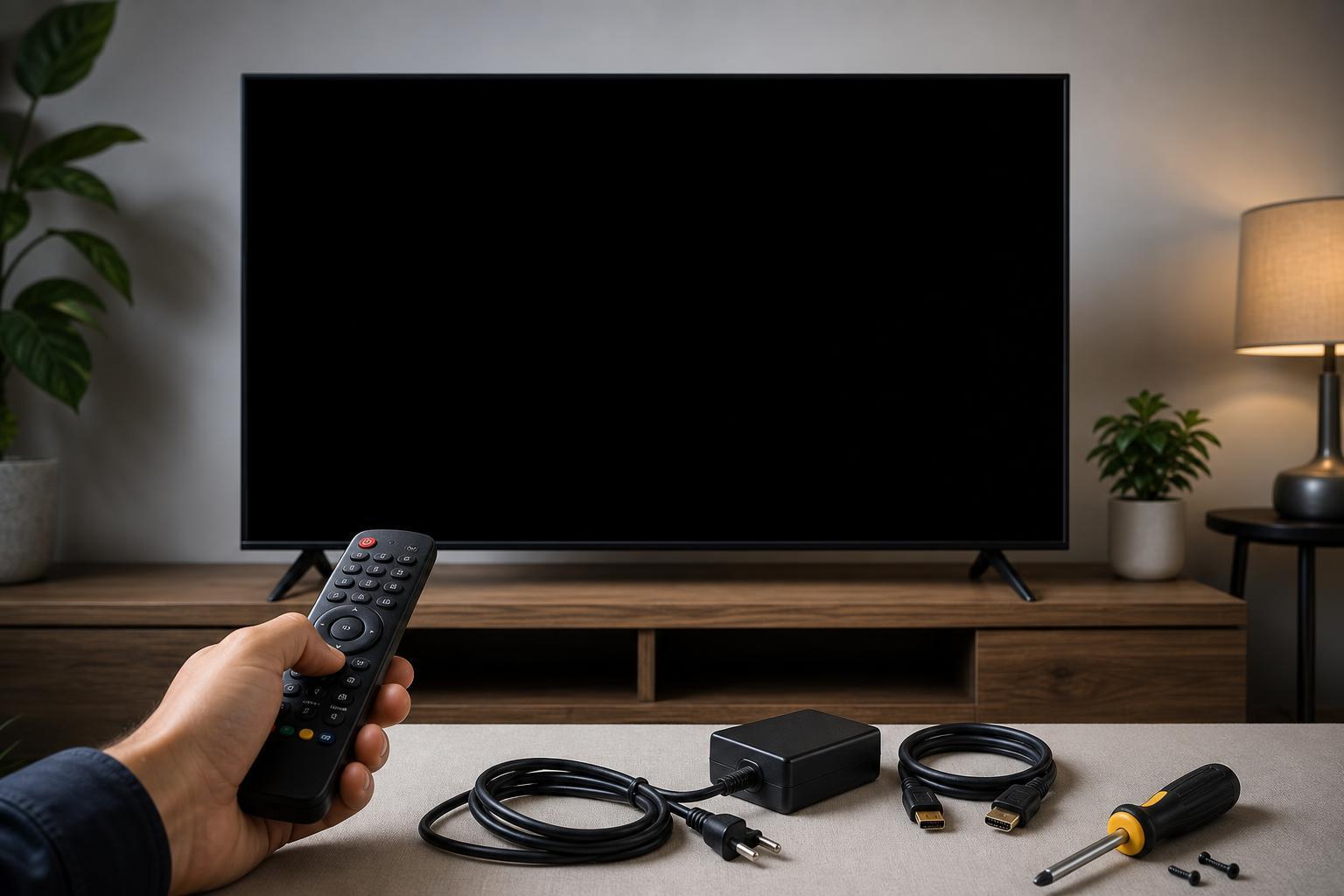
1. Confirm the TV Is Actually Powered On
A black screen does not always mean the TV has failed. First check whether the TV is receiving power and responding normally. Look for a standby light, sound from the speakers, or signs that the screen is faintly lit.
- Press the power button on the TV itself, not just the remote.
- Check whether the standby light changes when you press power.
- Listen for audio from a connected device or built-in menu sound.
- Dim the room and look closely for a very faint image on the screen.
2. Check the Input Source
Samsung TVs can show a black screen if they are set to the wrong input. If the TV is on but nothing appears, make sure it is switched to the correct HDMI port, TV tuner, or streaming input.
- Press the Source or Input button on the remote.
- Cycle through the available inputs one at a time.
- Watch for the connected device’s picture to appear.
- If you use an external box or console, make sure that device is also turned on.
3. Power Cycle the TV and Connected Devices
Temporary glitches in the TV, HDMI device, or handshaking between them can leave you with a black screen. A proper power cycle clears temporary state better than simply turning the TV off with the remote.
- Turn off the TV and unplug it from the wall.
- Unplug any connected devices such as game consoles, streaming sticks, cable boxes, or soundbars if they are involved.
- Wait at least 60 seconds.
- Hold the TV’s physical power button for about 10 to 15 seconds if accessible.
- Plug the TV back in and test again before reconnecting other devices.
4. Inspect HDMI and Other Cables
Loose, damaged, or poor-quality cables are a very common reason for a black screen when using an external source. Even if the cable looks connected, try reseating it firmly at both ends.
- Unplug and reconnect the HDMI cable on both the TV and device ends.
- Try a different HDMI cable if available.
- Move the cable to another HDMI port on the TV.
- Check for bent pins, damaged connectors, or visibly worn cables.
- If you use adapters or switchers, remove them temporarily to test a direct connection.
5. Adjust the Picture and Eco Settings
Some Samsung picture settings can make the screen appear much darker than expected. Features such as brightness reduction, Eco mode, or sensor-based adjustments can make a healthy TV look broken.
- Open the TV settings menu.
- Go to Picture settings.
- Check brightness, backlight, contrast, and similar controls.
- Look for Eco Solution, ambient light sensor, or power-saving options.
- Temporarily disable any automatic brightness or energy-saving features.
6. Test With the Built-in TV Menu or Smart Hub
If the TV menu appears normally, the panel is working and the problem is probably with the source device, HDMI connection, or a selected picture mode. If the menu is also black, the issue is more likely inside the TV itself.
- Open the home menu or settings screen.
- Check whether the interface appears clearly.
- If the menu is visible, switch sources and test another device.
- If the menu is also invisible, focus on backlight, power, or internal hardware causes.
7. Run a Picture Test or Self-Diagnosis Tool
Many Samsung TVs include built-in diagnostics that can help separate panel issues from source or connection issues. If your model supports it, run the picture test from the settings menu.
- Open Settings.
- Go to Support or Device Care, depending on the model.
- Look for Self Diagnosis or Picture Test.
- Follow the on-screen instructions.
- Compare the test image with what you normally see.
8. Check for Backlight Failure
If the TV seems to have sound but the screen stays black, the backlight may have failed. This is different from a blank input because the TV is producing an image that you cannot easily see.
- Turn on the TV in a dark room.
- Shine a flashlight at an angle close to the screen.
- Look for a faint image, menu outline, or movement.
- If you can see a faint picture, the backlight or related display circuitry may be the problem.
9. Reset the TV or Update the Firmware
If the black screen is caused by a software glitch, corrupted settings, or compatibility problems, a reset or firmware update may help. This is more useful when the menu still works or the TV intermittently shows a picture.
- Check for a firmware update in the Support or Software Update section.
- If you can access menus, install the update and let the TV restart fully.
- If the issue began after a settings change, consider restoring picture or system settings to default.
- As a last resort, use the TV’s factory reset option if you are comfortable setting the TV up again afterward.
When the Problem Is Likely Hardware
If the TV has no visible menu, no backlight, no response to different inputs, and no improvement after power cycling, the problem may be a failed power board, main board, T-Con board, backlight strip, or the panel itself.
- The standby light behaves strangely or does not respond normally.
- Sound works but the image never appears, even with a flashlight test.
- The screen flashes briefly and then goes black again.
- The problem affects every input and every menu.
What to Try First if You Want the Fastest Result
Start with the easiest checks: confirm the TV is powered on, switch inputs, and test the HDMI cable or source device. If the menu is visible, the TV panel is probably fine and the issue is more likely external. If the menu is also black and the flashlight test shows a faint image, focus on backlight failure or internal repair.