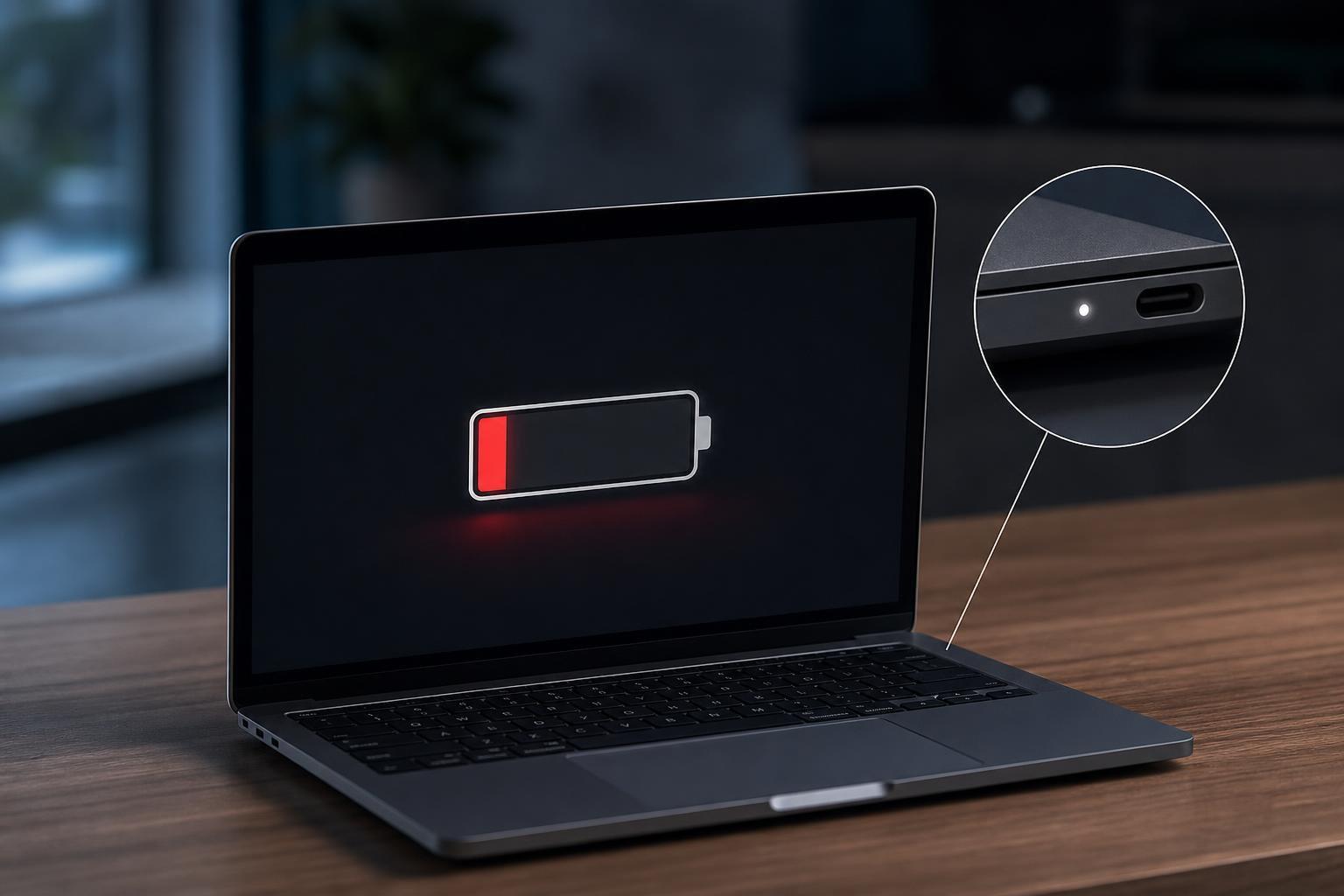
A Kindle that appears dead is often caused by a drained battery, a charging issue, or a frozen device rather than a permanent failure. The good news is that there are several simple checks you can try before assuming the e-reader is broken.
This guide walks through five practical fixes for a Kindle that won’t turn on, starting with the easiest steps and moving toward more advanced troubleshooting.

1. Charge the Kindle for Long Enough
If a Kindle battery has drained completely, the screen may stay blank for quite a while before anything appears. Plug the device into a known-good power adapter and leave it charging for at least 30 minutes, and longer if it has been unused for a while.
- Use the original charger if you still have it, or a charger that is known to work properly.
- Try a different USB cable if the Kindle does not show any sign of charging.
- Plug directly into a wall outlet instead of a computer USB port for the best results.
- Look for charging indicators such as a light or battery icon, depending on the model.
2. Check the Cable, Charger, and Power Source
If the Kindle still shows nothing after some charging time, the problem may be with the power source rather than the device itself. A faulty cable, weak charger, or loose connection can prevent the battery from charging at all.
- Test the wall outlet with another device to confirm it supplies power.
- Swap in a different USB cable, since damaged cables are a common failure point.
- Try another charger or power adapter if one is available.
- Inspect the Kindle charging port for lint, dust, or debris that could block the connection.
3. Force a Restart
A Kindle can freeze in a way that makes it seem powered off when it is actually stuck. Forcing a restart can clear the temporary problem and bring the screen back.
- Press and hold the power button for about 20 to 40 seconds.
- Release the button and wait briefly to see whether the Kindle restarts.
- If nothing happens, plug the Kindle in and repeat the restart process while it is connected to power.
- On some models, the screen may flash or the device may take a little time before showing the logo.
4. Leave It Charging, Then Try a Different Boot Sequence
If the battery was completely flat or the Kindle is struggling to start, a longer charging session can help. After charging for several hours, try turning it on again or repeating the forced restart.
- Leave the Kindle plugged in for 2 to 4 hours if it still does not respond.
- After that, hold the power button again for 20 to 40 seconds.
- If the screen is blank but the device gets warm or shows a charging light, it may still be recovering.
- Try connecting it to a different charger before assuming it is defective.
5. Check for Hardware or Battery Failure
If the Kindle still will not turn on after charging, trying different cables, and forcing a restart, the issue may be hardware-related. Common possibilities include a worn-out battery, a damaged charging port, or internal damage from a drop or liquid exposure.
- The Kindle has no charging light or screen response with any charger or cable.
- The charging port feels loose or only works at certain angles.
- The device was recently dropped, bent, or exposed to moisture.
- The Kindle gets warm while charging but never boots up.
At this point, repair or replacement may be the most practical option. If the Kindle is still under warranty, check Amazon support options for your model. If it is older, battery replacement may be possible on some devices, but not every model is easy to open or service safely.
How to Narrow Down the Problem
The pattern of symptoms can help you tell whether you are dealing with a simple power issue or a deeper hardware failure.
- No response at all until a long charge usually points to a drained battery.
- A Kindle that turns on after a forced restart was likely frozen.
- Charging only at certain angles often suggests a port or cable problem.
- No signs of life with multiple chargers can indicate battery failure or internal damage.
When to Contact Support
If none of these fixes works, contact Amazon support or a qualified repair service. Be ready to describe exactly what you tried, including how long the Kindle was charged, whether any indicator light appeared, and whether the device was dropped or exposed to moisture.