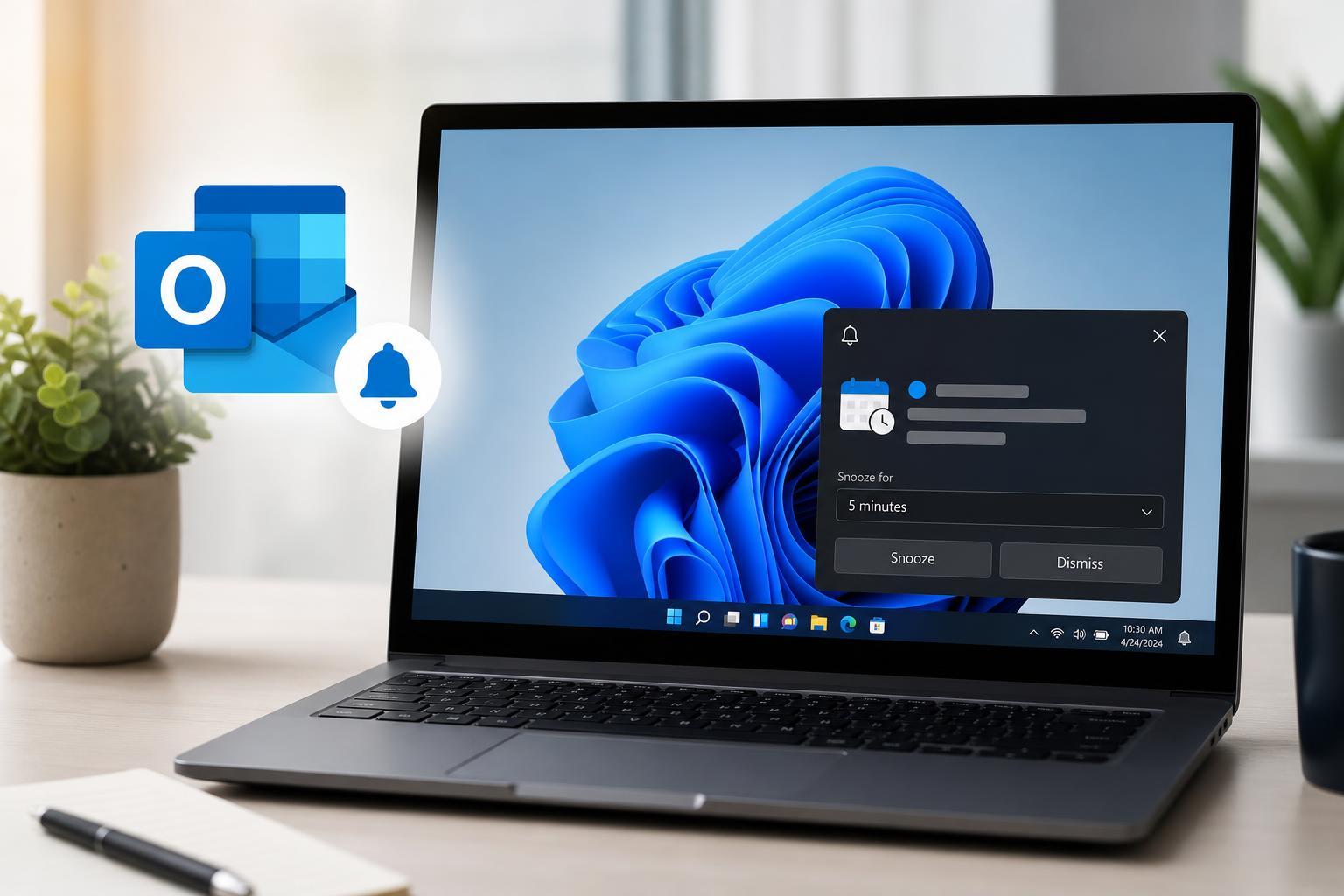
If Outlook reminders are not popping up in Windows, the problem is usually caused by a settings change, a hidden reminder window, or a calendar/mail data issue. In many cases, you can fix it without reinstalling Outlook or changing your account.
This guide covers five practical fixes, starting with the most common causes and moving to deeper repair steps if reminders still do not appear.
1. Make Sure Outlook Reminders Are Turned On
The first thing to check is whether Outlook is actually allowed to show reminders. It is possible for the reminder feature to be disabled in Outlook even when appointments and tasks are still present in your calendar.
- Open Outlook and go to File > Options.
- Select Calendar from the left-hand menu.
- Under Calendar options, look for the reminder settings.
- Make sure the option to show reminders is enabled.
- Check the default reminder time for calendar items and tasks.
If the default reminder time is set to None, new calendar items may not trigger a pop-up even though they appear correctly in your calendar.
2. Check Whether the Reminder Window Is Hidden
Sometimes Outlook reminders are working, but the reminder pop-up is opening behind another window or on a different monitor. This is especially common if you use multiple displays, docking stations, or a remote desktop session.
- In Outlook, go to the View tab.
- Open the Reminders window if it is available.
- If you see reminders listed there, select one and choose Open Item or Dismiss.
- Look at the taskbar and switch between open windows to see whether the reminder dialog is behind another app.
- If you use more than one monitor, check each screen for an off-screen or hidden reminder window.
3. Turn Off Focus Assist and Notification Blocking
Windows can suppress Outlook reminder pop-ups through Focus Assist or notification settings. In that case, reminders may still exist, but Windows prevents the alert from appearing on screen.
- Open Windows Settings.
- Go to System > Notifications.
- Check that notifications are enabled for Outlook and for Windows generally.
- Open Focus assist and make sure it is not set to block alerts during your working hours.
- If you use rules or automatic modes, check whether Focus Assist is turning itself on at certain times.
4. Reset the Reminder Cache in Outlook
If reminders are missing, stuck, or no longer appearing for specific items, Outlook’s reminder data can be corrupted. Resetting the reminder cache forces Outlook to rebuild it.
- Close Outlook completely.
- Press Windows + R to open the Run dialog.
- Type outlook.exe /cleanreminders and press Enter.
- Wait for Outlook to open and rebuild reminder data.
- Check whether reminders start appearing again.
5. Repair Outlook or Test the Data File
If reminders still do not pop up, the issue may be caused by a damaged Outlook installation or a problem in the local data file Outlook is using. A repair can fix missing components, while a data file check can uncover corruption in your mailbox cache or PST file.
- Open Windows Settings and go to Apps > Installed apps.
- Find Microsoft 365 or Outlook and choose Modify or Change.
- Run the Quick Repair option first.
- If that does not help, try Online Repair if it is available.
- If you use a local PST file, use Outlook’s built-in repair tool for that file before assuming the issue is only with reminders.
If you are using an Exchange, Microsoft 365, or Outlook.com account, the mailbox data is often synchronized, but local cache problems can still affect reminders and notification behavior.
When to Look Beyond Outlook Settings
If none of these fixes work, the problem may be tied to the specific calendar item rather than Outlook itself. A reminder can fail if the appointment was created with no reminder, copied incorrectly, or synced from another device with conflicting settings.
- Check whether the affected event actually has a reminder assigned.
- Create a new test appointment with a reminder to see whether pop-ups work for new items.
- Make sure Outlook is fully updated.
- If you use multiple devices, check whether a phone, tablet, or another mail app is changing the reminder settings during sync.
If a test appointment triggers a reminder but older items do not, the issue is likely limited to the original entries rather than your Outlook installation.