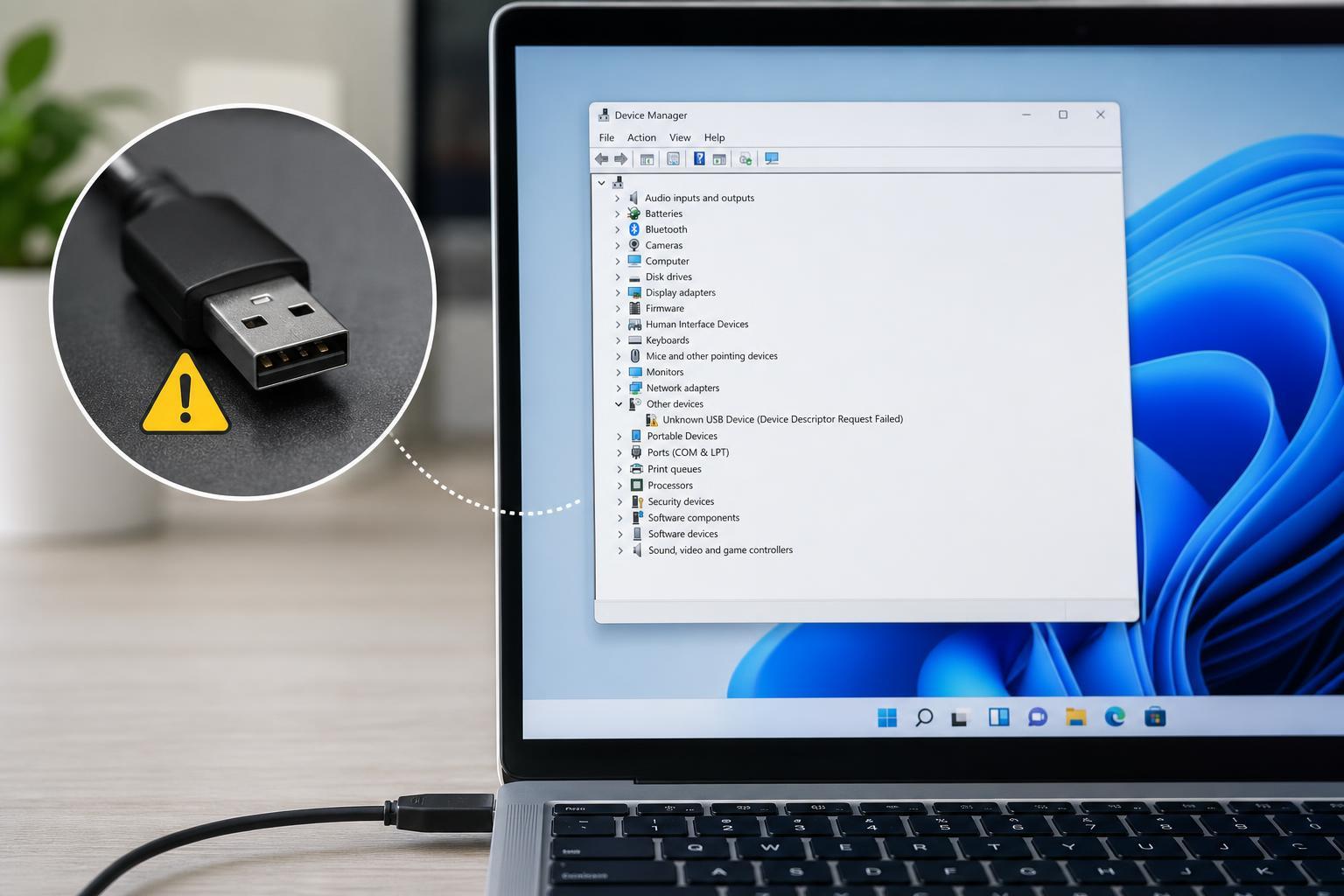
If your AMD GPU driver suddenly shows as disabled after an update, the problem is usually tied to Windows replacing the driver, a failed installation, a driver conflict, or a device error. The good news is that this issue is often fixable without replacing the graphics card.
The key is to figure out whether Windows, AMD software, or the hardware itself is responsible. Once you identify that, the right fix is usually straightforward.
What Usually Causes an AMD GPU Driver to Be Disabled?
An AMD graphics driver can be marked as disabled for several reasons. In many cases, the driver did not actually disappear; Windows or Device Manager simply stopped using it because something went wrong during or after the update.
- Windows Update replaced the AMD driver with a different version
- The driver installation failed or did not finish cleanly
- A newer AMD Adrenalin package conflicted with an older version
- Device Manager detected a problem with the GPU and disabled it
- The system switched to a basic display driver after a crash or failed boot
- Corrupted driver files or registry entries are preventing normal loading
- Power, BIOS, or hardware instability is making the GPU unreliable
How to Tell Whether It Is a Driver Problem or a Hardware Problem
Start by checking Device Manager. If the AMD GPU has a warning icon, error code, or shows as disabled, that usually points to a software or configuration problem rather than a dead graphics card.
- The GPU appears with a yellow warning icon in Device Manager
- Windows is using Microsoft Basic Display Adapter instead of AMD software
- AMD Software: Adrenalin Edition will not open or says no supported AMD hardware was found
- The screen works, but games and GPU-accelerated apps perform poorly
- The problem started immediately after a Windows update or driver update
If the system will not detect the GPU at all, or if it repeatedly disables itself after every restart, hardware, BIOS, or power-related causes become more likely.
The Safest Fixes to Try First
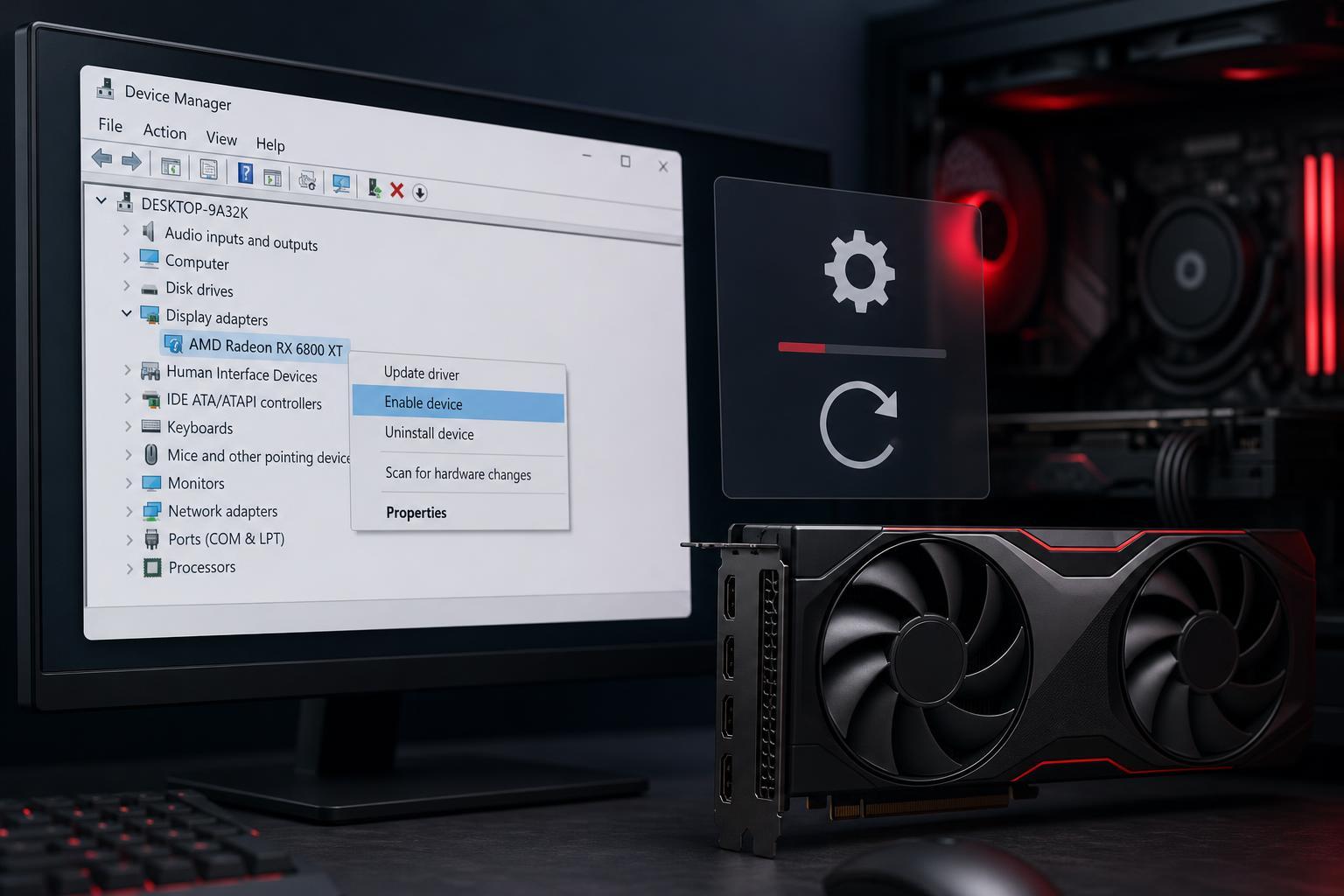
- Open Device Manager, expand Display adapters, and check whether the AMD GPU is listed as disabled or has an error symbol.
- If it is disabled, right-click it and choose Enable device. If Windows allows it to start normally, the issue may have been temporary.
- If the driver is enabled but still malfunctioning, open the AMD software package or use Apps & features to confirm whether the installed driver version matches the current GPU.
- Run Windows Update and check Optional updates, because Windows may have installed or queued a display driver change that needs to finish or be replaced.
- If the issue started right after a recent update, roll back the display driver from Device Manager if the option is available.
- Download the correct AMD driver from AMD’s official support page and install it over the current version, or use a clean reinstall if the existing one is damaged.
Why Windows Update Often Triggers This Problem
Windows Update can install a display driver that is older, newer, or simply different from the one AMD provides. That can create a mismatch, especially if you already had AMD Adrenalin installed.
In some cases, Windows decides the current driver is incompatible or unstable and switches to a fallback driver. That can make it look as if the AMD driver was disabled, when in reality Windows has just replaced or sidelined it.
How to Repair a Broken AMD Driver Installation
- Uninstall the current AMD graphics software from Apps & features or Programs and Features.
- If available, use AMD Cleanup Utility or a similar clean-removal method to remove leftover driver files.
- Restart into normal Windows mode if the cleanup tool asks for it.
- Download the latest recommended driver for your exact AMD GPU model from AMD’s support website.
- Install the driver using the standard installer, and choose the clean install option if it is offered.
- Restart again and check whether the GPU is active in Device Manager and AMD Software opens normally.
When Rolling Back the Driver Makes Sense
If the problem started immediately after a specific update, rolling back can be the quickest fix. This is especially useful when the previous driver was stable and the new one causes the GPU to disable itself or fail to initialize.
- The issue began right after a Windows update
- The system was working normally before the new AMD driver was installed
- Games or apps started crashing immediately after the update
- Device Manager shows the driver working only after a rollback
If the Roll Back Driver button is unavailable, Windows may not have kept the previous version. In that case, a clean reinstall is usually the next best step.
Other Things Worth Checking
- Make sure the GPU is fully seated in the PCIe slot if you are using a desktop PC
- Check that PCIe power connectors are firmly attached to the graphics card
- Update the motherboard BIOS only if you are already seeing broader compatibility problems
- Look for overheating or power supply issues if the driver disables itself under load
- If you use multiple GPUs or integrated graphics, confirm Windows is not switching to the wrong display device
These checks matter because a driver can appear to be the problem when the real issue is unstable power, poor contact, or a BIOS setting that prevents the GPU from initializing correctly.
When to Suspect a Hardware Fault
If the AMD GPU keeps disabling itself even after a clean driver reinstall, the system may have a deeper hardware issue. That is more likely if the card disappears from Device Manager, the PC crashes under load, or the problem happens across multiple driver versions.
- The GPU is not consistently detected after reboot
- The fan or power behavior changes unexpectedly when the driver loads
- The system crashes or powers off when games start
- The problem persists after trying multiple known-good drivers
- The same card shows similar behavior in another compatible PC
What This Means for Most Users
In most cases, an AMD GPU driver disabled after an update is caused by a software conflict rather than a damaged graphics card. The most effective approach is to check Device Manager, identify whether Windows replaced the driver, and then either roll back or clean reinstall the correct AMD package.
If the driver still disables itself after that, move on to power, BIOS, and hardware checks. That helps you avoid unnecessary reinstall attempts and gets you closer to the real cause.