
When Microsoft Defender Antivirus finds a file it thinks is unsafe, it may move that item to quarantine instead of deleting it outright. If you know the file is safe and you need it back, you can review the threat history and restore it from Windows Security.
Open Windows Security
- Open the Start menu and search for Windows Security.
- Select the Windows Security app.
- If prompted, allow it to make changes to your device.
Windows Defender is now managed through the Windows Security app in Windows 10 and Windows 11. The quarantine controls are usually found under Virus & threat protection.
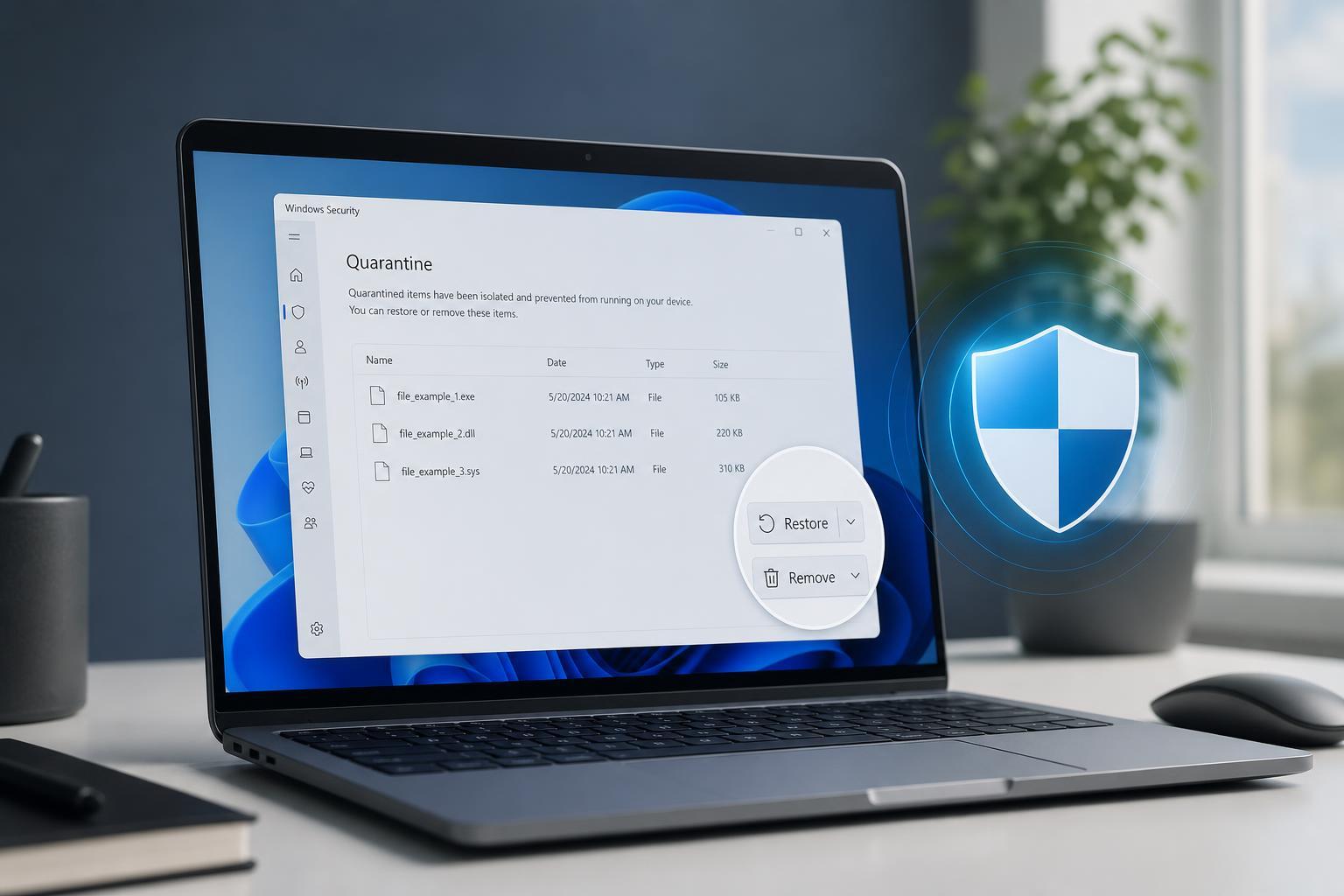
Find the Quarantined Item
- In Windows Security, select Virus & threat protection.
- Scroll to the Current threats section.
- Click Protection history.
Protection history shows recent detections, blocked items, and quarantined files. If the item was flagged recently, it should appear near the top of the list.
Restore the File
- Select the quarantined item you want to recover.
- Review the threat name and file location carefully.
- Choose Actions or the menu entry for that item.
- Select Restore to return the file to its original location.
After restoring, the file should return to the folder it came from, assuming that location still exists and Windows has permission to write there. If the file was part of an app or installer, you may need to rerun the program or reinstall it after restoring.
If Restore Is Blocked or the Item Comes Back
- The file may be protected by another security feature, such as Controlled folder access or another antivirus program.
- The item may still be detected as unsafe, so Defender quarantines it again immediately after restore.
- The original file may be part of a larger app or installer that needs to be repaired or reinstalled.
- The threat history entry may be stale, missing, or already cleared from the log.
If the same file is quarantined again right after restoration, do not keep forcing it back. That usually means Defender is still detecting a real risk, or the file is behaving like malware. In that case, confirm the file’s source and scan it with a second trusted tool if needed.
When It Makes Sense to Restore a Quarantined File
Safer Alternatives If You Are Unsure
- Upload the file to a reputable online scanner before restoring it.
- Compare the file’s name, publisher, and download source with the official website.
- Re-download the file from the original trusted source instead of restoring an old copy.
- If it came from an email attachment or a random download site, leave it quarantined and delete it instead.
What to Do If You Need the File but Still Do Not Trust It
If the file is important but you are not fully confident about it, the safest option is usually to leave it quarantined and look for a clean replacement. For software, that may mean downloading a fresh copy from the vendor. For documents, photos, or projects, it may mean recovering the file from a backup instead of restoring the flagged version.





