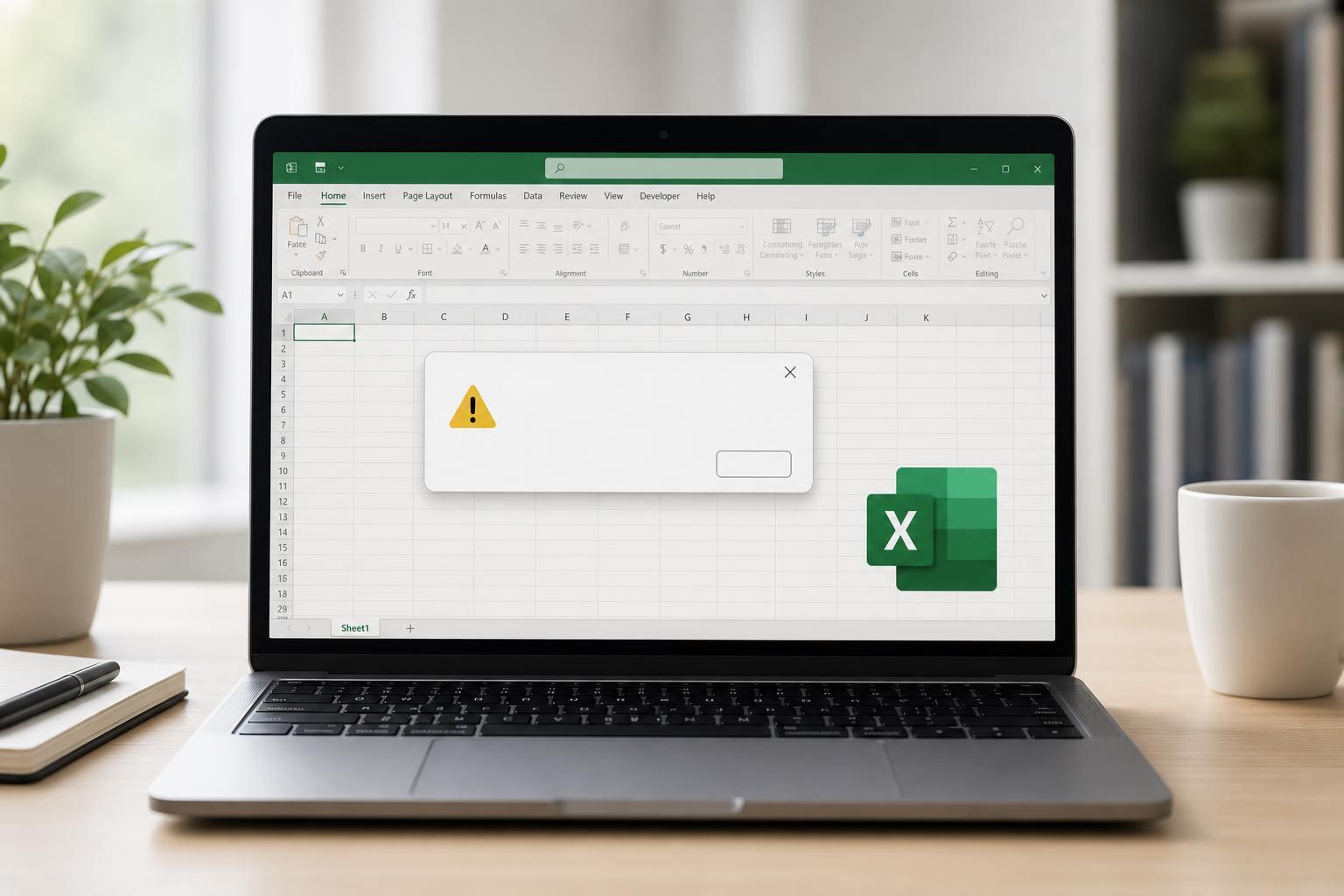
If Excel for Windows is showing a “Microsoft has blocked macros” message, the workbook is usually being protected because it came from an untrusted source or because your security settings are preventing macros from running. In many cases, you can fix it without changing anything risky.
The right fix depends on why the file is blocked. Sometimes the workbook needs to be unblocked in Windows, sometimes it must be opened from a trusted location, and sometimes Excel is following a policy setting that only your IT admin can change.
1. Unblock the File in Windows
If you downloaded the workbook from email, a website, cloud storage, or a chat app, Windows may mark it as coming from another computer. That mark can cause Excel to block macros even if the file itself is legitimate.
- Close the workbook if it is open in Excel.
- In File Explorer, find the Excel file on your PC.
- Right-click the file and select Properties.
- On the General tab, look for an Unblock option near the bottom.
- If you see it, check Unblock, then click Apply and OK.
- Reopen the workbook in Excel and test the macro again.
2. Move the Workbook to a Trusted Location
Excel can allow macros to run from folders that you mark as trusted. This is a good option when you regularly use macro-enabled workbooks from the same folder.
- Open Excel and go to File.
- Select Options, then Trust Center.
- Click Trust Center Settings.
- Open Trusted Locations.
- Click Add new location.
- Choose a folder where you want to keep trusted macro workbooks, then confirm the selection.
- Move the workbook into that folder and open it again from there.
3. Check Excel Macro Security Settings
Excel has macro security settings that can stop macros from running entirely or can restrict them until you make an explicit choice. If the file is not blocked by Windows, these settings may be the reason macros still will not run.
- Open Excel.
- Go to File, then Options.
- Select Trust Center, then Trust Center Settings.
- Open Macro Settings.
- Review the available options.
- Choose the least permissive setting that still allows the workbook you need to use, then click OK.
If you are not sure which setting is right, avoid using a permissive option unless you understand the source of the file. A macro-enabled workbook can do useful automation, but it can also carry harmful code.
4. Make Sure the Workbook Is in a Macro-Enabled Format
Excel macros require a workbook format that supports them. If the file was saved or converted to a non-macro format, Excel may refuse to run the code even if the workbook opens normally.
- .xlsm for standard macro-enabled workbooks
- .xlsb for binary macro-enabled workbooks
- .xls for older macro-enabled files
If the workbook was renamed, exported, or saved as .xlsx, the macros may no longer be included. In that case, opening the file will not restore the missing macro code.
5. Check Whether Group Policy or IT Security Is Blocking Macros
On work computers, the block may be enforced by your organization rather than by Excel itself. In that case, changing settings locally may not solve the problem.
- The Unblock option is missing even on downloaded files
- Macro settings are greyed out in Trust Center
- The error appears on every workbook, not just one file
- The workbook works on another PC but not on your work computer
If these signs match your situation, contact your IT administrator. They may need to allow the file location, adjust a policy, or confirm that the workbook is permitted in your environment.
How to Narrow Down the Cause
The quickest way to solve the problem is to identify whether the block is coming from the file, Excel, or your organization’s security policy.
- If the file came from the internet, try unblocking it first.
- If the file is stored in a safe folder you use often, add that folder as a trusted location.
- If the problem affects all macro workbooks, check Excel macro settings.
- If settings are locked or greyed out, ask IT whether a policy is enforcing the block.
- If the workbook is saved as .xlsx, confirm that it was not stripped of its macro code.
Once you know which layer is causing the block, the fix usually becomes straightforward. Most personal systems are resolved by unblocking the file or using a trusted location, while workplace systems often require admin approval.