If your Amazon Echo says it is connected to Bluetooth but you still hear nothing, the problem is usually not the connection itself. In many cases, the Echo is paired correctly but the audio is muted, routed somewhere else, or the Bluetooth session is stuck.
The fixes below start with the most common causes and move to more specific checks so you can get sound working again without wasting time on unnecessary steps.
1. Check the volume on both the Echo and the Bluetooth device
A Bluetooth connection can be active even when the volume is turned down on the Echo, the phone, tablet, or computer sending the audio, or both. This is the first thing to check because it is one of the most common reasons for silent playback.
- Increase the volume on the Echo using the speaker’s volume buttons or your voice.
- Turn up the media volume on the phone, tablet, or computer playing the audio.
- Make sure the app you are using is not muted or paused.
- If you are using a computer, check the speaker icon and confirm the output volume is not set too low.
- Try a different app or song to rule out a problem with the audio source itself.
2. Make sure the audio is actually playing to the Echo
Sometimes your device is connected to the Echo, but the app or operating system is still sending sound to another speaker, headset, or display. This is especially common on phones, laptops, and tablets that remember multiple audio devices.
- Open the Bluetooth or sound settings on the device that is sending audio.
- Confirm the Amazon Echo is selected as the active playback device.
- Disconnect or turn off other nearby Bluetooth audio devices if the wrong one keeps taking over.
- In apps with their own output selector, such as music or meeting apps, choose the Echo from the audio device list.
- If you are casting or streaming from a browser, check the browser’s audio output controls as well.
3. Forget and re-pair the Echo Bluetooth connection
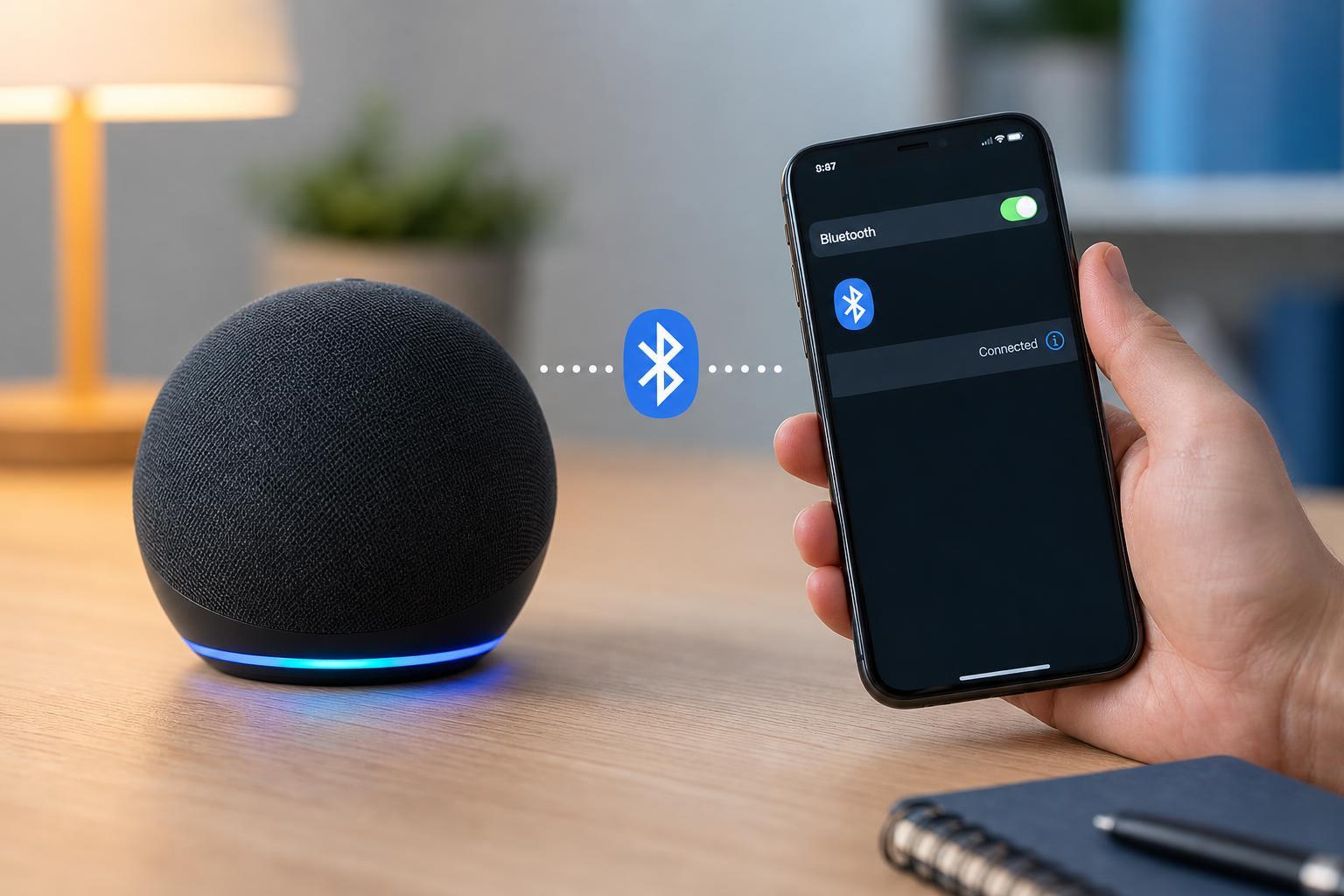
If the Echo is connected but silent, the Bluetooth pairing may be corrupted. Removing the pairing on both devices and setting it up again often clears a stuck connection profile.
- On the phone, tablet, or computer, open Bluetooth settings and forget or remove the Echo.
- On the Echo, ask Alexa to disconnect Bluetooth or say, 'Alexa, disconnect.'
- If needed, say, 'Alexa, pair Bluetooth,' to put the Echo back into pairing mode.
- Reconnect from the Bluetooth menu on your device and test audio again.
- If the device asks for confirmation or permission to use media audio, allow it.
4. Restart the Echo and the device sending audio
A restart can clear temporary Bluetooth or audio-routing glitches on either device. This is especially useful if the connection was working earlier and suddenly stopped without any obvious change.
- Unplug the Echo for about 30 seconds, then plug it back in.
- Restart the phone, tablet, or computer sending the audio.
- Reconnect Bluetooth if the devices do not automatically reconnect.
- Test with a short audio clip or voice response to confirm sound is working.
- If possible, test the Echo with a different Bluetooth device to see whether the issue is limited to one source device.
If the Echo still connects but stays silent
If none of the fixes above help, the problem may be specific to the source device, the Echo’s firmware, or an unusual Bluetooth compatibility issue. At that point, try these extra checks:
- Test the Echo with another phone, tablet, or computer to see whether Bluetooth audio works at all.
- Check whether the Echo can play normal Alexa responses or only fails with Bluetooth audio.
- Update the app or operating system on the device sending audio.
- Move the devices closer together and remove interference from other wireless devices.
- Check whether the Echo works over Wi-Fi audio services, which can help distinguish a Bluetooth-only problem from a speaker problem.
How to narrow down the cause quickly
A simple test can save time: play audio from a second Bluetooth device. If the Echo works with another source, the issue is usually on the original phone or computer. If no device can send audio to the Echo, the problem is more likely with the Echo or its Bluetooth settings.
- Works with another device: focus on the original phone, tablet, or computer.
- Works after re-pairing: the old Bluetooth connection was likely corrupted.
- Works after a restart: the issue was probably temporary.
- Still no sound from any device: check for deeper Echo or firmware-related problems.