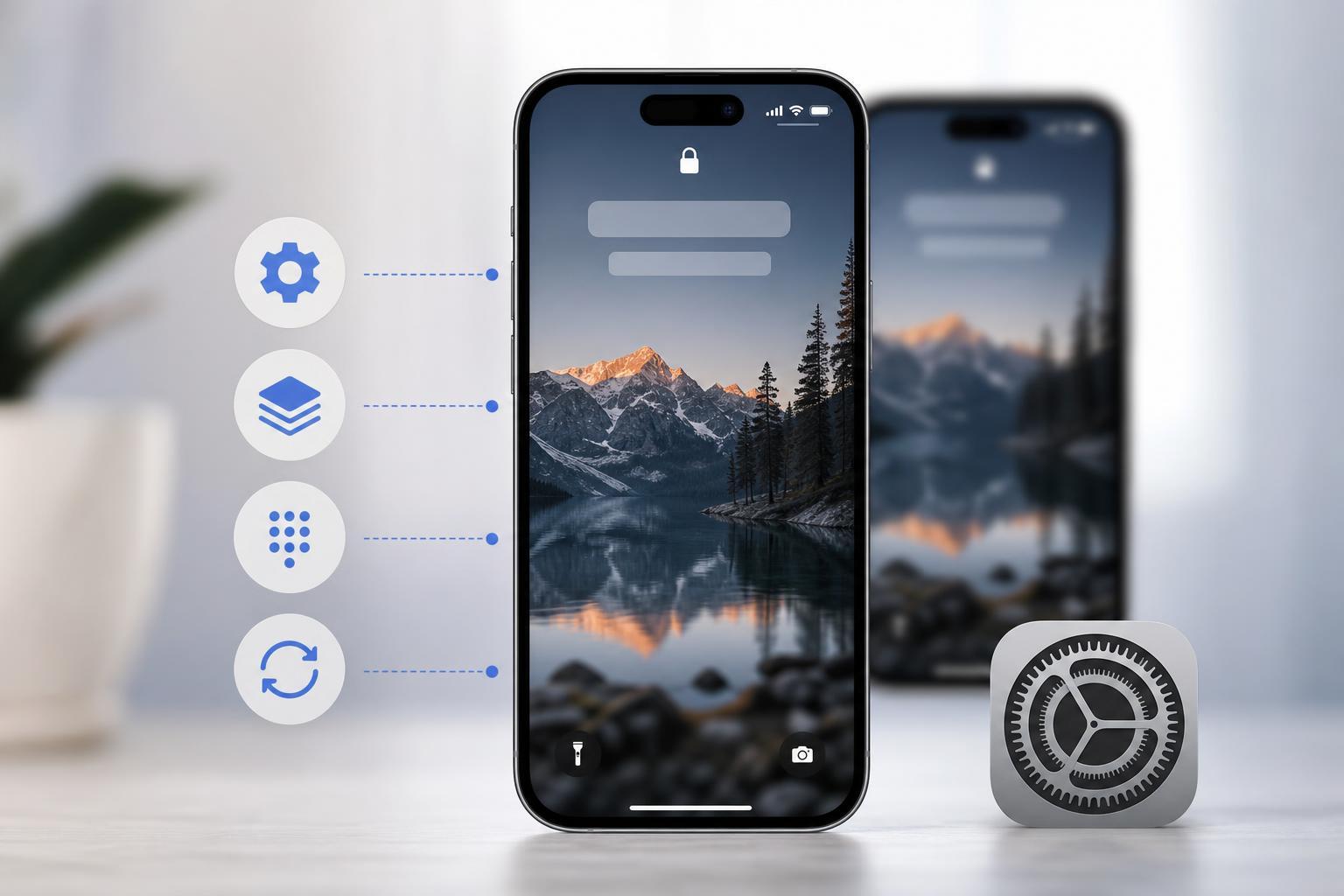
Apple’s iOS 16 and iPadOS 16 wallpapers are popular because they give iPhones and iPads a clean, polished look. If you want to download them for your device, this guide explains the safest ways to get the wallpapers and how to use them properly.
You can use the official wallpapers on compatible Apple devices or save them for a custom home screen and lock screen setup. The exact steps depend on whether you are downloading from Apple’s built-in options, a trusted wallpaper archive, or a file you already have.

What You Need Before You Download
- An iPhone, iPad, or computer with internet access
- Enough storage space for the image files
- A trusted source for the wallpapers
- A recent version of Photos, Files, or your browser to save the image
Best Ways to Get iOS 16 and iPadOS 16 Wallpapers
The safest option is always to use wallpapers from Apple’s own software or from a reputable archive that clearly labels the files. This helps you avoid low-quality images, fake downloads, or pages filled with misleading buttons.
- If the wallpaper is already available on your device, open the wallpaper picker in Settings and look for the built-in iOS 16 or iPadOS 16 options.
- If you are using a wallpaper archive, open the page and download the full image file rather than a preview thumbnail.
- On an iPhone or iPad, tap and hold the image, then save it to Photos if the website allows direct saving.
- On a computer, download the file and transfer it to your device through iCloud Photos, AirDrop, or the Files app.
- Open the saved image in Photos or Files and set it as your lock screen, home screen, or both.
How to Save the Wallpaper on iPhone or iPad
- Open the wallpaper image in Safari or another browser.
- Tap and hold the image until the menu appears.
- Choose Add to Photos or Save Image.
- Open the Photos app and find the downloaded wallpaper.
- Tap the Share button if needed, then choose Use as Wallpaper or set it from the wallpaper settings screen.
How to Set the Wallpaper in iOS 16 and iPadOS 16
- Open Settings.
- Tap Wallpaper.
- Choose Add New Wallpaper or select the image from your photo library.
- Adjust the image position and zoom level if needed.
- Choose whether to apply it to the Lock Screen, Home Screen, or both.
- Confirm the change and save the wallpaper setup.
If you want the cleanest result, use an image that matches your screen orientation. Vertical wallpapers usually look best on iPhones and iPads held in portrait mode.
If the Wallpaper Does Not Look Right
- The image may be too small for your screen and become blurry when stretched
- The file may have been compressed by the website
- The crop may be incorrect for your device’s aspect ratio
- The wallpaper may include extra elements that are hidden by the clock, widgets, or icons
If the image is cut off badly, try zooming out slightly during placement or using a version made specifically for your device model. For the best appearance, use a wallpaper that was exported at the proper resolution for iPhone or iPad display sizes.
When to Use Official vs. Third-Party Downloads
A Simple Way to Keep the Wallpaper Ready for Later
After downloading the wallpaper, save a copy in Photos, Files, or iCloud Drive so you can use it again later without searching for it a second time. This is especially helpful if you regularly change your lock screen or switch between multiple devices.