
The Journal app on iPhone gives you a simple place to capture thoughts, memories, and daily moments in one private space. It is designed to make journaling easier by suggesting topics, letting you add media, and organizing entries so you can revisit them later.
If you want to start a journaling habit without needing a separate app, this guide walks through the basics of setting up Journal, creating entries, and using the features that make it useful day to day.
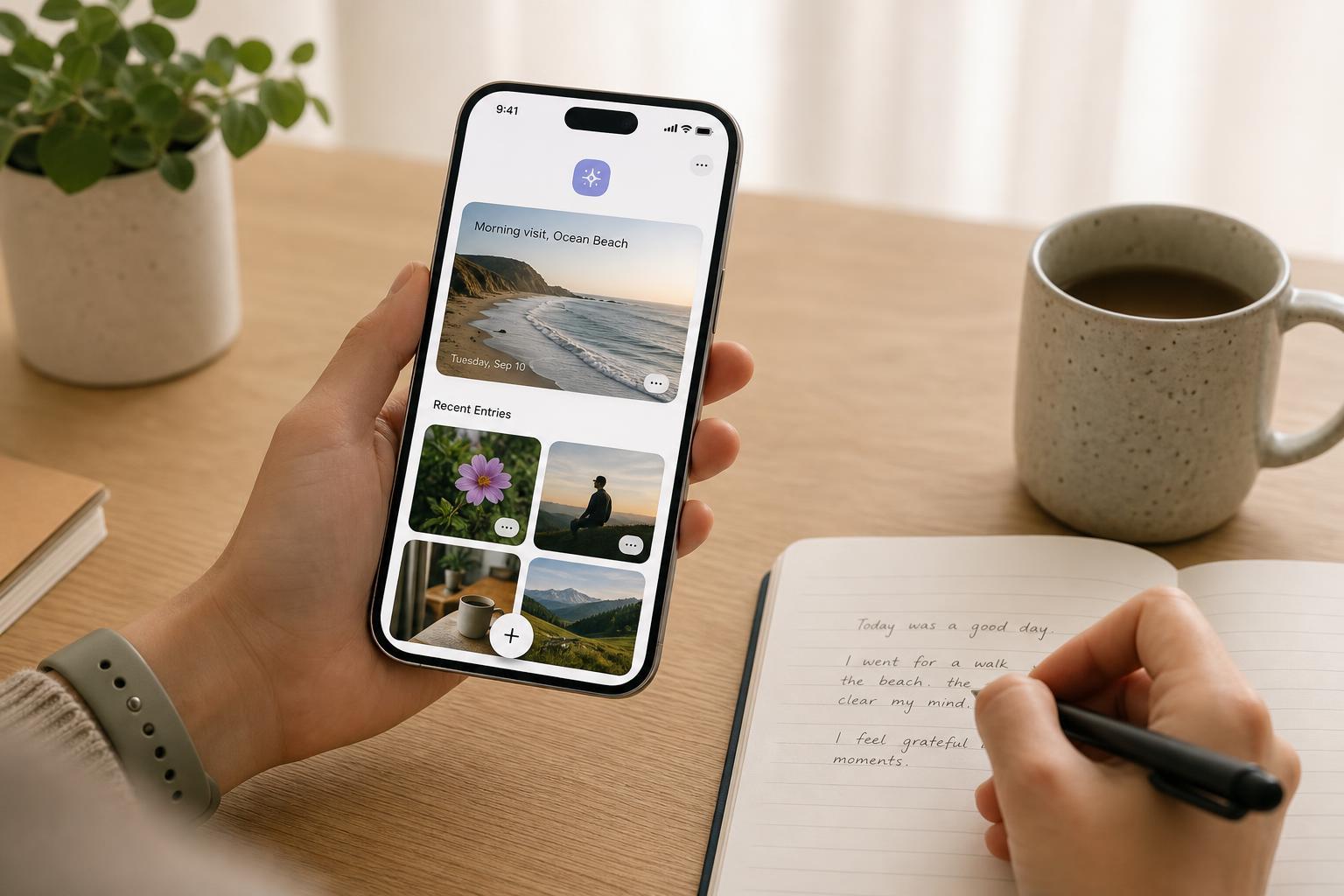
What the Journal App Does
Apple’s Journal app is built for quick, personal entries. You can write about your day, add photos, include locations or activities, and use suggested prompts to help you decide what to write about.
Before You Start
- You need a compatible iPhone with the Journal app available.
- Make sure iOS is up to date, since Journal is tied to newer iPhone software versions.
- Allow the app the permissions you want it to use, such as Photos, Location, or notifications.
- Think about whether you want to use suggested entries or write everything manually.
Open and Set Up Journal
- Open the Journal app from your Home Screen or App Library.
- Follow the on-screen setup prompts.
- Choose whether to enable suggestions, notifications, and access to content such as photos or activity data.
- Confirm any privacy or permission settings you want to use.
- Finish setup and open the main Journal screen.
Create Your First Entry
- Tap the New Entry button.
- Start typing your journal entry.
- Add a title if you want to make the entry easier to find later.
- Tap the options for adding photos, locations, or other media if you want more context.
- Save the entry when you are done.
You do not need to write a lot. A short note about what happened today, something you learned, or one thing you want to remember can be enough.
Use Suggestions and Prompts
One of Journal’s most useful features is its suggestion system. The app can surface ideas based on your recent activity, such as places you visited, photos you took, or workouts and events you may want to reflect on.
- Use a suggestion when you want a quick starting point.
- Ignore suggestions that do not feel relevant.
- Choose a different memory, photo, or event if the first prompt does not inspire you.
- Write freely even if the suggested prompt is simple.
Add Photos and Other Details
Adding a photo can make an entry more meaningful because it gives context to what you were doing or feeling at the time. Depending on your settings and permissions, you may also be able to include location-related details or activity-based context.
- Tap the photo or media option while creating an entry.
- Choose an image from your library or suggested content.
- Keep the entry readable by writing a few notes about why the moment mattered.
- Avoid adding too much if you want to keep the journal quick and easy to review later.
Find and Review Older Entries
Journal is not just for writing new entries. It is also useful for looking back at past moments, which can help you remember events, track routines, or notice patterns in your mood and habits.
- Open Journal.
- Browse your list of entries or use search if available.
- Tap an entry to read it again.
- Edit the entry if you want to add more detail or correct something.
- Return to the list to continue reviewing older posts.
Edit or Delete an Entry
If you want to change something you wrote, open the entry and use the edit option. You can usually update the text, adjust media, or remove an entry you no longer want to keep.
- Edit an entry when you remember more details later.
- Delete an entry if it was created by mistake.
- Review the entry before deleting it, since removal may not be something you can easily undo.
- Keep a habit of checking sensitive content before saving.
Make Journaling Easier to Keep Up With
The best way to use Journal is to make it simple enough that you do not avoid it. A short routine works better than waiting until you have time to write a perfect entry.
- Write one entry at the end of the day.
- Use a photo as a prompt when you do not know what to say.
- Keep entries short on busy days.
- Turn on reminders if they help you stay consistent.
- Use the app for memories, not just major events.
When the Journal App Feels Hard to Use
If the app does not seem useful at first, the issue is often that the journaling process is too complicated or the suggestions are not matching what you want to write about. In that case, reduce the number of permissions, rely less on prompts, and use the app only for plain text notes or meaningful photos.
- Too many prompts? Write manually instead.
- Privacy concerns? Limit photo and activity access.
- Not enough time? Keep entries to one or two sentences.
- Forgot to use it? Set a simple daily reminder.
A Simple Way to Get the Most From It
The Journal app works best when you treat it as a lightweight habit rather than a task. Use it to capture small moments quickly, add a little context, and return to those memories later when you want a reminder of what was happening in your life.





