
If you’re trying to share a Facebook post to Instagram and nothing happens, the issue is usually not a single broken setting. It is often caused by account linking problems, posting restrictions, unsupported content, or an app sync issue between Meta’s platforms.
This guide explains the most likely reasons Facebook posts won’t cross-post to Instagram and walks through the checks that actually matter, starting with the easiest fixes.
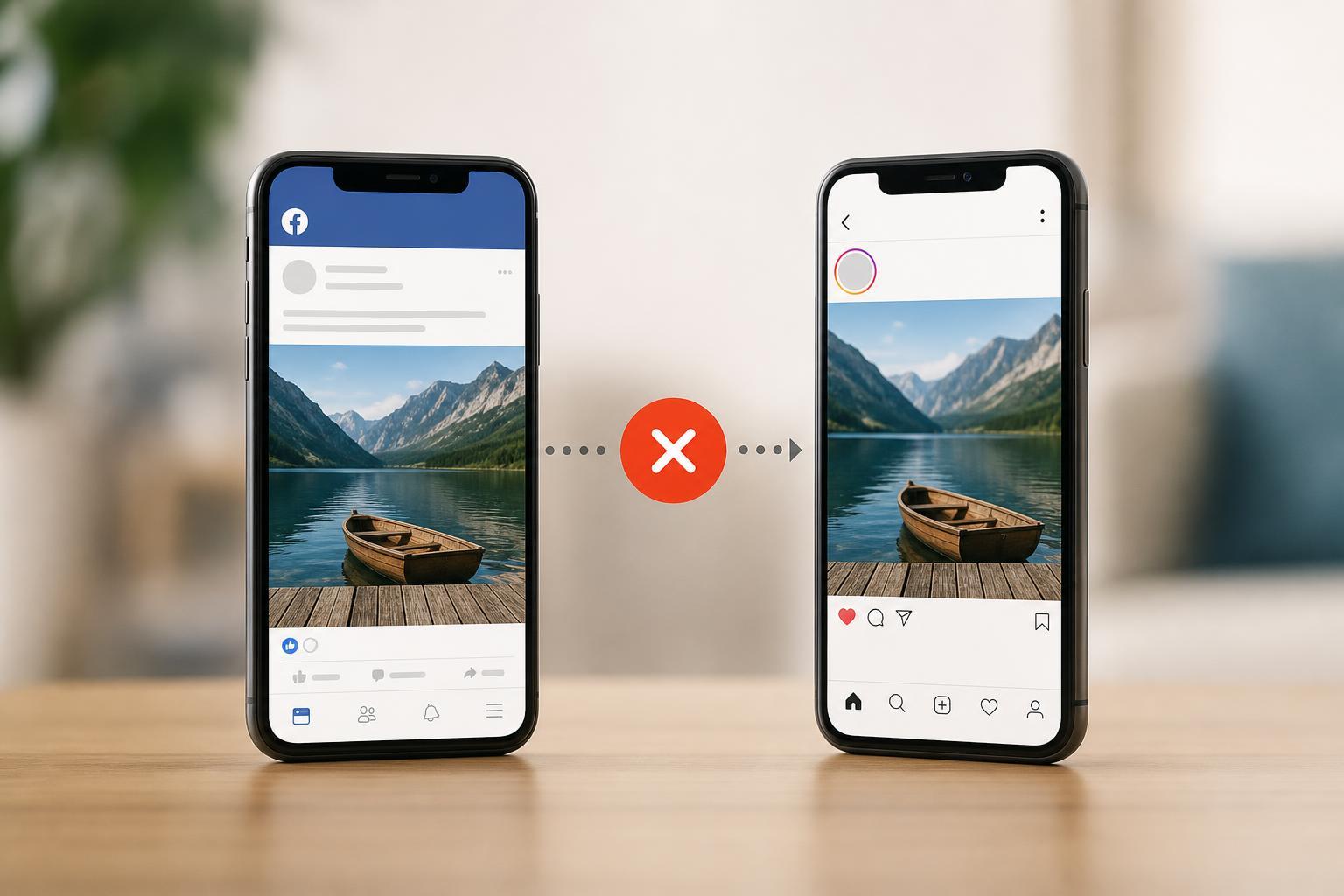
What Facebook-to-Instagram Sharing Depends On
Sharing a Facebook post to Instagram only works when the right Meta accounts are linked and the post format is allowed on both platforms. Even then, some posts can’t be shared automatically because Instagram and Facebook do not support the same types of content in the same way.
Common Reasons the Share Fails
- Your Facebook and Instagram accounts are not linked correctly in Accounts Center.
- The post is not eligible for sharing, such as some reel, story, album, or reshare formats.
- The Facebook post is set to a privacy level or audience that Instagram cannot use.
- You are posting from a Page, professional account, or personal profile that is not connected the way you expect.
- The Instagram app or Facebook app has a sync problem after an update or password change.
- Cross-posting was turned off for that account or for that specific post.
Check That Your Accounts Are Linked in Accounts Center
The most common cause is a broken or incomplete connection between your Facebook and Instagram accounts. Meta uses Accounts Center to manage sharing across apps, so if the link is missing or outdated, cross-posting will fail.
- Open Facebook or Instagram and go to Settings.
- Look for Accounts Center.
- Check that both your Facebook account and Instagram account appear there.
- If one account is missing, add it again and confirm the login details.
- Make sure sharing between profiles is enabled for the direction you want, not just general account linking.
Make Sure the Post Can Actually Be Shared
Not every Facebook post can be sent to Instagram. Even when the accounts are linked, the content itself may be incompatible. This is especially common with formats that are designed differently on each platform.
- Some photo albums do not cross-post cleanly.
- Certain videos may have size, length, or format limits.
- Shared posts, reshares, and some linked-page posts may not be eligible.
- Posts with location, tagging, or formatting that Instagram does not support may fail.
- A post created in one app may not transfer the same way if it includes features unique to that platform.
Check the Audience and Privacy Settings
Privacy settings can block sharing in subtle ways. A Facebook post intended for a limited audience may not be available to push to Instagram, especially if the sharing setup expects a public or compatible professional posting flow.
- Posts set to a restricted audience may not cross-post reliably.
- Some Page and professional posting workflows require specific publish settings.
- If the post is private to friends or a custom audience, Instagram sharing may not appear or may fail after you try it.
Confirm You Are Using the Right Account Type
Sharing options are not the same for personal profiles, business pages, and professional accounts. A setup that works for one account type may not be available for another, especially if you manage more than one Facebook Page or Instagram profile.
- Personal profile to personal Instagram account
- Facebook Page to Instagram professional account
- Business or creator workflows inside Meta’s publishing tools
- Multiple accounts signed in on the same device
If you post from the wrong account, you may think sharing is broken when the issue is really that the selected Facebook identity is not the one connected to Instagram.
Check the App Permissions and Connection Status
If Meta apps lost permission to communicate properly, the share option may stop working without any obvious warning. This can happen after updates, account security changes, or when you log out and back in on one app but not the other.
- Open Instagram and Facebook settings.
- Go to Accounts Center or connected accounts.
- Remove the Instagram connection if it looks incorrect.
- Add the account again and sign in when prompted.
- Return to the post and try sharing again.
Why the Share Button May Be Missing
Sometimes the problem is not that sharing failed, but that the share option never appeared in the first place. That usually means the post does not meet the requirements for cross-posting, or the feature is not enabled for that account combination.
- The post format is unsupported
- The accounts are not linked in the correct place
- Cross-posting is disabled for new posts
- You are using an older app version
- The account is in a region or workflow where the option behaves differently
Try Updating the Apps and Checking for Sync Delays
Facebook and Instagram often depend on the latest app version to keep account linking and sharing tools working properly. If the apps are outdated, the sharing option may not appear or may fail when you tap it.
- Update both Facebook and Instagram from the App Store or Google Play.
- Close and reopen the app after updating.
- Wait a little while if you just changed account links or passwords, since sync can take time.
- Try creating a new test post to see whether the problem affects only one post or all posts.
If You Manage a Facebook Page or Professional Account
Pages and creator or business accounts can add another layer of complexity. The page, the Facebook profile that manages it, and the Instagram professional account may all need to be connected correctly before cross-posting works.
- Make sure the Facebook Page is linked to the correct Instagram account.
- Check that you are publishing as the Page or professional identity you intend to use.
- Review whether the post was created through Meta Business Suite, the Facebook app, or Instagram, since each path can behave differently.
- Confirm you still have admin or editor access to the Page if sharing stopped after a team change.
When to Suspect a Temporary Platform Issue
If everything looks correct but sharing still fails for every post, the problem may be temporary on Meta’s side. This is more likely if the issue started suddenly and affects more than one device.
- The share option disappears across multiple accounts
- Cross-posting fails for all new posts, not just one
- Facebook and Instagram both show normal login status, but the feature still will not work
- Other users report similar behavior around the same time
In that case, checking again later is reasonable. If the issue persists, review your account connection and app versions one more time before assuming it is a platform outage.
Quick Checklist to Fix the Problem
- Confirm Facebook and Instagram are linked in Accounts Center.
- Check that the post type is eligible to share.
- Review audience and privacy settings.
- Verify you are using the correct Page, profile, or professional account.
- Update both apps.
- Remove and re-add the account connection if needed.
- Test with a simple new post.
What This Usually Means in Practice
In most cases, Facebook posts fail to share to Instagram because the account link is incomplete or the post itself is not supported. If you only have one problem post, look closely at its format and privacy. If nothing shares at all, focus on Accounts Center, permissions, and app updates first.





