
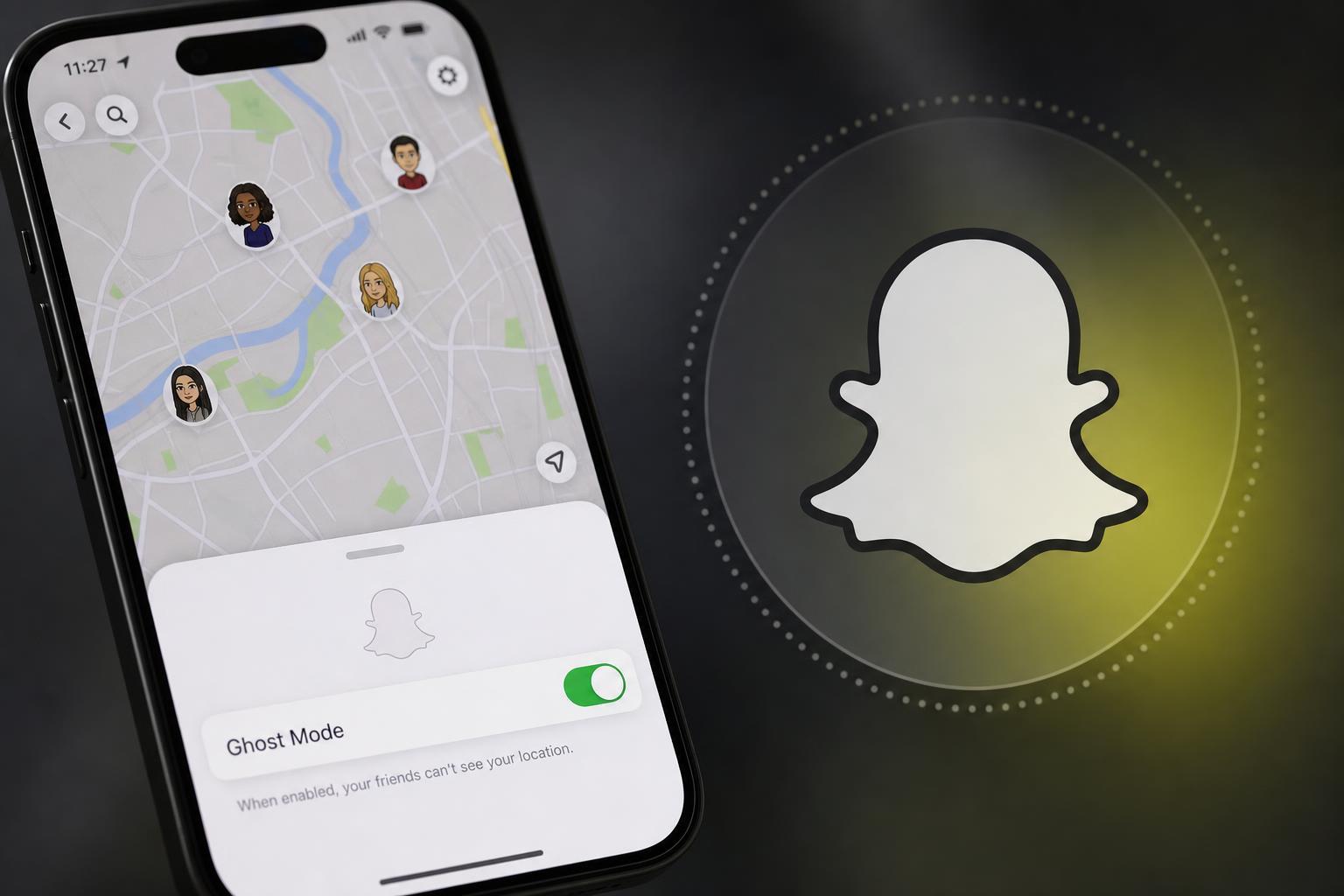
Snapchat Ghost Mode is a privacy setting that hides your location on Snap Map. If you use Snapchat but do not want friends or other people to see where you are, Ghost Mode gives you a simple way to stay visible in the app without sharing your whereabouts.
This guide explains what Ghost Mode does, how it works, when to use it, and what to know before you turn it on.
What Snapchat Ghost Mode Actually Does
Ghost Mode is Snapchat’s location-hiding option for Snap Map. When it is enabled, your friends cannot see your current location on the map. Instead of showing your live location, Snapchat keeps you hidden from view while you continue using the app normally.
You can usually choose how long Ghost Mode stays on, such as for a few hours, a day, or until you turn it off manually. That makes it useful if you only want privacy temporarily rather than all the time.
Why You Might Want to Use Ghost Mode
- You want more privacy and do not want friends to see where you are.
- You are traveling and do not want your location shared broadly.
- You are at home and prefer not to reveal your address or routine.
- You only want certain people to know your whereabouts, not everyone on your Snapchat list.
- You want a quick way to pause location sharing without deleting or changing your account.
How Ghost Mode Is Different From Other Location Options
Snapchat gives you several ways to control who sees your location. Ghost Mode is the most private option because it hides you completely from Snap Map. Other settings let you share your location with all friends, only select friends, or adjust sharing more selectively.
- Ghost Mode: no one on Snap Map can see your location.
- Friends only: all your Snapchat friends can see you on the map.
- Select friends: only chosen people can see your location.
- Phone location settings: control whether Snapchat can access your device location at all.
How to Turn On Ghost Mode
- Open Snapchat and go to the Snap Map screen.
- Open the map settings or tap the gear icon if it appears.
- Find the Ghost Mode option.
- Turn Ghost Mode on.
- Choose how long you want it enabled, or keep it on until you manually turn it off if that option is available.
If you do not see the same menu layout, look for location or map privacy settings inside Snapchat. The app may place the controls in slightly different spots depending on updates.
What People Still Might Know While Ghost Mode Is On
Ghost Mode hides your exact location on Snap Map, but it does not make you invisible everywhere in Snapchat. People can still see things you choose to share, such as Snaps, Stories, chats, and your profile activity depending on your other privacy settings.
- Your Snaps and Stories can still be visible if you post them publicly or to friends.
- Your chats and messages still work normally.
- Your username and profile can still be visible based on your privacy settings.
- Snapchat may still use location-related data for app features if permissions are enabled.
When Ghost Mode Is a Good Idea
Ghost Mode is especially useful when location sharing would feel unnecessary or too revealing. It is a good choice if you want privacy by default but still want to use Snapchat for messaging and posting.
- You are at school, work, or another place where you do not want to share your location.
- You are on vacation and want to reduce public location visibility.
- You prefer not to broadcast your routine or regular hangouts.
- You only want to share location with specific people using other methods.
When You Might Not Want Ghost Mode
Ghost Mode is not always the best choice if you use Snap Map as a social tool. If you rely on location sharing to coordinate meetups with close friends, you may prefer a more selective setting instead.
- You use Snap Map to let friends know when you are nearby.
- You like seeing friends’ locations when planning to meet up.
- You want to share location with a small trusted group rather than hide completely.
In those cases, sharing with select friends may give you a better balance between convenience and privacy.
The Bottom Line
Snapchat Ghost Mode is the simplest way to hide your location on Snap Map. It is useful when you want more privacy, less location sharing, or just a temporary break from being visible on the map. If you use Snapchat mainly for messaging and stories, Ghost Mode can be an easy setting to keep turned on whenever you do not need to share where you are.





