When a Google Account is disabled, you may suddenly lose access to Gmail, Drive, Photos, YouTube, and other Google services tied to that account. In many cases, the account is still recoverable, but the exact next step depends on why Google disabled it and whether you can still verify your identity.
This guide explains what a disabled Google Account means, what you can and cannot do while it is disabled, and how to recover it as quickly and safely as possible.
What It Means When Google Disables an Account
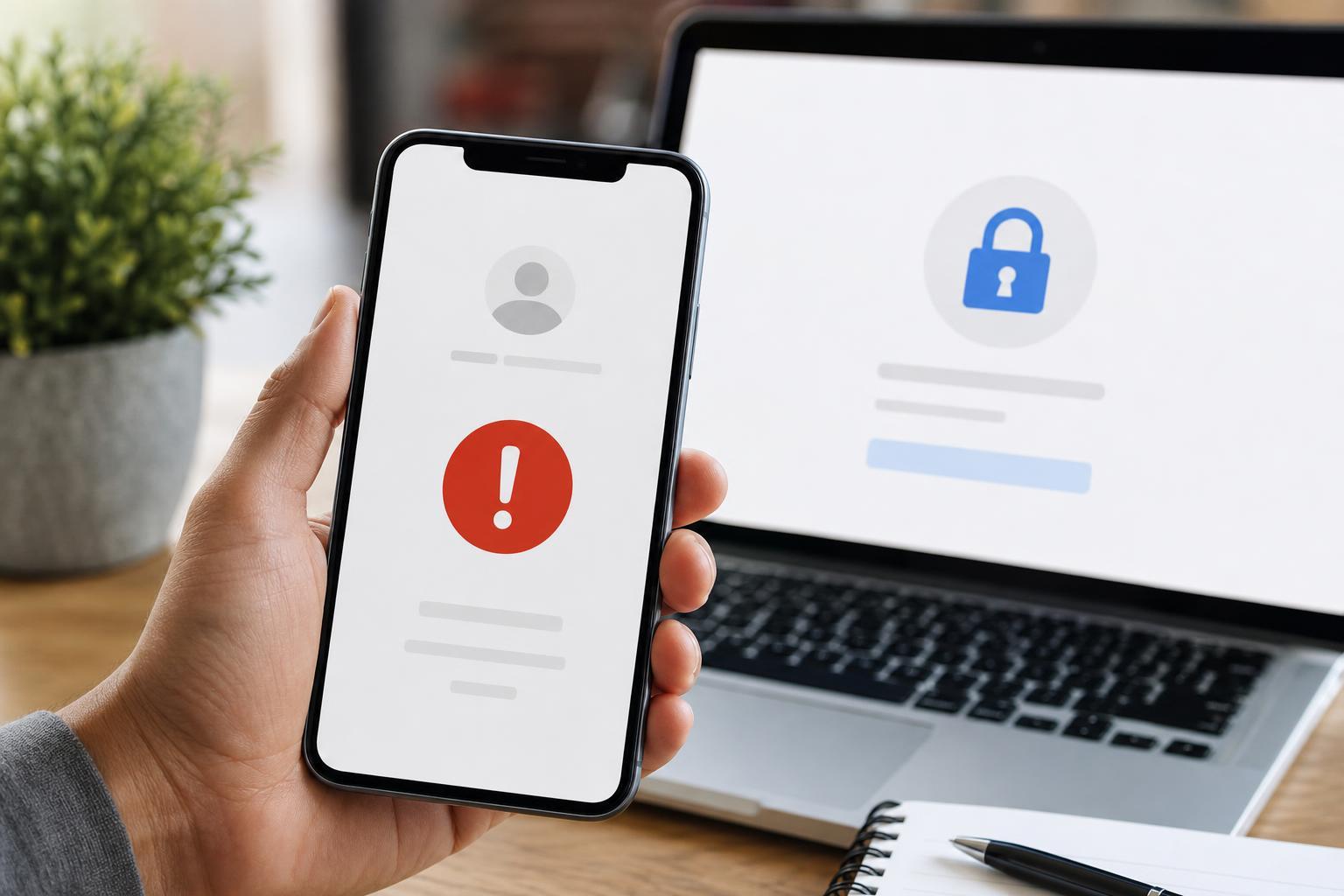
A disabled Google Account is an account that Google has restricted so you can no longer sign in normally or use the services connected to it. You may see a message saying the account has been disabled, suspended, or locked, depending on the reason and the service involved.
Google can disable an account for different reasons, including suspected abuse, policy violations, unusual activity, or issues involving age requirements or ownership verification. The exact reason is not always shown immediately.
What Stops Working
What you lose access to depends on how deeply you used the account, but common effects include:
- Gmail messages and mail sending
- Google Drive files and shared documents
- Google Photos backups
- YouTube access and subscriptions linked to the account
- Google Play purchases and app licenses on Android
- Contacts, calendars, and synced browser data
If the account was used on a phone or tablet, some apps may continue working locally for a while, but sync, downloads, and cloud access usually stop until the account is restored.
Common Reasons Google Disables Accounts
Google does not always give a detailed explanation right away, but these are some of the most common causes:
- Suspicious sign-in activity or automated abuse detection
- Spam, phishing, or other policy violations in Gmail or Google services
- Use of the account for bulk messaging or harmful behavior
- Age-related restrictions or failed age verification
- Payment or billing issues tied to Google services
- Repeated violations of Google’s terms or product-specific rules
- Account compromise that triggered a protective lock
What To Do First
Before trying multiple recovery methods, read the exact message Google shows when you try to sign in. That message often tells you whether the account is disabled, temporarily locked, or needs verification.
- Try signing in at the official Google sign-in page and read the full notice carefully.
- Check the recovery email address or phone number linked to the account for messages from Google.
- Look for any appeal, verification, or account recovery link included in the notice.
- If the account was used for work, school, or a shared organization, contact the administrator first.
How to Recover a Disabled Google Account
If Google allows recovery or appeal, follow the official steps shown on the sign-in screen. The process is usually centered on proving ownership of the account.
- Go to the Google sign-in page and enter the disabled account email address.
- Select the option shown for recovery, appeal, or more information.
- Complete identity checks, which may include a verification code sent to your phone or recovery email.
- Answer account recovery questions as accurately as possible.
- Submit any appeal form if Google provides one.
- Wait for Google's response and keep checking the recovery email address for updates.
If the appeal is approved, you may regain access immediately or be asked to reset your password and review account security settings. If the appeal is denied, Google may not offer another recovery route for that account.
If the Account Was Hacked or Compromised
Sometimes an account is disabled because suspicious activity made Google think it was being abused. If you suspect a compromise, focus on proving ownership and securing related accounts as well.
- Use Google’s official account recovery page if it is offered.
- Check whether your recovery email inbox has security alerts from Google.
- Secure the recovery email account, phone number, and any other services that share the same password.
- Look for signs that someone changed your recovery details or sent spam from your account.
- Once access is restored, change the password and review account recovery options immediately.
If You Use Google Workspace, School, or Work Email
If your disabled account is part of Google Workspace, a school domain, or a business-managed account, the recovery process is usually handled by the administrator rather than Google’s consumer account recovery tools.
- Contact your organization’s IT admin or Google Workspace administrator.
- Ask whether the account was disabled centrally or due to policy enforcement.
- Request that they review the admin console and restore the account if appropriate.
- If the admin cannot restore it, ask whether an appeal needs to be filed at the organization level.
How to Improve Your Chances of Recovery
Recovery is much more likely if you can consistently prove that you are the account owner. The following details can help:
- A password you used recently on the account
- A recovery phone number or recovery email you still control
- A device that was previously signed into the account
- Approximate dates when the account was created or last used
- Accurate answers to security prompts or verification requests
If you no longer have access to your old phone number or recovery email, recovery may still be possible, but the process is usually harder.
What to Do If Recovery Fails
If Google refuses recovery, the account may be permanently disabled. In that case, there may be little or no way to restore it.
- Check whether Google provided any final explanation or appeal result
- Confirm that you completed the correct recovery process for the account type
- If the account was managed by an organization, follow up with the administrator
- Recover important data from other places, such as local backups, shared files, or downloaded copies
- Create a new Google account and update services that depended on the old one
How to Protect a Recovered Account
If you get the account back, secure it right away so you do not end up in the same situation again.
- Change the password to a strong, unique one.
- Review recovery phone numbers and email addresses.
- Check recent security activity and signed-in devices.
- Remove suspicious third-party app access.
- Turn on 2-Step Verification if it is not already enabled.
- Make sure your recovery information is current and reachable.
When a Disabled Account Is Not Recoverable
Not every disabled Google Account can be restored. If the account was disabled for a serious policy violation, repeated abuse, or failed verification, Google may reject recovery attempts and keep the restriction in place.
In that case, the practical next step is usually to move on to a new account and regain access to any files or services you can through shared links, local copies, exports, or other connected accounts.
What to Remember Before You Appeal
The most important thing is to use Google’s official recovery flow and provide consistent, accurate information. If you can still access your recovery email or phone number, act quickly, because those details are often the easiest way to prove ownership.
A disabled Google Account can be stressful, but it does not always mean the account is gone forever. The sooner you identify the reason for the restriction and follow the correct recovery path, the better your chances of getting it back.