
Gridlines in Google Sheets help separate cells visually, but they are not always useful. You may want them visible while editing, hidden for a cleaner layout, or disabled only when printing a polished sheet.
This guide shows three practical ways to add or remove gridlines in Google Sheets, depending on whether you want to change the on-screen view, the printed output, or the appearance of a specific table.
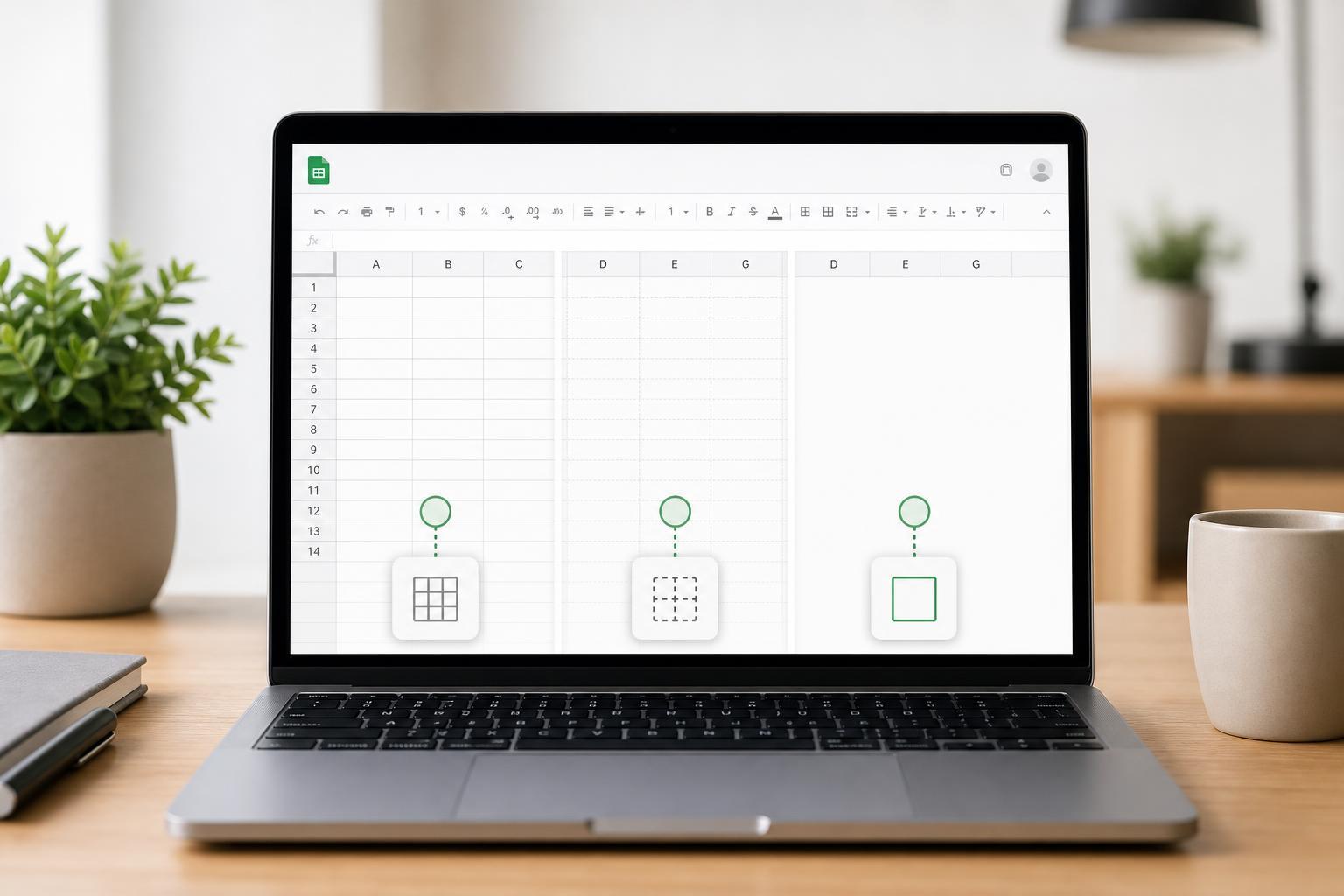
1. Hide or Show Gridlines for the Whole Sheet
The fastest way to change gridlines in Google Sheets is through the View menu. This affects how the sheet looks on screen and is useful when you want a cleaner workspace or need the cell borders to stand out less.
- Open your Google Sheets file.
- At the top, click View.
- Hover over Show.
- Click Gridlines to toggle them on or off. A checkmark means gridlines are currently visible.
2. Remove Gridlines from a Printed Sheet
If your spreadsheet looks fine on screen but you do not want gridlines on paper or in a PDF, change the print settings instead. This is separate from the normal View setting.
- Click File, then Print.
- In the print settings panel, look for Formatting on the right side.
- Uncheck Show gridlines if it is enabled.
- Check the preview to confirm the sheet looks correct before printing or saving as PDF.
3. Use Borders Instead of Gridlines for Specific Areas
Sometimes the best option is not simply to show or hide gridlines, but to replace them with stronger custom borders. This gives you more control over headings, tables, and highlighted sections.
- Select the cells you want to format.
- Click the Borders icon in the toolbar.
- Choose the border style and where you want it applied.
- Apply borders only around the data area, around headers, or between selected rows and columns.
- Use thin borders for light table separation.
- Use thicker borders for headings or totals.
- Combine borders with hidden gridlines for a cleaner report layout.
Which Option Should You Use?
Choose the method based on what you want to change. If you only want a cleaner editing view, use the View menu. If you want to remove gridlines from a printout, use Print settings. If you want to improve the design of part of a sheet, use borders instead.
- View menu: change what you see on screen
- Print settings: change what appears on paper or PDF
- Borders: control the look of specific cells or tables
A Quick Troubleshooting Check
If gridlines do not seem to change after you toggle them, make sure you are editing the correct sheet tab and that you are checking the right place. On-screen gridlines, print gridlines, and cell borders are related but not the same thing.





