Kindle dictionaries are one of the most useful reading tools built into Amazon’s e-readers and apps. Whether you are reading a novel, studying a second language, or just want to check a word without leaving the page, the dictionary feature makes it quick and easy.
This guide shows you how to use the dictionary on any Kindle, how to choose a different default dictionary, and what to do if lookups are not working the way you expect.
How Kindle Dictionary Lookups Work
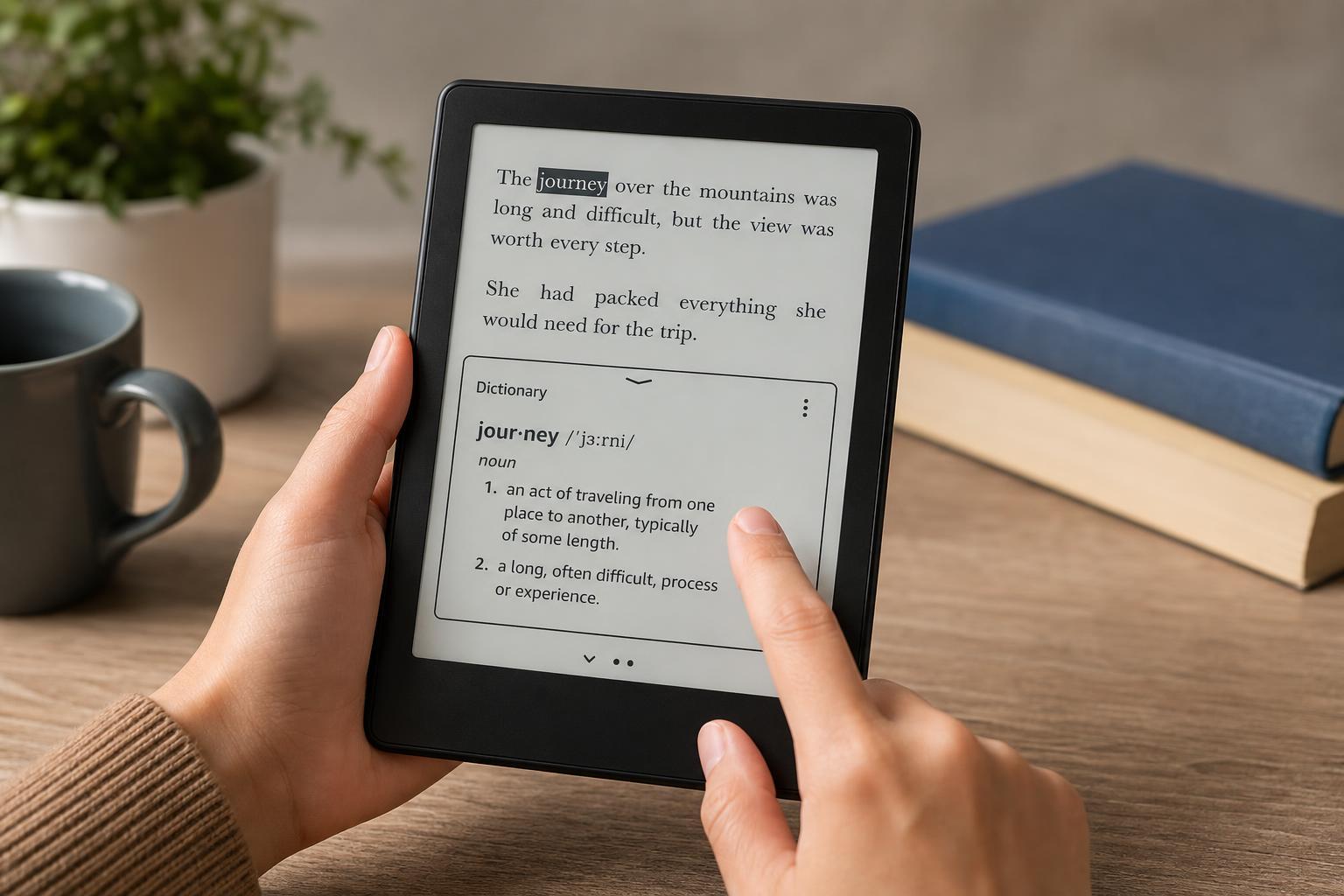
On a Kindle, you usually look up a word by pressing and holding it. The device highlights the word and opens a small definition panel at the bottom or in a pop-up view, depending on your Kindle model and software version.
Most Kindle devices can use one or more built-in dictionaries, and the exact dictionary available depends on the language of the book, the language you selected on the device, and whether the dictionary has already been downloaded.
How to Look Up a Word on a Kindle e-Reader
- Open the book and go to the page with the word you want to check.
- Press and hold the word until it is highlighted.
- If needed, drag the selection handles to select the exact word or phrase.
- Read the definition that appears in the dictionary panel.
- Tap the dictionary panel if you want to see more details, related entries, or alternate definitions.
Using the Dictionary in the Kindle App
The Kindle mobile app on phones and tablets works in a very similar way, although the layout of the definition panel may look different from the e-reader version.
- Open your book in the Kindle app.
- Touch and hold the word you want to define.
- Adjust the selection if needed.
- Read the definition in the pop-up panel.
- Use the options in the panel to search the web, highlight the word, or take notes if those options are available.
Change the Default Dictionary on a Kindle
If you read in more than one language or prefer a specific dictionary, you can change the default dictionary on your Kindle. This is helpful when the built-in dictionary is too basic or when you want a translation-friendly option.
- Open Settings on your Kindle.
- Go to Device Options or Language and Dictionaries, depending on your model.
- Open Dictionaries or Dictionary.
- Select the language you want to configure.
- Choose the dictionary you want to use as the default for that language.
Download a Dictionary If It Is Missing
Sometimes a dictionary does not appear because it has not been downloaded to the device yet. This can happen after setting up a new Kindle or changing languages.
- Open Settings.
- Check the Language and Dictionaries section.
- Look for available dictionaries for your selected language.
- Download the dictionary if prompted.
- Return to your book and try the lookup again.
Use Kindle Dictionary Features More Effectively
Beyond basic definitions, Kindle can help with vocabulary building and reading comprehension if you use a few extra features.
- Vocabulary Builder: saves words you look up so you can review them later.
- Word Wise: adds brief hints above harder words in supported books.
- Translate: lets you switch from a dictionary lookup to a translation in some Kindle versions and apps.
- Notes and highlights: helps you keep track of new words while reading.
How to Use Vocabulary Builder
Vocabulary Builder is useful when you want to revisit words you have already looked up. It creates a study list from your dictionary activity so you can review terms later.
- Open the Kindle menu or home screen.
- Look for Vocabulary Builder or the reading tools section.
- Open the list of saved words.
- Tap a word to see its definition and the sentence where you found it.
- Review the list regularly to reinforce unfamiliar vocabulary.
If the Dictionary Is Not Working
If you press and hold a word but nothing useful appears, the problem is usually related to the book format, language settings, or dictionary availability rather than a serious device fault.
- The book language does not match the dictionary language.
- The selected dictionary is not downloaded.
- The word is in a format Kindle cannot recognize, such as part of an image.
- The text is too small or the selection was not made correctly.
- The book has restricted formatting that limits lookup features.
- Confirm that you are selecting actual text, not an image or scanned page.
- Check that the book and dictionary are in the same language.
- Verify that the dictionary is installed on the device.
- Try a different word in the same book to see whether the issue is specific to one passage.
- If needed, change the default dictionary in settings and test again.
Using Dictionaries for Multiple Languages
Kindle is especially helpful for readers who use more than one language. You can set different dictionaries for different languages, which makes it easier to read bilingual books or study foreign-language material.
For the best results, make sure the book language, device language, and dictionary language are aligned as closely as possible. If you read a foreign-language book often, keep that language’s dictionary installed and ready to use.
When to Use the Kindle App Instead of a Kindle Device
The Kindle app can be a better choice if you want faster copying, easier switching between dictionary and web search, or convenient lookup on a phone or tablet you already use every day.
- Use the Kindle e-reader for distraction-free reading and longer sessions.
- Use the Kindle app for quick lookups while traveling or studying on the go.
- Use both if you want your highlights and notes synced across devices.
Troubleshooting Tips for Better Dictionary Results
If dictionary lookups are inconsistent, these small adjustments often help.
- Update your Kindle software or app version if an update is available.
- Make sure the book has finished downloading before trying to look up words.
- Try selecting a single word instead of a whole phrase first.
- Remove and re-download the dictionary if it appears corrupted or unavailable.
- Check that parental controls or device restrictions are not limiting features.
A Simple Way to Get the Most from Kindle Dictionaries
For most readers, the easiest approach is to keep one main dictionary matched to the language they read most often, then add a second dictionary only if they regularly read in another language. That keeps lookups fast and avoids confusion when the wrong dictionary appears.
If you are learning vocabulary, combine dictionary lookups with Vocabulary Builder and highlights. That turns Kindle into a practical reading and study tool instead of just a place to check definitions.