
Instagram’s collaborative collections let you save posts together with other people in one shared place. It’s a useful way to gather inspiration, plan a trip, collect outfit ideas, or organize references with friends, coworkers, or teammates.
This guide explains how collaborative collections work, how to create one, how to invite others, and how to manage shared saved posts on Instagram.
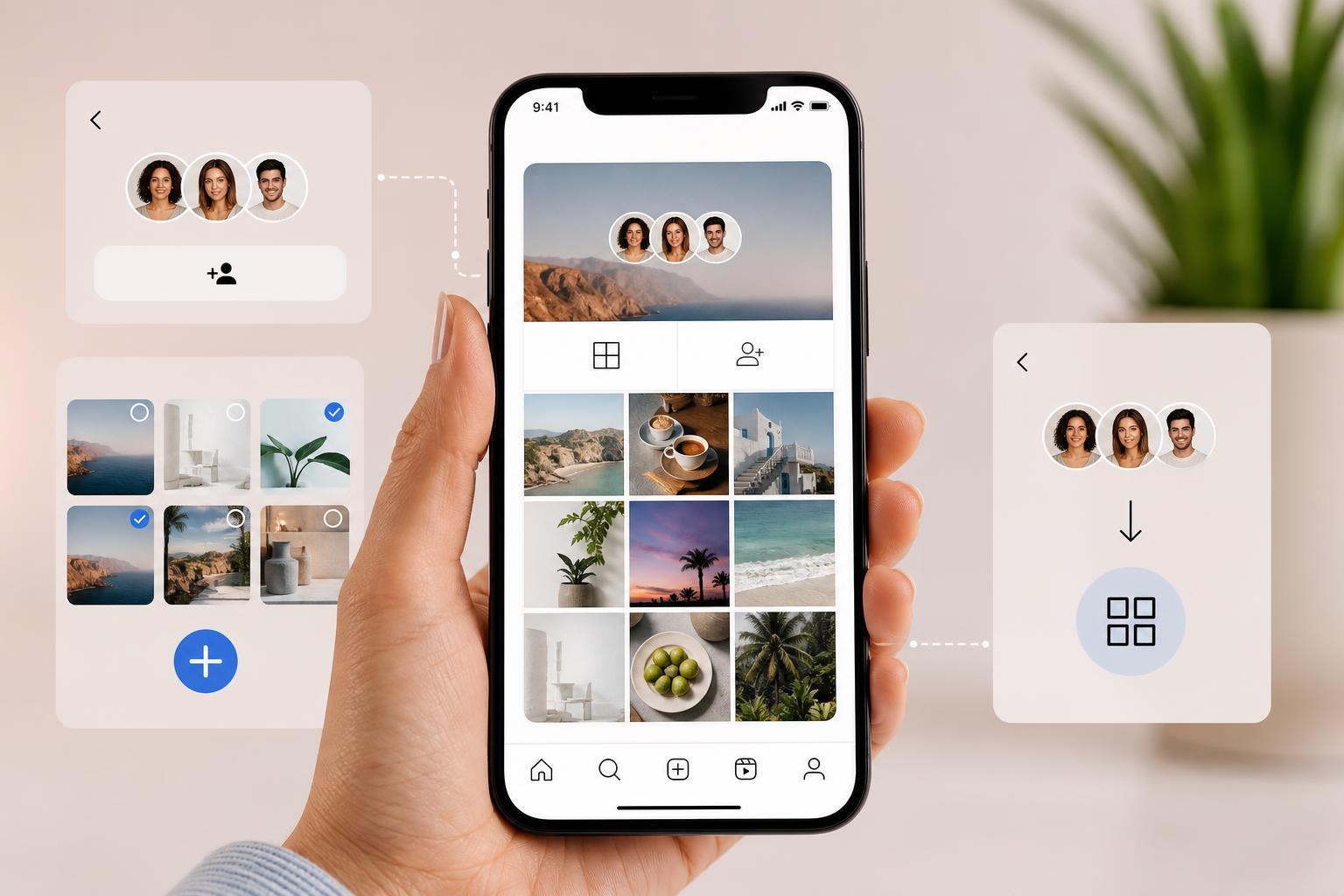
What a Collaborative Collection Is
A collaborative collection is a shared saved-posts folder on Instagram. Instead of keeping a private collection that only you can see, you can invite other people to view and add to the same collection.
Each member can save posts into the shared collection, which makes it easy to collect ideas in one place without sending the same posts back and forth in messages.
How to Create a Collaborative Collection
You can create a collaborative collection from any saved post or from the Collections area in your saved items.
- Open Instagram and find a post you want to save.
- Tap the bookmark icon under the post to save it.
- If prompted, choose an existing collection or create a new one.
- Create a new collection name if needed.
- Look for an option to make the collection collaborative or invite people to join.
- Select the people you want to invite and send the invitation.
How to Invite People to a Shared Collection
Once the collection exists, you can usually manage it from your saved collections list.
- Go to your Instagram profile.
- Open the menu and tap Saved.
- Open the collection you want to share.
- Use the invite or collaborator option in the collection settings.
- Choose the Instagram accounts you want to add.
- Send the invite and wait for them to accept it.
After they accept, they can view the collection and add posts to it, depending on the collection’s sharing settings.
How to Save Posts Into a Collaborative Collection
Saving a post into a shared collection works much like saving to a normal collection.
- Open the post you want to save.
- Tap the bookmark icon.
- Choose the collaborative collection from the list.
- Confirm the save if needed.
Anyone who has access to the collection may be able to add the same post or save new posts there, depending on the setup.
Managing a Collaborative Collection
A shared collection is most useful when it stays organized. You can usually rename it, remove posts, or change who has access from the collection’s settings.
- Rename the collection if the purpose changes.
- Remove posts that are no longer relevant.
- Check who has access before sharing sensitive ideas.
- Use one collection per topic to keep things easier to browse.
Best Uses for Collaborative Collections
- Vacation planning with friends or family
- Wedding or event inspiration
- Home decor and renovation ideas
- Social media content planning
- Class projects or research inspiration
- Shared shopping or gift ideas
If You Don’t See the Option
If collaborative collections are not showing up, the feature may not be available on your account yet or your app may need an update.
- Update Instagram to the latest version.
- Check whether the feature is available in your region or account.
- Make sure you are looking in the Saved section, not just inside direct messages.
- Try opening Instagram on a different device if the menu seems different.
A Simple Workflow That Works Well
If you are using a collaborative collection for a shared project, a simple system helps keep it useful.
- Create one collection for the project.
- Invite only the relevant people.
- Agree on what belongs in the collection.
- Remove outdated posts regularly.
- Rename the collection if the project changes direction.
That small amount of organization makes the collection easier to use and prevents it from turning into an unstructured pile of posts.





