If you can’t open your router’s admin page from a Windows 11 PC, the cause is usually something simple: the wrong address, a local network problem, a browser issue, or the router itself not responding properly. The good news is that most cases can be narrowed down quickly without changing anything permanent.
This guide walks through the most useful fixes in a sensible order, starting with the easiest checks and moving to more advanced steps if needed.
1. Make Sure You’re Using the Correct Router Address
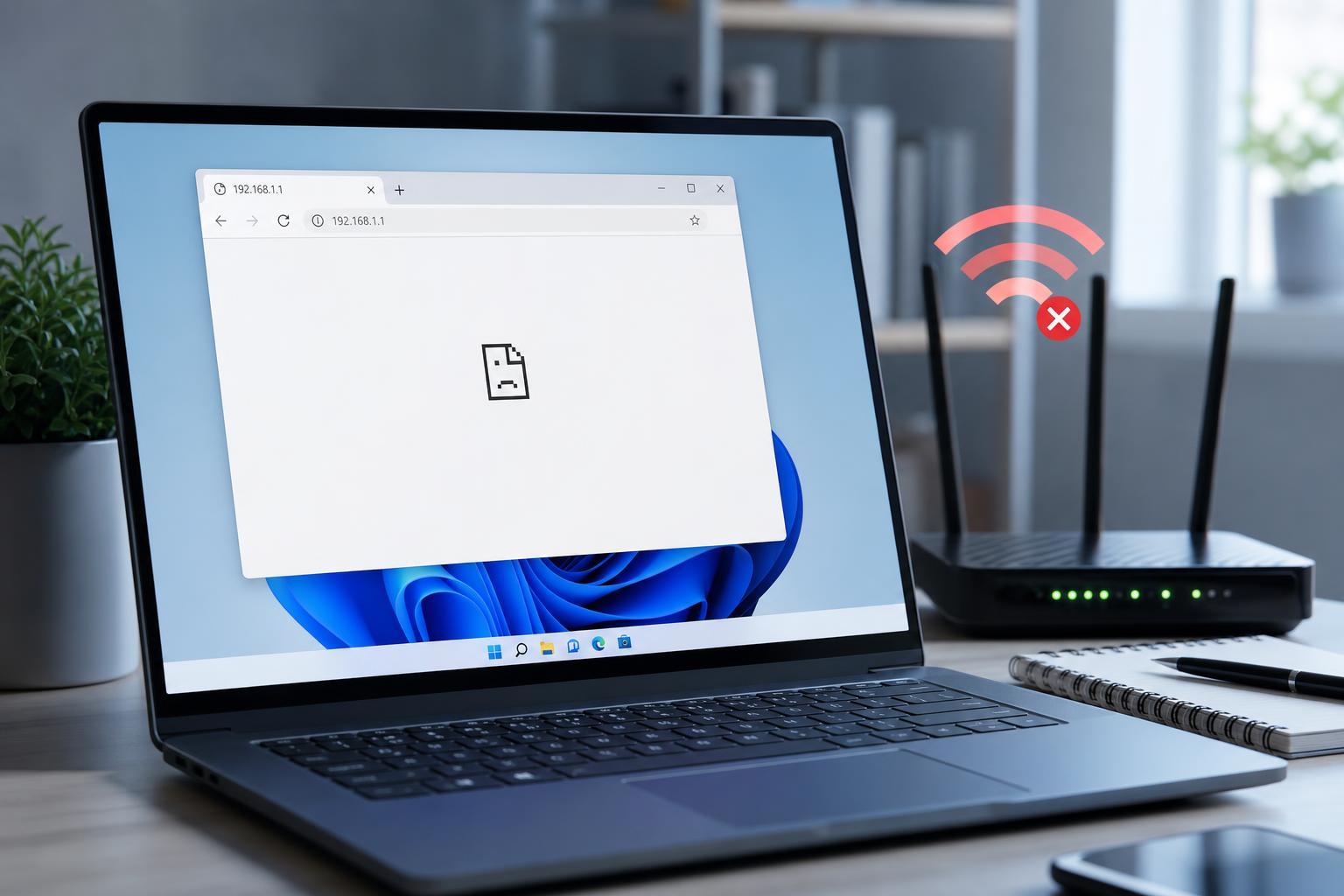
The router admin page usually opens by entering the router’s local IP address or a device-specific address in a browser, not a normal website URL. Common examples include 192.168.0.1, 192.168.1.1, or a router-provided address printed on the label or shown in the manual.
- Check the sticker on the router for the default admin address
- Try the router’s gateway IP instead of guessing the address
- Use the address exactly as written, including http:// if needed
- Avoid typing search terms into the browser address bar by mistake
2. Confirm Your PC Is Connected to the Router You’re Trying to Manage
If your PC is connected to a different Wi-Fi network, a guest network, or a mobile hotspot, the router’s admin page may not be reachable. Some router settings pages are only available from devices connected directly to that router’s local network.
- Open Wi-Fi settings in Windows 11 and confirm the connected network name.
- If you use Ethernet, make sure the cable goes to the router you want to access.
- Disconnect from VPNs or extra adapters temporarily if they may be routing traffic elsewhere.
- If you have multiple routers or mesh nodes, verify that you are using the correct device address.
3. Find the Router’s Default Gateway in Windows 11
If you do not know the router address, Windows can show the default gateway used by your current connection. That gateway is often the same address you should enter in your browser.
- Press Windows + R, type cmd, and press Enter.
- Type ipconfig and press Enter.
- Look for the adapter you are using, such as Wi-Fi or Ethernet.
- Find the line labeled Default Gateway.
- Enter that address into your browser’s address bar.
4. Try a Different Browser or an InPrivate Window
Sometimes the browser itself is the problem. Cached data, old sessions, blocked scripts, or extensions can prevent the login page from loading correctly.
- Open the page in Microsoft Edge, Chrome, or Firefox instead of your usual browser
- Try a private or InPrivate window
- Disable ad blockers, privacy extensions, or script-blocking extensions temporarily
- Clear the browser cache if the page loads partially or loops back to a blank screen
5. Check Whether HTTPS or HTTP Is the Issue
Some routers expect plain HTTP, while others use HTTPS. If you type the wrong version, the page may not load, or the browser may warn you about an insecure connection or certificate problem.
- Try http://192.168.x.x if https:// fails
- If the browser auto-switches to HTTPS and fails, manually type the HTTP version
- Watch for certificate warnings rather than ignoring them blindly
- If the router has a custom hostname, try the IP address instead
6. Temporarily Disable VPN, Proxy, or Security Software Web Filtering
VPNs, proxy settings, and some security suites can interfere with access to local addresses like your router’s admin page. They may redirect traffic away from your local network or block local web interfaces.
- Turn off any active VPN connection.
- Check Windows proxy settings and disable any manual proxy if one is set.
- If you use third-party antivirus or firewall software, look for web protection or network filtering features.
- Try the router page again after changing one setting at a time.
7. Ping the Router to See Whether It’s Reachable
A ping test helps you find out whether Windows can reach the router at all. If the router does not respond, the issue is more likely a network path problem than a browser problem.
- Open Command Prompt.
- Type ping followed by the router’s IP address.
- Press Enter and watch for replies or timeouts.
- If you get replies, the router is reachable and the problem is probably browser-related or a login-page issue.
- If you get timeouts, the connection between your PC and router needs attention.
8. Refresh Your Network Settings
If your PC has stale network information, resetting the adapter state can help Windows get a clean connection to the router. This is especially useful if the gateway address is wrong, missing, or recently changed.
- Turn Wi-Fi off and back on, or unplug and reconnect the Ethernet cable.
- Open Command Prompt and use ipconfig /flushdns.
- If needed, release and renew the IP address with ipconfig /release and ipconfig /renew.
- Reconnect to the network and try the router page again.
9. Check Whether the Router Is Allowing Administration from Your Device
Some routers restrict management access to certain devices, wired connections, or specific network segments. Guest networks often cannot open the admin page at all, and some routers block remote-style access from Wi-Fi clients under certain settings.
- Make sure you are not connected to a guest Wi-Fi network
- Try connecting the PC by Ethernet if possible
- Check whether parental controls or access restrictions are enabled on the router
- Look for a setting that limits administration to certain devices or MAC addresses
10. Power-Cycle the Router Only if It’s the Actual Problem
If the router itself is hung, rebooting it can restore the admin page. This is different from rebooting Windows, which usually does not fix a router that is no longer responding properly on the network.
- Use the router’s power button if it has one, or unplug the power cable.
- Wait about 20 to 30 seconds.
- Plug it back in and let it fully restart.
- Try the admin page again once the router lights and network connection have stabilized.
When None of These Fixes Work
If the router’s IP address responds to ping but the admin page still will not load, the web management service may be disabled, the router firmware may be misbehaving, or the device may be using a custom management address you do not know yet.
- Check the router label and manual for an alternate admin address
- See whether the router offers a mobile app or ISP management tool
- Test the page from another device on the same network
- If the router was recently reset, use the default login details listed by the manufacturer
If even another device cannot access the admin page, the issue is likely on the router side rather than Windows 11.
How to Narrow Down the Cause Quickly
The fastest way to isolate the problem is to test three things in order: the correct gateway address, a different browser, and a ping test. If all three fail, focus on the router or network connection rather than Windows itself.
- Correct address but browser failure: likely browser cache, extension, HTTPS, or security software
- Ping works but browser fails: likely admin page or browser issue
- Ping fails: likely network path, wrong network, or router problem
- Only one PC fails: likely local Windows settings on that machine