
User Account Control, or UAC, is the Windows 11 security feature that asks for confirmation when an app wants to make changes to your PC. If you are tired of seeing the popup, you can lower or disable it entirely—but doing so reduces an important layer of protection.
This guide shows the proper way to turn off the UAC prompt in Windows 11, explains what each setting does, and helps you choose the safest option for your situation.
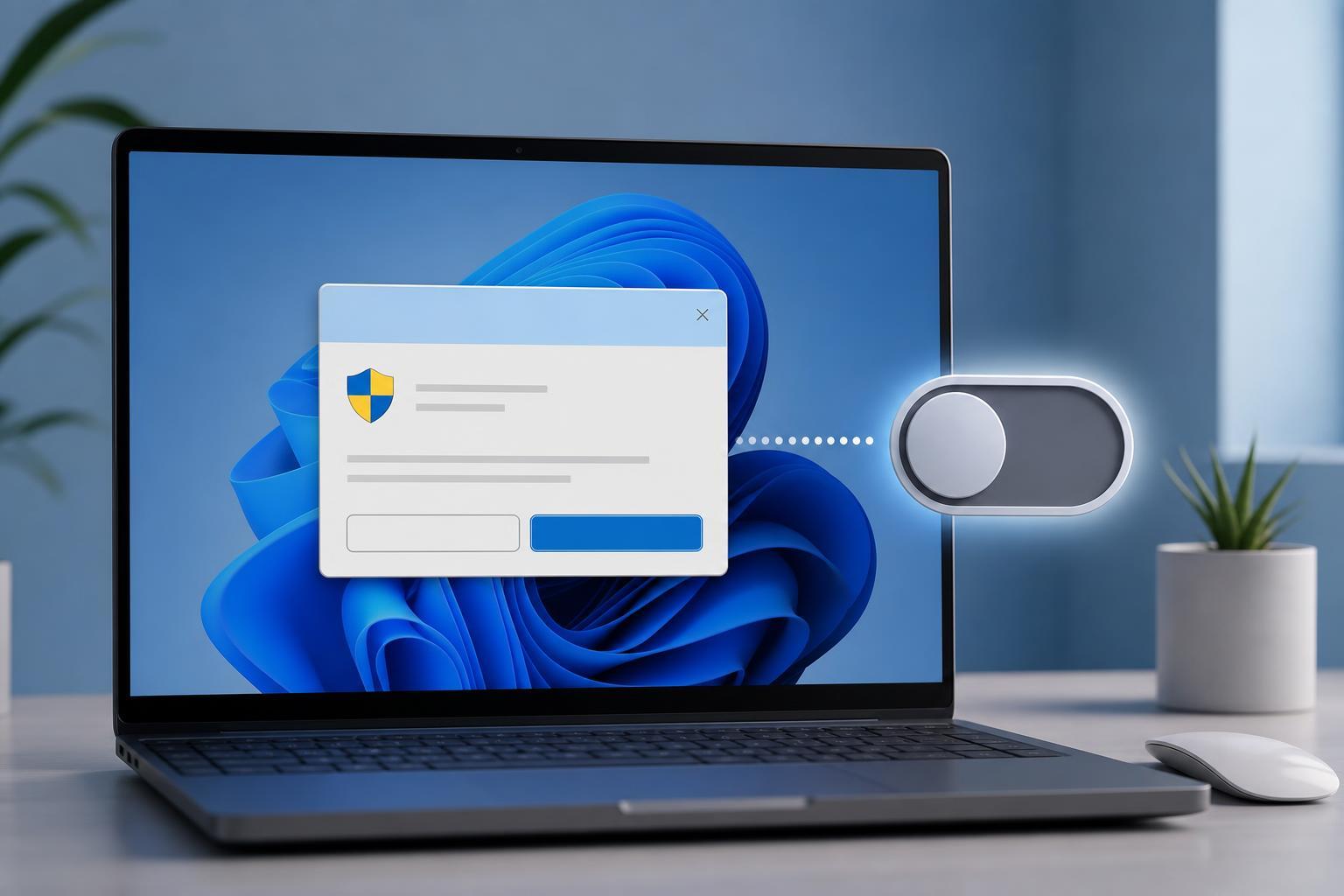
What User Account Control Does
UAC helps prevent programs from making system-level changes without your approval. When it works normally, Windows dims the screen and asks you to confirm or enter administrator credentials before an app can change settings, install software, or modify protected files.
Before You Disable It
In many cases, you do not need to turn UAC off completely. You may only want fewer prompts, especially if you trust the software you use every day.
- Turning UAC all the way down removes an important warning step for system changes.
- Some apps may work better if UAC is left on, especially software that expects standard Windows security behavior.
- You can reduce prompts without fully disabling protection by changing the slider instead of turning the feature off entirely.
Method 1: Lower the UAC Notification Level
This is the easiest and safest way to reduce UAC popups in Windows 11. It does not fully disable the feature, but it can stop prompts from appearing as often.
- Open the Start menu and type Control Panel, then open it.
- Select User Accounts.
- Select User Accounts again if Windows shows that option.
- Click Change User Account Control settings.
- Move the slider down toward Never notify.
- Click OK.
- If Windows asks for confirmation, approve the change.
Method 2: Disable the UAC Prompt Completely with Local Security Policy
On some editions of Windows 11, you can use Local Security Policy to control how elevation prompts behave. This is more advanced than changing the slider and is mainly useful for power users and managed PCs.
- Press Windows + R to open the Run box.
- Type secpol.msc and press Enter.
- In the left pane, open Local Policies, then Security Options.
- Find User Account Control: Run all administrators in Admin Approval Mode.
- Double-click it and set it to Disabled.
- Click Apply, then OK.
- Restart the computer if Windows does not apply the change right away.
Method 3: Use the Registry Only if You Know What You Are Doing
The Registry can also be used to control UAC behavior, but this is not the best option for most users. A small mistake in the Registry can cause system problems, so only use this method if you are comfortable editing it.
- Press Windows + R, type regedit, and press Enter.
- Navigate to HKEY_LOCAL_MACHINE\SOFTWARE\Microsoft\Windows\CurrentVersion\Policies\System.
- Look for the value named EnableLUA.
- Set its value to 0 to disable UAC, or 1 to turn it back on.
- Close Registry Editor and restart Windows 11.
How to Turn UAC Back On
If you decide the prompts are worth the security benefit, you can restore UAC easily.
- Open Control Panel and go to User Accounts.
- Select Change User Account Control settings.
- Move the slider back up to the default level or a higher level.
- Click OK and confirm the change.
- Restart if Windows asks you to do so.
Which Option Should You Choose?
For most people, lowering the notification level is the best choice. It reduces interruptions without completely removing a security layer. Full disabling makes more sense only in narrow cases, such as a dedicated test machine or a tightly controlled setup where you fully trust everything installed on the PC.
- Choose the slider method if you want fewer popups but still want some protection.
- Choose Local Security Policy only if you need deeper control and understand the impact.
- Avoid the Registry method unless the other options are unavailable or you are following a specific advanced troubleshooting step.
A Safer Alternative to Turning It Off
If UAC prompts are annoying because a specific app keeps asking for permission, the problem may be that the app is not installed correctly or it always needs administrator access. In that case, it is better to fix the app or its shortcut rather than disabling UAC for the whole system.





