
Windows 11 shows small tooltip pop-ups when you hover over buttons, icons, and settings. They can be helpful, but they can also get in the way if you want a cleaner desktop or if the pop-ups keep appearing while you move the mouse around.
There is no single universal switch in Windows 11 that turns off every tooltip everywhere, but you can reduce or disable many of the hover-based tips by changing a few settings depending on where they appear.
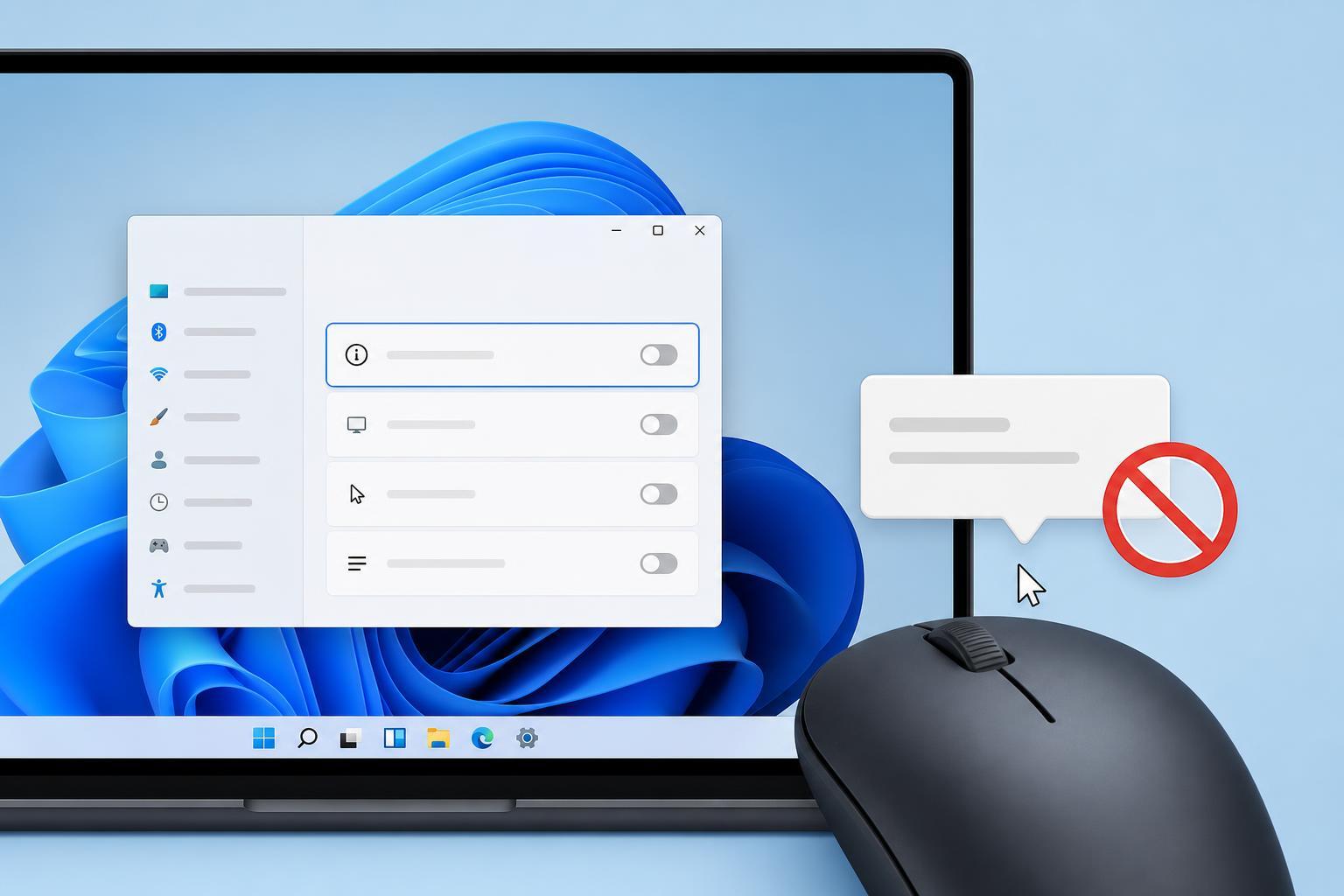
What Windows 11 Tooltips Are
Hover tooltips are the small text boxes that appear when you pause the pointer over an item. They often explain what a button does, show a shortcut, or display extra details for a file or app.
Turn Off Hover Tips in File Explorer
File Explorer includes one of the most common tooltip behaviors in Windows 11. If you mainly want to stop hints and pop-ups when browsing files and folders, this is the first setting to check.
- Open File Explorer.
- Select the three-dot menu on the toolbar, then choose Options.
- In the Folder Options window, open the View tab.
- Look for Show pop-up description for folder and desktop items.
- Clear that checkbox.
- Click Apply, then OK.
Reduce Hover Pop-Ups in the Taskbar and System Tray
Some tooltips appear when you hover over taskbar icons or tray items. These are often built into the app or system component that owns the icon, so there may not be a universal Windows toggle for all of them.
- Check the app that created the tray icon for its own settings menu.
- Open the app's preferences and look for tooltip, hint, or hover help options.
- For pinned taskbar apps, see whether the app offers an 'show tips' or 'display help on hover' option.
- If the icon belongs to a third-party utility, disabling its on-hover help may have to be done inside that program.
Disable Tips and Suggestions That Feel Like Tooltips
Windows 11 also shows tips, suggestions, and welcome messages that are not technically hover tooltips, but they can feel similar if you are trying to keep the interface quiet.
- Open Settings.
- Go to System, then Notifications.
- Scroll through the notification options and turn off any tips or suggestions you do not want.
- Next, open Settings and go to System, then Notifications, then Additional settings if available on your version.
- Disable options such as Get tips and suggestions when I use Windows and Suggest ways to get the most out of Windows.
Adjust Mouse Hover Behavior if Pop-Ups Appear Too Easily
If tooltips appear the moment you pause the mouse for a moment, the issue may be less about the tooltip itself and more about how quickly the pointer is triggering hover actions.
- Open Control Panel.
- Choose Mouse.
- Open the Pointer Options tab.
- Adjust pointer speed if your mouse feels too twitchy.
- If available on your device, check the mouse software from the manufacturer for hover or delay settings.
When You Cannot Turn Tooltips Off Completely
Some parts of Windows 11 and many third-party apps do not provide a built-in way to disable hover tooltips entirely. In those cases, your options are usually limited to changing the app setting, reducing related tips, or using the interface a different way.
- Check whether the app has a built-in accessibility or display setting for help text.
- Look for a 'compact' or 'simple' mode that shows less information on hover.
- If the tooltips come from a browser, extension, or app launcher, review that program's settings instead of Windows settings.
- For file-related hover cards, consider leaving File Explorer's description setting off and testing again.
How to Tell Whether the Change Worked
After changing a setting, move through the places where the tooltips used to appear most often. Test File Explorer, the desktop, the taskbar, and any app that showed repeated hover hints before.
- If File Explorer tooltips stopped, the Folder Options change worked.
- If only one app still shows hover text, the setting is likely inside that app.
- If tips still appear everywhere, the behavior may be tied to notifications or a manufacturer utility.
- If nothing changed, the tooltip may not be controlled by a Windows setting at all.
Best Way to Quiet Hover Tooltips in Windows 11
For most users, the most effective approach is to turn off File Explorer pop-up descriptions first, then disable Windows tips and suggestions, and finally check individual apps that still show hover text.
That combination removes the most common sources of hover-based pop-ups without changing anything more aggressive than necessary.





