
Google Activity Controls let you decide what kinds of activity Google saves to your account, including web and app activity, location history, YouTube history, and more. They also give you access to tools for reviewing and deleting what has already been recorded.
If you want more control over your privacy, or you simply want to find and manage your Google history, this guide walks through where to find Activity Controls, what each setting does, and how to adjust or clear your data.
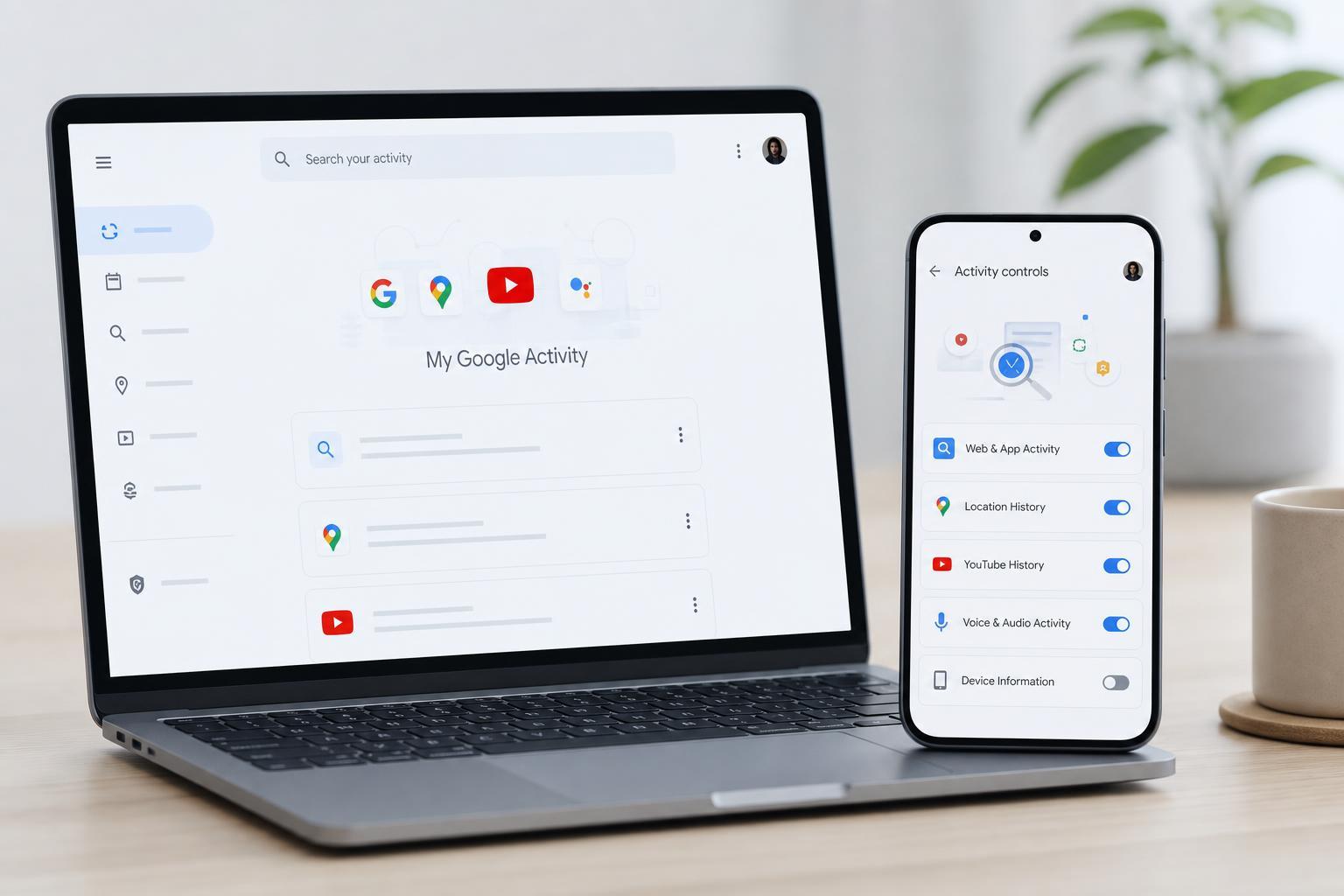
What Google Activity Controls Do
Google Activity Controls are account settings that control how Google records and uses your activity. They do not remove all data from Google automatically, but they do let you pause certain types of tracking and manage the history that is already saved.
- Web & App Activity saves searches, app usage, and interactions with Google services.
- Location History records where your signed-in devices have been, if you enable it.
- YouTube History stores videos you watch and searches you make on YouTube.
- Other activity may still be saved in individual Google products even if one control is turned off.
How to Open Google Activity Controls
- Sign in to your Google account in a web browser.
- Go to your Google Account page.
- Open the Data & privacy section.
- Find the History settings area.
- Select the activity control you want to review, such as Web & App Activity, Location History, or YouTube History.
Review the Main Activity Controls
Once you open Activity Controls, you will usually see separate switches or cards for different types of history. Each one lets you check whether it is on, off, paused, or tied to a more specific sub-setting.
- Web & App Activity: Useful if you want Google to save searches, browsing-related activity in Google services, and app interactions.
- Location History: Useful if you use Maps timelines, commute suggestions, or place-based reminders.
- YouTube History: Useful if you want YouTube recommendations to reflect your watch and search history.
- Voice and audio activity: May appear as part of Web & App Activity or related account settings, depending on your account and region.
How to Turn an Activity Control On or Off
- Open the activity control you want to change.
- Use the toggle or setting to pause or enable the history type.
- Read the confirmation message carefully before accepting the change.
- Confirm your choice if Google asks you to do so.
If you turn a control off, Google will usually stop saving that category of future activity for the account you are using. Some Google services may still keep limited records needed for security, fraud prevention, billing, or service operation.
How to View and Delete Saved Google Activity
Activity Controls manage what gets recorded going forward, but you can also review what is already stored. For many users, the most useful place to do this is My Activity, which shows searches, visited pages in Google services, app activity, and other account-linked actions.
- Open My Activity from your Google account settings or visit the My Activity page while signed in.
- Browse by date, product, or search term to find what you want.
- Open an item to see more details, if available.
- Use the delete options to remove a single item, a day of activity, or a custom range.
Set Auto-Delete for Older Activity
Google often gives you an auto-delete option for certain activity types. This is a practical way to keep your history from building up indefinitely while still allowing some activity to be saved for a limited time.
- Open the relevant Activity Control.
- Look for the auto-delete or choose an auto-delete option setting.
- Select how long Google should keep the activity, if the option is available.
- Save the setting and repeat for other activity types if needed.
Use Activity Controls on a Phone
You can manage most Google activity settings from a mobile browser or the Google app ecosystem, but the layout may differ slightly. On Android, some controls may also be surfaced through device settings tied to your Google account.
- Use your browser if you want the full account view.
- Check the Google app, Maps, or YouTube app settings for related history options.
- Make sure you are signed into the correct Google account before changing anything.
- If you use multiple accounts, repeat the check for each account separately.
Check Which Device or Account Is Recording Activity
If you are seeing activity you did not expect, first confirm that it is actually tied to the account you are viewing. Many people have more than one Google account, and activity from one account does not always appear in another.
- Verify the signed-in account name and email address.
- Check whether sync is enabled on the device.
- Review activity from different browsers or devices you use regularly.
- Look for shared devices where someone else may have been signed in.
When You Should Change These Settings
It makes sense to adjust Activity Controls if you want more privacy, want to reduce the amount of data saved to your account, or want to stop Google from using certain history types for personalization. It is also helpful if your account feels cluttered and you want a cleaner activity record.
- You want fewer personalized recommendations.
- You share a device and do not want your activity preserved.
- You want to limit location-based tracking.
- You need to review or delete old account history.
Troubleshooting Common Problems
If Activity Controls do not seem to work the way you expect, a few common issues can explain it.
- You are signed into the wrong Google account.
- The setting was changed on one device, but another device is still using a different account.
- Your browser or app is still showing cached information from earlier activity.
- A work, school, or family-managed account may have restrictions set by an administrator or family manager.
A Simple Way to Think About Google Activity Controls
Activity Controls are best thought of as switches for future tracking, while My Activity is the place to review and remove what already exists. Using both together gives you the most control over your Google account history.
If you want stronger privacy, turn off the categories you do not need and set auto-delete for the ones you still use. If you mainly want to clean up an account, start with My Activity and delete the records you do not want kept.





