If you need a PDF editor but do not want to commit to Adobe Acrobat, UPDF is one of the most interesting alternatives to look at. It combines standard PDF tools with AI-assisted features in a simpler package that may suit everyday editing, reading, and document organization.
This article explains what UPDF can do, where it fits as an Acrobat alternative, and what to consider before switching.
What UPDF Is Designed to Do
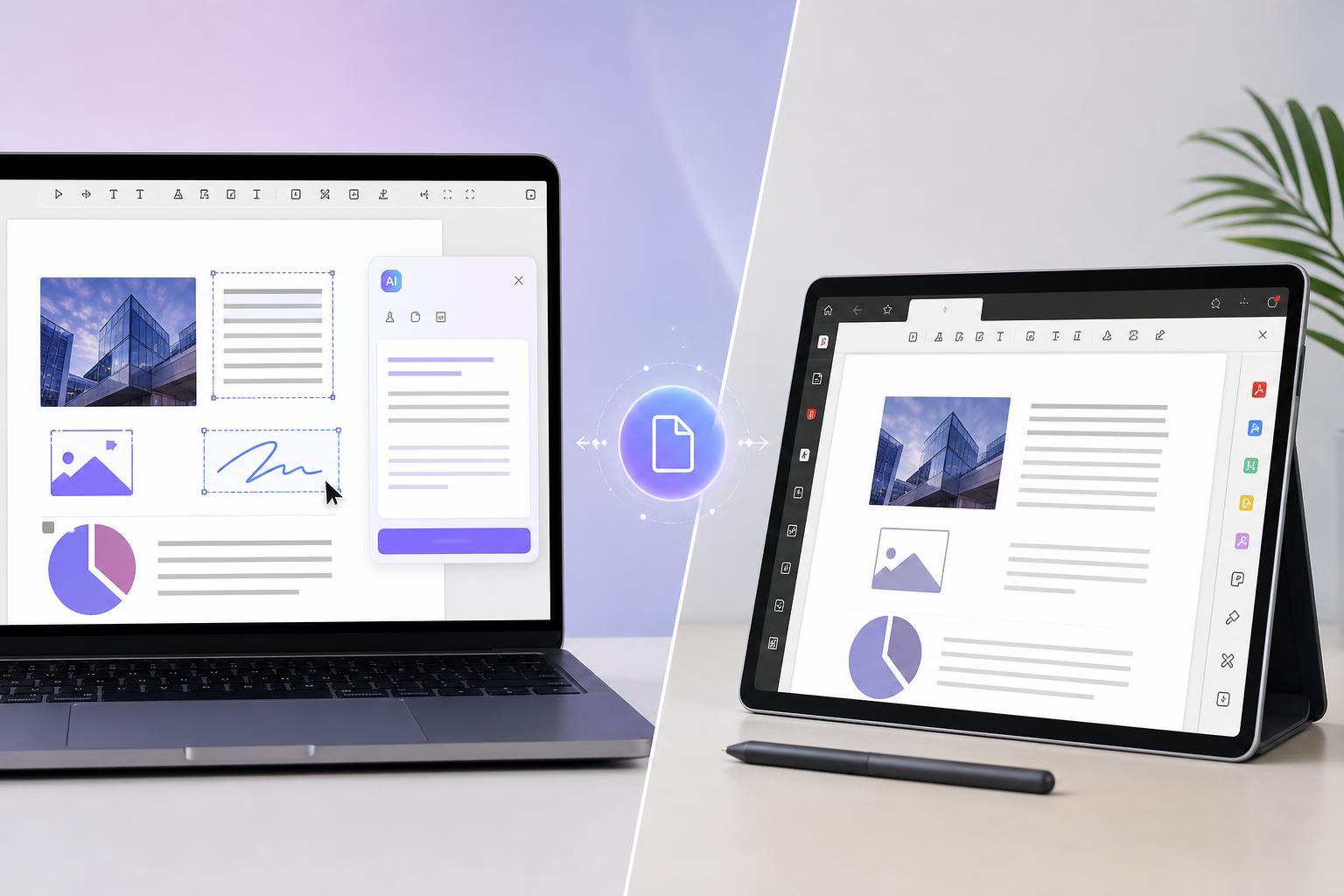
UPDF is a PDF editor focused on the tasks most people actually need: opening PDFs, editing text and images, annotating documents, converting files, organizing pages, filling forms, and applying OCR to scanned pages. It also includes AI features that can summarize, explain, and help you work through long documents faster.
Key Features That Matter Most
- Edit PDF text and images directly inside the document
- Add comments, highlights, stamps, shapes, and handwritten notes
- Convert PDFs to Word, Excel, PowerPoint, images, and other formats
- Use OCR to make scanned documents searchable and editable
- Reorder, split, merge, extract, or delete pages
- Fill out and create forms
- Protect files with passwords and permissions
- Use AI tools to summarize long documents or help explain content
Where the AI Features Help
The AI tools are the part that makes UPDF stand out for many people. Instead of manually reading through a long report or contract, you can use AI to summarize the document, pull out key points, or ask questions about the content. That can be useful when you need a quick understanding before editing or sharing a file.
These features are most helpful for busy readers, students, office workers, and anyone who regularly handles long PDFs. They are less about replacing careful review and more about speeding up the first pass through a document.
How It Compares With Adobe Acrobat
Adobe Acrobat remains the better-known name and is still a strong choice for advanced enterprise workflows, deep integrations, and highly specialized PDF tasks. UPDF, however, focuses on giving users the essential tools in a more approachable interface with AI added on top.
- UPDF is often simpler to learn
- Acrobat has broader industry recognition and deeper advanced features
- UPDF may be easier for individual users and small teams
- AI-assisted reading and summarizing can be a practical advantage in UPDF
- Acrobat may still be the better fit for organizations tied to Adobe tools
Who Should Consider Switching
- Choose UPDF if you mainly edit, annotate, sign, convert, and organize PDFs.
- Consider UPDF if you want AI help with reading or summarizing documents.
- Look at UPDF if you want a more straightforward interface than a full enterprise PDF suite.
- Stay with Acrobat if your workplace depends on Adobe-specific workflows or advanced collaboration requirements.
Things to Check Before You Buy
- Whether the features you need are included in the version you plan to use
- How well OCR handles the languages and document types you work with
- Whether file conversion preserves layout accurately enough for your needs
- How comfortable you are with the interface on Windows, macOS, or mobile devices
- Whether your team needs Adobe compatibility for collaboration or compliance reasons
Bottom Line
UPDF is worth a close look if you want an Adobe Acrobat alternative that covers the everyday essentials and adds AI-assisted document tools. It is especially appealing for users who value a cleaner interface, quick document review, and practical editing features without the complexity of a larger PDF platform.
If your needs are straightforward, UPDF may be enough to replace Acrobat entirely. If you rely on advanced corporate PDF workflows, Acrobat may still be the safer choice.