
Adobe Reader and Acrobat DC keep a Recent Files list so you can quickly reopen documents you used before. That is convenient, but it can also expose private files, clutter the home screen, or show documents you do not want other people to see.
Depending on what you want, you can either clear the current list, hide the Recent view, or stop Acrobat DC from showing recent files altogether. The exact options available depend on whether you are using Adobe Reader or the full Acrobat app, and on the version you have installed.
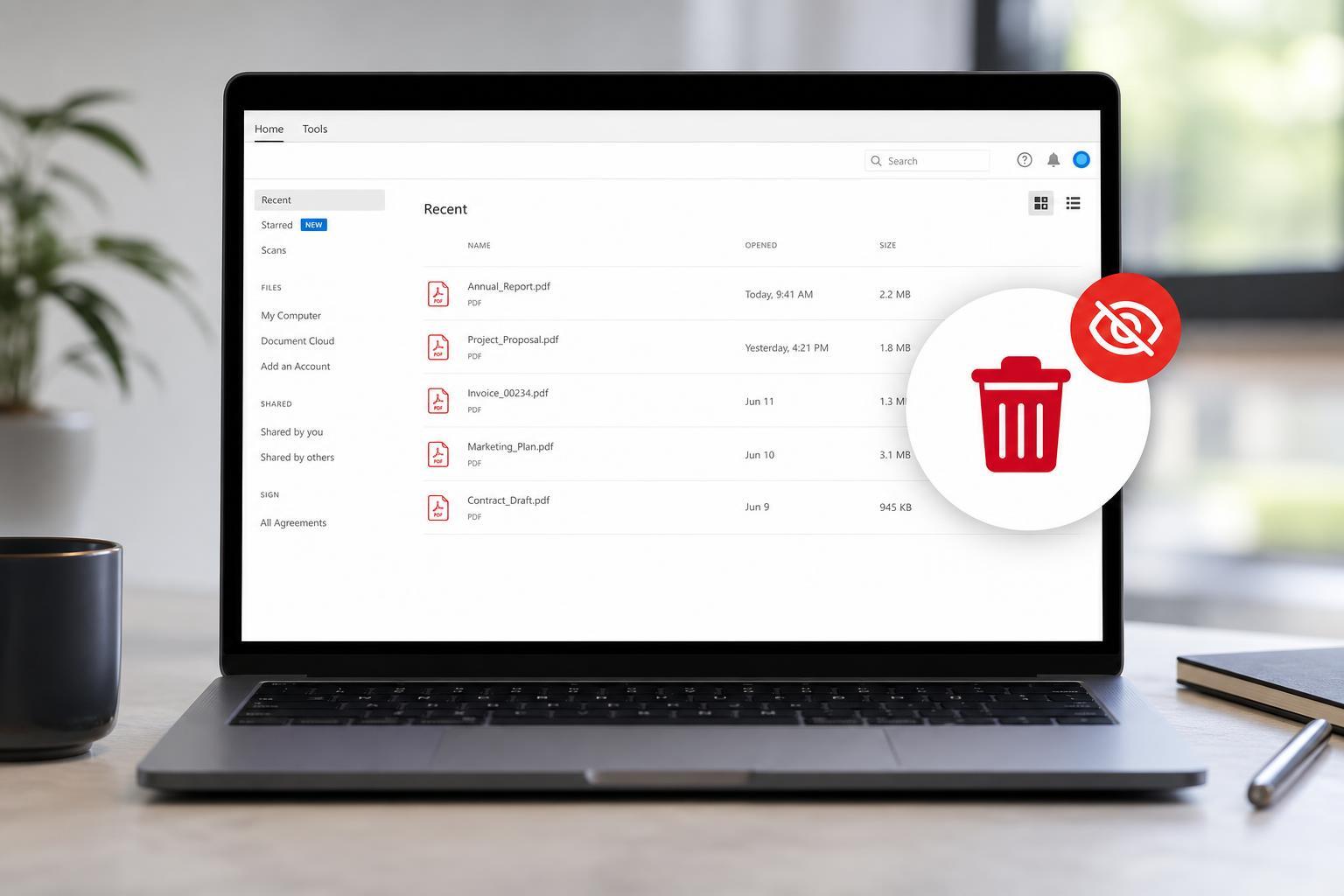
What You Can Actually Change
Before you start, it helps to know that Adobe uses more than one kind of “recent files” behavior. Some options only clear the visible list, while others change how Acrobat stores or displays the history. In many cases, the easiest fix is to clear the recent documents list first, then decide whether you want to keep the feature turned on.
- Clear the current Recent Files list so old documents no longer show up.
- Disable the Recent view in the home screen or start screen.
- Change preferences so Acrobat does not track or display recent files.
- Remove entries one by one if you only want to hide a few documents.
Clear the Recent Files List in Acrobat DC
If you only want to remove the documents currently shown, start here. This is the quickest option and is often enough if you are preparing a shared computer or want to clean up the list.
- Open Adobe Acrobat DC or Adobe Reader.
- Go to File in the top menu.
- Look for Open Recent Files or Recent Files.
- Choose Clear Recent Files if that option is available.
- Confirm the action if prompted.
After clearing the list, the home screen should no longer show those recently opened documents. New files will appear again as you continue using the app unless you disable the feature.
Remove Individual Files from the Recent List
If you only want to hide a few sensitive documents instead of clearing everything, remove them one at a time. This is useful when you still want the convenience of the recent list for other files.
- Open Acrobat DC or Adobe Reader.
- Go to the Home screen or File > Open Recent Files.
- Find the document you want to remove.
- Right-click the file name if that option is available and choose Remove from Recent, or use the document menu if shown.
- Repeat for any other files you want to hide.
Turn Off Recent Files in the Home Screen
If your goal is to stop Acrobat from showing recent documents on launch, check the app’s preferences. Adobe has changed the interface across versions, so the setting may appear in different places.
- Open Acrobat DC or Adobe Reader.
- Open Edit, then select Preferences.
- Look for a General or Documents section.
- Find a setting related to recent files, home screen, or recently used documents.
- Disable the option that shows recent documents, then click OK or Apply.
If you do not see an exact recent-files toggle, look for options that control the start screen or home view instead. In some versions, turning off the home screen is the closest way to prevent recent documents from being displayed immediately when the app opens.
Use Windows Privacy and File History Settings if Needed
If Acrobat still appears to surface files you opened recently, the documents may also be showing through Windows’ own recent items behavior. This is more likely if you are seeing file history in File Explorer or the Windows Start menu, not just inside Adobe.
- Clear Windows recent items if the files appear outside Adobe as well.
- Check File Explorer privacy settings if you want to reduce recent activity in Windows.
- Remember that Adobe’s recent files list and Windows recent items are separate features.
When the Option Is Missing
Some installs of Adobe Reader and Acrobat DC do not expose a simple switch to disable recent files completely. If that happens, you may still be able to clear the current list, hide the home screen, or remove items manually.
- Update Acrobat DC or Reader to the latest version and check the preferences again.
- Look for the setting in both General and Documents preferences.
- Use the File menu instead of the home screen if the home view is not showing all options.
- If you are on a managed work computer, your organization may be controlling the setting.
How to Keep Private PDFs from Showing Up Again
If privacy is your main reason for changing this setting, clearing the list once may not be enough. You may also want to adjust how you open and store sensitive files.
- Open sensitive PDFs from a folder rather than from the recent list.
- Store private files in a secure location with proper access limits.
- Sign out of shared Adobe accounts on devices other people use.
- Avoid leaving Acrobat open on the home screen if others have access to the PC.
Which Fix Should You Try First?
If you just want the list gone right now, clear the recent files list from the File menu. If you want to stop Acrobat from showing those files at launch, look in Preferences for the home screen or recent documents setting. If only a few files are a concern, remove them individually instead of wiping the full list.
For most users, the fastest and safest approach is to clear the current list first, then check preferences if the documents keep reappearing.





