
Samsung Notes is designed around the Samsung ecosystem, so viewing those notes on a Windows PC is not always as direct as opening a normal document. The easiest method depends on whether your notes are already synced to a Samsung device, whether you use the Samsung Notes Windows app, or whether you need to export the notes into a format Windows can open more easily.
This guide walks through the most reliable ways to access Samsung Notes on Windows and explains what to do if your notes do not appear right away.
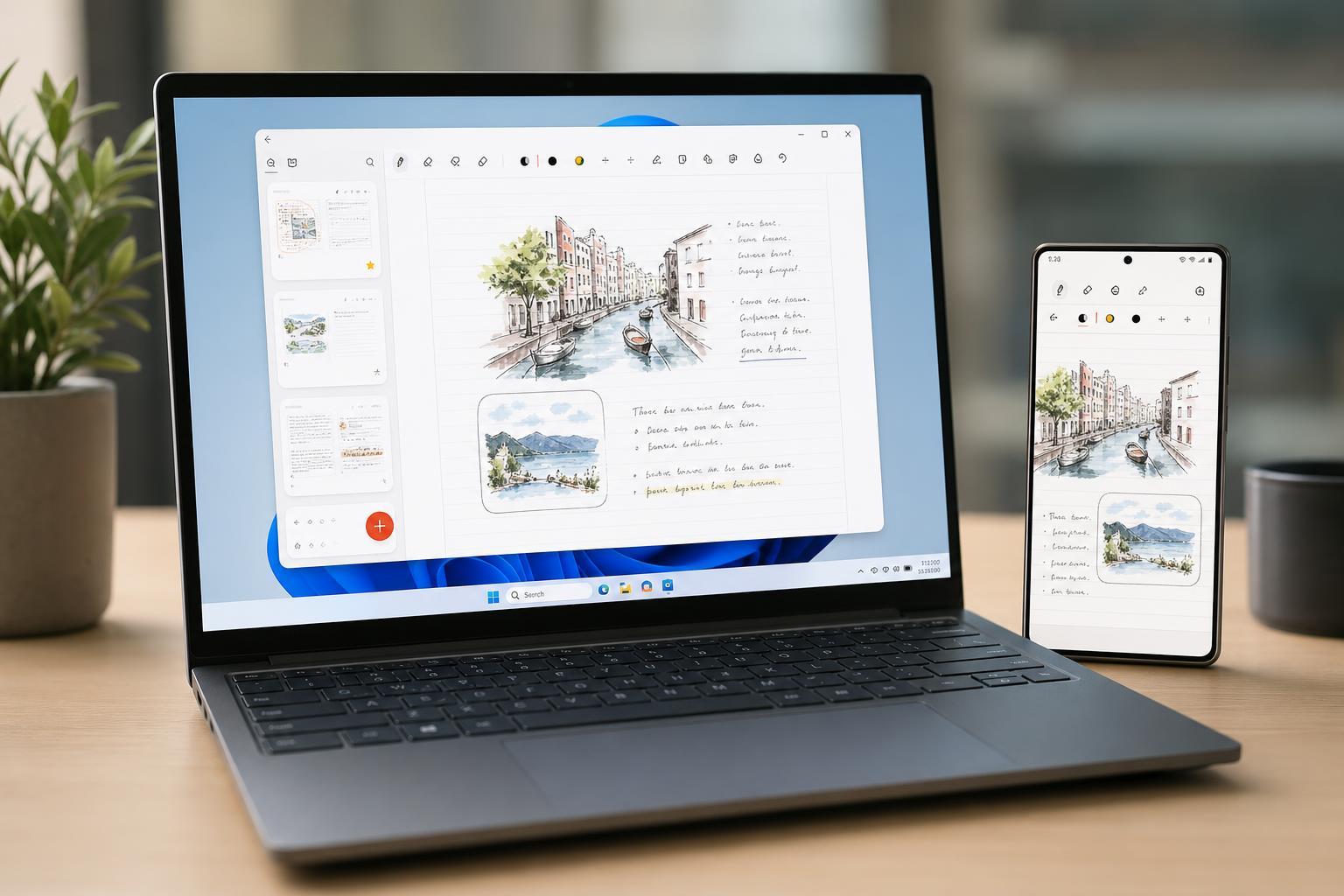
The easiest way to view Samsung Notes on Windows
If you already use Samsung Notes on a Galaxy phone, tablet, or Samsung laptop, start by checking whether your notes are synced to your Samsung account. When sync is enabled, you may be able to view the same notes on Windows through the Samsung Notes app or another supported Samsung Windows app.
Try the Samsung Notes Windows app first
On some Windows PCs, especially Samsung laptops, Samsung Notes may be available through the Microsoft Store or preinstalled with other Samsung utilities. If it is available on your system, it is usually the most direct way to open and read your notes.
- Open the Microsoft Store on your Windows PC.
- Search for Samsung Notes.
- Install the app if it is available.
- Sign in with the same Samsung account used on your phone or tablet.
- Wait for your notes to sync and appear in the app.
Make sure your notes are syncing properly
If Samsung Notes opens on Windows but your notes are missing, the problem is usually sync-related rather than a Windows issue. Check the Samsung device where the notes were created first.
- On your Samsung phone or tablet, open Samsung Notes.
- Go to the app settings and look for sync options.
- Confirm that sync with your Samsung account is turned on.
- Make sure you are signed into the same Samsung account on both devices.
- Give the app time to upload and download the latest notes.
If Samsung Notes is not available on your PC
Not every Windows computer can use Samsung Notes directly. In that case, the best option is to open the notes another way, usually by exporting them from your Samsung device or viewing them through a compatible Samsung service.
- Export the note as a PDF or image from your Samsung device and open it in Windows.
- Use Samsung account sync if your Galaxy Book or supported Samsung app can access the notes.
- Copy the text from the note into another app such as OneNote, Word, or Notepad if you only need the content.
- Share the note to yourself through email, cloud storage, or a messaging app for quick access on Windows.
How to export a Samsung Note for Windows viewing
Exporting is a good fallback when you only need to read or archive a note on Windows. PDF is usually the best choice because it preserves formatting better than plain text.
- Open the note in Samsung Notes on your Galaxy device.
- Tap the menu or share option.
- Choose Export or Save as file.
- Select PDF if you want to keep formatting, or choose another supported format if needed.
- Save the file to your device, then transfer it to your Windows PC using OneDrive, email, USB, or Bluetooth.
Troubleshooting missing notes on Windows
If the app opens but some or all notes are missing, a few common issues are worth checking before you move to a more advanced fix.
- You are signed into a different Samsung account on Windows than on your phone or tablet.
- Sync is disabled on the Samsung device where the notes were created.
- The note has not finished uploading from the mobile device.
- The Windows app needs an update.
- The note was created in a format that does not sync the way you expect, such as an attachment-heavy note or a note stored locally on one device.
What to do if you need reliable Windows access
If your main goal is to use notes regularly on a Windows PC, it helps to choose a workflow that does not depend on one app alone. For many people, that means keeping important notes exported as PDFs, storing text in a cross-platform notes app, or using Samsung Notes only as the capture tool and Windows as the reading or editing environment.
Which method should you use?
- Use the Samsung Notes Windows app if it is supported on your PC and you want the closest experience to the phone app.
- Use export to PDF if you want a simple, dependable way to read notes on Windows.
- Use email, OneDrive, or another cloud service if you want quick access across different devices.
- Use copy-and-paste into another notes app if you are moving away from Samsung Notes but still need the content.





