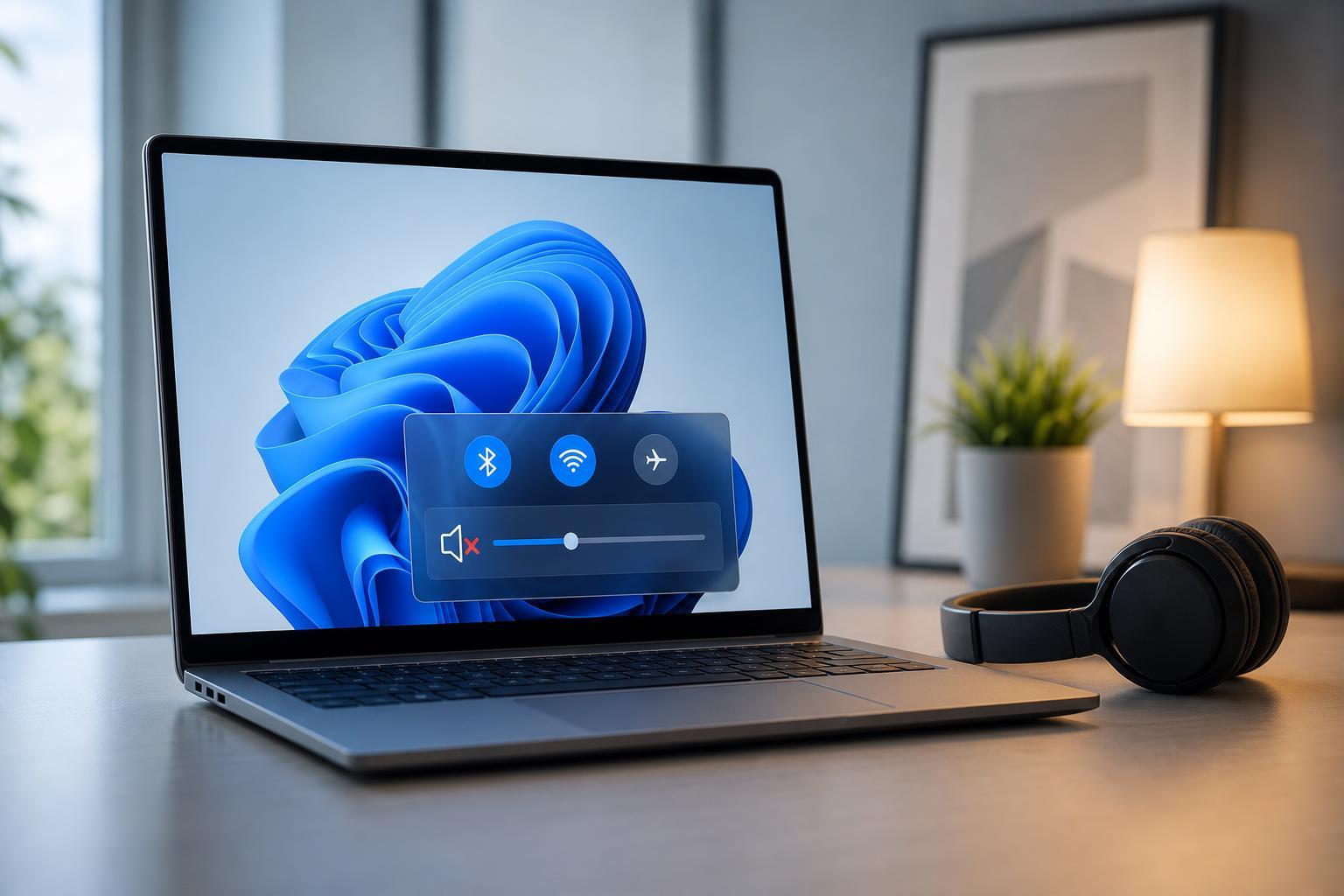
If the Windows volume bar keeps appearing on its own, it usually means something is repeatedly triggering the volume controls. In many cases, the cause is a stuck key, a faulty keyboard, a media key on a headset, or software that is sending volume commands in the background.
The good news is that this problem is often easy to narrow down. The fastest way to fix it is to identify whether Windows is receiving a hardware input, an app command, or a driver-related signal.

What Usually Causes the Volume Bar to Pop Up
Windows shows the volume bar whenever the system thinks the volume has changed. If it keeps appearing without you touching anything, one of these is usually responsible:
- A stuck volume-up, volume-down, or mute key on the keyboard
- A multimedia key on a wireless keyboard, laptop, or headset
- A damaged keyboard or USB device sending repeated input
- Audio software, hotkey software, or gaming software controlling volume in the background
- A driver or Windows input issue after an update
- Touchpad, touchscreen, or Bluetooth accessory interference
Check for a Stuck or Faulty Key
Start with the simplest explanation: a key may be physically stuck or rapidly repeating. This is especially common on laptops and compact keyboards where the volume keys are easy to press accidentally.
- Press each volume key several times and see whether any key feels different from the others.
- Check for dust, crumbs, or debris around the keys.
- If you use an external keyboard, unplug it and see whether the volume bar still appears.
- If you are on a laptop, test with an external keyboard disconnected and any USB accessories removed.
- If possible, open the on-screen keyboard or a key tester tool to see whether Windows is detecting repeated volume input.
Disconnect External Devices One at a Time
A surprising number of volume pop-up problems come from accessories rather than Windows itself. Wireless keyboards, gaming headsets, docking stations, and even some monitors with built-in controls can send media-key commands.
- Unplug all nonessential USB devices.
- Disconnect Bluetooth headsets, controllers, and keyboards if possible.
- Wait briefly and see whether the volume bar stops appearing.
- Reconnect devices one at a time until the problem returns.
- Once you find the culprit, check its software, battery level, or firmware update options.
Check Keyboard and Hotkey Software
Many laptops and gaming keyboards use vendor software for function keys, audio shortcuts, macro keys, and on-screen indicators. If that software glitches, Windows may keep receiving volume commands.
- Look for software from the laptop or keyboard manufacturer, such as hotkey utilities or control panels.
- Close any audio-related apps, macro tools, or gaming overlays temporarily.
- If the software has a startup option, disable it briefly and test again.
- Update the utility from the manufacturer’s website if an update is available.
Update or Reinstall Audio and Input Drivers
If the pop-up began after a Windows update, driver update, or hardware change, the issue may be caused by a bad driver state. Audio drivers, HID devices, and keyboard drivers can all influence how volume commands are processed.
- Right-click the Start button and open Device Manager.
- Expand Keyboards, Human Interface Devices, and Sound, video and game controllers.
- Look for devices with warning icons or anything that appears to be the audio device or keyboard involved.
- Right-click the device and choose Update driver.
- If updating does not help, uninstall the device and restart the computer so Windows can reinstall it automatically.
Turn Off OSD or Audio Overlay Features
Some PCs and peripherals use on-screen display tools that show volume, brightness, microphone status, or mute alerts. When those tools break, the volume bar may appear repeatedly even if the actual volume is not changing.
- Check manufacturer utilities for on-screen display settings.
- Look for any option related to media keys, HUD overlays, or hotkey notifications.
- Disable temporary overlay features to test whether the pop-up stops.
- If the app is not needed, uninstall it and use Windows’ default controls instead.
Test in Safe Mode or a Clean Boot
If the problem disappears in Safe Mode, a background app is probably causing it. That helps separate a Windows hardware issue from a software conflict.
- Boot into Safe Mode or perform a clean boot.
- Use the computer long enough to see whether the volume bar still appears.
- If it stops, re-enable startup items and services in small groups until the problem returns.
- Once you identify the app, update it, change its settings, or remove it.
Check Bluetooth and Wireless Accessories
Bluetooth devices can cause confusing input problems if their battery is low, their connection is unstable, or their media buttons are misbehaving. This is common with wireless headsets and compact remote controls.
- Replace or recharge the battery in wireless accessories.
- Remove and re-pair the device in Bluetooth settings.
- Move the accessory closer to the PC to rule out signal interference.
- Test with Bluetooth turned off temporarily to see whether the pop-up stops.
Run a Quick Hardware Test
If the issue happens even with all external devices removed, the built-in keyboard or another internal component may be at fault. On laptops, a damaged key membrane or liquid spill can cause repeated input without being obvious.
- Inspect the keyboard for damage or signs of liquid exposure.
- Press around the affected keys to check for a mechanical problem.
- If your laptop has a detachable keyboard or docking setup, test each part separately.
- Use an external keyboard to see whether the built-in one is the only source of the problem.
What to Try If the Problem Started Recently
If the volume bar began after a recent change, focus on what changed first. That may save time compared with testing every possible cause.
- New keyboard or headset: test the new accessory on another PC.
- Recent Windows update: check for a follow-up update or roll back a problematic driver.
- New audio or hotkey app: disable or uninstall it.
- New dock or monitor: disconnect it and test the laptop or PC alone.
When It’s Most Likely a Windows Issue
A Windows-side problem is more likely when the volume bar appears without any external device connected and without any obvious hardware key issue. In that case, focus on the driver, startup app, or hotkey utility path rather than the physical keyboard.
- The issue happens only after signing in
- The problem stops in Safe Mode
- The volume bar appears after installing software
- The device worked normally until a recent update
If Nothing Else Works
If you have already tested the keyboard, unplugged accessories, and checked driver and software causes, the problem may be hardware-related or tied to a deeper Windows configuration issue. At that point, the most efficient next step is usually to compare behavior with another user account, another keyboard, or a Windows repair install if other system symptoms are present.
For most users, though, the issue is solved by disconnecting the offending device, fixing a stuck key, or removing the software that is sending repeated volume commands.