
YouTube transcripts are useful when you want to read a video instead of watching it, search for a specific quote, or copy spoken content for notes and research. If a video has captions available, YouTube can usually show a transcript with timestamps.
How to Open a YouTube Transcript on Desktop
- Open the YouTube video in a web browser on your computer.
- Below the video, click the three-dot menu next to Save or Share options.
- Select Show transcript.
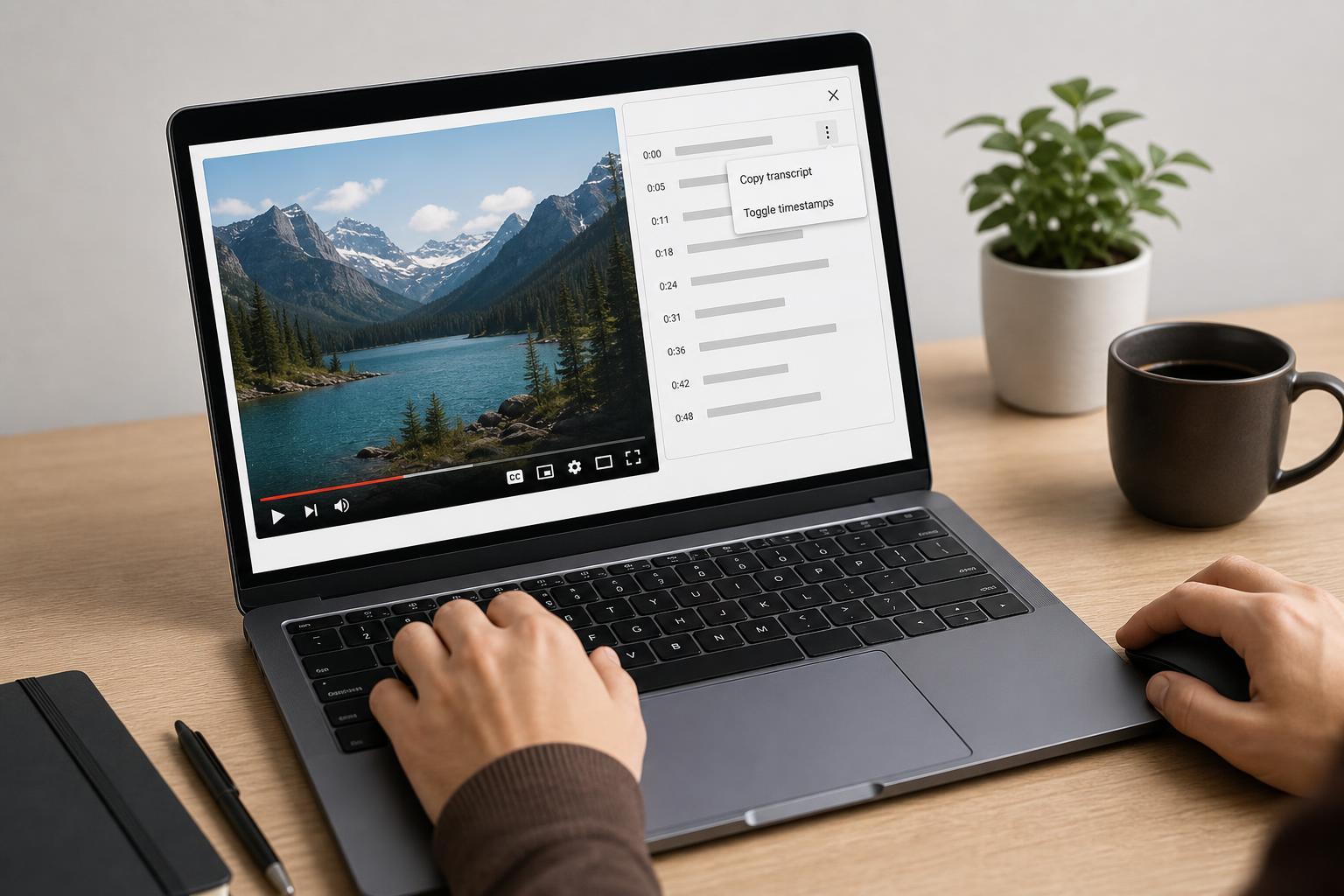
- The transcript panel will appear beside or below the video, depending on your screen size.
- If timestamps are shown, you can click them to jump to that point in the video.
How to Copy the Transcript Text
- Open the transcript panel.
- If needed, turn timestamps on or off using the menu inside the transcript window.
- Click and drag to select the text.
- Right-click and choose Copy, or press Ctrl + C on Windows or Cmd + C on Mac.
- Paste the text into a document, note-taking app, or text editor.
How to Get a Transcript on Mobile
The YouTube mobile app does not always provide a full transcript option in the same way the desktop site does. On many videos, the easiest method is to open the video in a mobile browser and switch to the desktop site, where the transcript option is more likely to appear.
- Open the video in your mobile browser.
- Request the desktop version of the site from the browser menu.
- Tap the three-dot menu under the video.
- Choose Show transcript if it is available.
- Scroll the transcript or copy it into another app if your browser allows text selection.
Why a Transcript May Not Appear
- The video has no captions or auto-generated captions.
- The creator disabled transcript access.
- The video language is not well supported for automatic captions.
- You are using the app view, which may hide transcript options.
- The video is age-restricted, private, or otherwise limited.
Other Ways to Extract a YouTube Transcript
If YouTube does not provide a transcript directly, there are a few practical alternatives.
- Use browser extensions or third-party transcript tools that extract captions from the video.
- Check whether the creator included a transcript in the video description or pinned comments.
- Use YouTube’s automatic captions and manually copy short sections if needed.
- For your own uploaded videos, download the auto-generated captions from YouTube Studio if available.
If You Need the Transcript for Your Own Video
If you uploaded the video yourself, YouTube Studio often gives you more control over captions and subtitles than the public video page. From there, you may be able to view, edit, or download caption files depending on the video and caption settings.
- Open YouTube Studio.
- Go to the content section and select your video.
- Open the Subtitles or captions area.
- Check whether an automatic caption track or uploaded subtitle file is available.
- Edit or download the file if your account permissions allow it.
What to Do If You Only Need a Short Quote
If your goal is to capture one short section, the fastest method is often to open the transcript, jump to the right timestamp, and copy only that part. This is much easier than transcribing the audio manually, especially for long videos or videos with background noise.





