
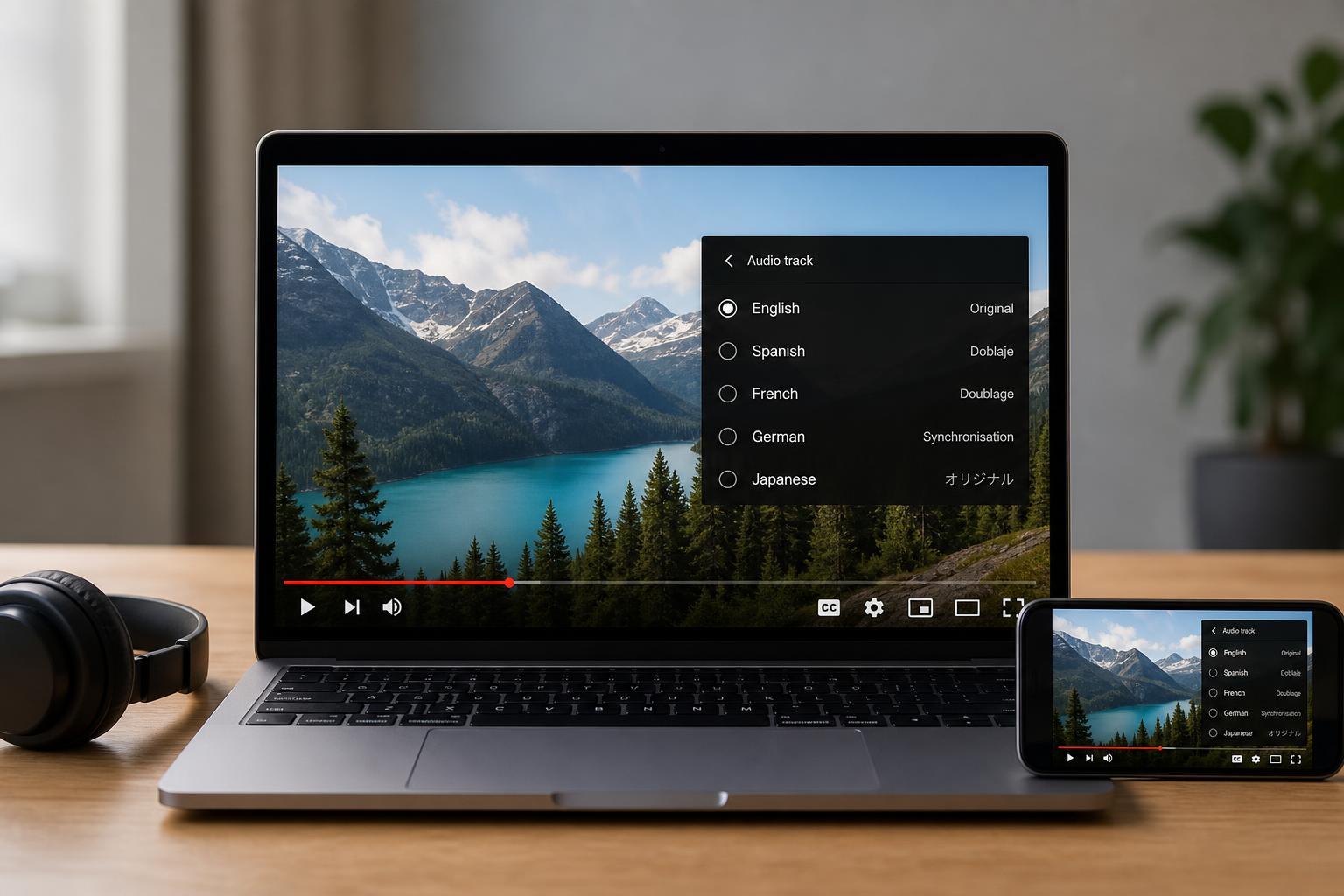
YouTube’s multi-audio track feature lets a single video offer more than one audio option, such as different languages or alternate commentary. If a video supports it, you can switch tracks without leaving the video or opening a separate upload.
This guide explains what the feature does, where it works, how to change audio tracks on supported devices, and what to do if you do not see the option.
What YouTube Multi-Audio Tracks Are
A multi-audio video contains multiple soundtracks attached to the same video file. The most common use is language selection, but creators can also use it for accessibility-friendly narration, regional audio versions, or special commentary.
How to Tell Whether a Video Supports Multiple Audio Tracks
If a video supports multi-audio, YouTube may show an audio or language option in the player controls or settings menu. The exact placement can vary depending on whether you are using the mobile app, desktop browser, smart TV, or streaming device.
- A language or audio option appears in the video player settings
- The uploader mentions multiple languages in the description
- A subtitle list is available alongside separate audio choices
- The video is marked as having alternate audio in the player on some devices
How to Change Audio Tracks on YouTube
- Open a video that supports multi-audio tracks.
- Start playback and look for the settings gear, audio options, or language menu in the player.
- Select the audio track or language you want to hear.
- Wait a moment for the new track to load, then continue watching.
On many devices, YouTube remembers your choice for that video session. If you open another video, you may need to choose the track again if that video also offers multiple audio options.
Where the Feature Is Most Likely to Work
Multi-audio support is easiest to use on devices and app versions that have the latest YouTube player features. It is most commonly seen on modern browsers, the YouTube mobile app, and newer smart TV apps.
- Desktop browsers with updated YouTube playback support
- Android and iPhone apps with recent updates
- Smart TVs and streaming boxes that support the current YouTube app
- Videos uploaded specifically with alternate audio tracks
If You Do Not See the Option
If a video should have multiple audio tracks but you cannot find the switch, the issue is usually one of three things: the video does not actually include extra tracks, your app or browser does not support the control yet, or the feature is not available on your specific device.
- Check that the video is one known to offer multiple audio tracks.
- Update the YouTube app or refresh your browser page.
- Try a different device, such as desktop instead of TV, or the mobile app instead of a browser.
- Look for language controls in the player settings, not just in the subtitle menu.
- Sign out and back in only if your account seems to be showing outdated player behavior across videos.
Helpful Troubleshooting Checks
If the audio option is missing or behaves strangely, a few practical checks can help narrow down the cause.
- Make sure YouTube is fully updated on your device
- Confirm that the video is actually playing in the main YouTube app or site, not through an embedded player with limited controls
- Try another video that is known to use the feature
- Check whether your browser extensions are interfering with the player
- On TVs, restart the YouTube app itself if it is not showing expected playback options
For Creators: What to Know Before Uploading Multi-Audio Videos
If you are publishing content with alternate audio tracks, plan the video structure carefully. Each track should match the same timing so that switching between languages or versions feels smooth for the viewer.
- Prepare each audio track so it matches the same video timeline.
- Label the languages or versions clearly in the upload workflow if your tools support it.
- Check the final playback on more than one device before sharing the video widely.
- Use the feature only when the alternate track adds real value, such as localization or accessibility.
Best Practices for Viewers
To get the smoothest experience, use the latest YouTube app or browser version available to you. If you watch videos in more than one language, it can also help to learn where YouTube places the audio selector on your favorite device.
- Keep the app or browser updated
- Check the video player settings if the audio sounds wrong
- Use subtitles if you need both audio and text support
- Test the feature on a second device if one platform does not show it
What to Expect in Practice
In real use, multi-audio tracks are most helpful when a creator wants to serve different audiences without uploading several separate videos. For viewers, that means fewer duplicate uploads and a simpler way to switch languages or alternate commentary on the same page.





