
Google Sheets includes a built-in Split text to columns feature that lets you separate combined data into multiple columns quickly. It is useful when imported data arrives in one cell but needs to be organized into separate fields.
You can use this tool for things like first and last names, city and state values, comma-separated lists, email addresses, or any other text that contains a clear separator.
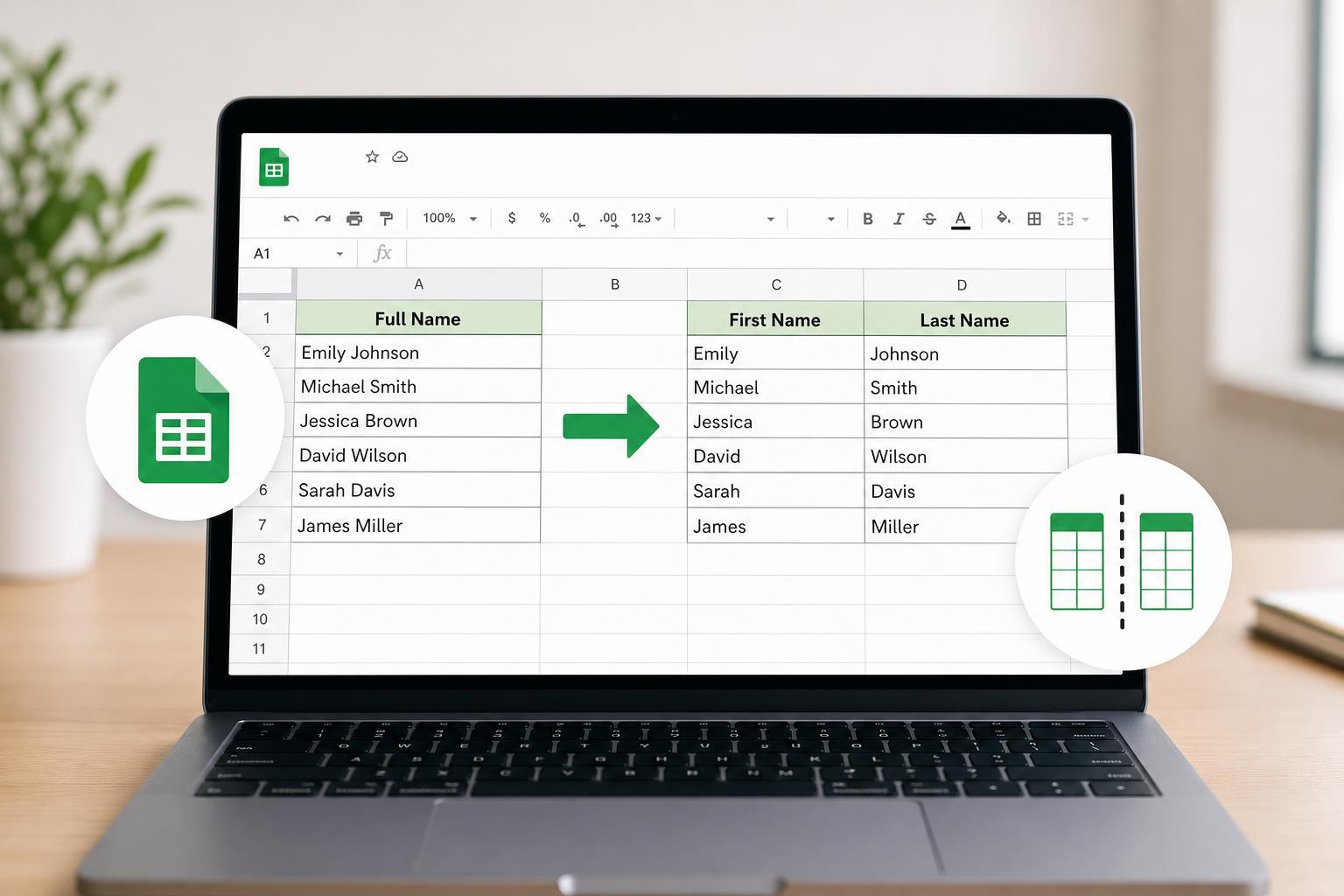
How Split Text to Columns Works
The feature looks for a delimiter, which is the character or spacing pattern that separates parts of the text. Once Google Sheets finds that delimiter, it splits the content across adjacent columns.
Use Split Text to Columns in Google Sheets
- Select the cell or range of cells that contains the text you want to split.
- Open the Data menu at the top of Google Sheets.
- Click Split text to columns.
- Choose the separator type from the small menu that appears below the selected data.
- Check the columns to make sure the text split correctly.
Choose the Right Separator
Google Sheets can automatically detect some common separators, but you can also choose one manually if the default result is not correct.
- Comma, for CSV-style data such as "Smith, John"
- Semicolon, for regions or files that use semicolons instead of commas
- Period, for text separated by dots
- Space, for names or phrases with single spaces between parts
- Custom, for symbols like hyphens, slashes, pipes, or tabs
Examples of When to Use It
- Splitting full names into first and last name columns
- Separating email usernames from domain names
- Breaking product codes into meaningful parts
- Organizing imported address data
- Cleaning up copied data from websites or spreadsheets
Using a Custom Separator
If your data uses a character that is not listed, choose Custom from the separator options and type the symbol you want Sheets to use. This is helpful for data such as account numbers with hyphens or file paths with slashes.
Things to Watch Out For
- If the original text has inconsistent separators, some rows may not split evenly.
- Leading or trailing spaces can create messy results after splitting.
- Merged cells may interfere with the command.
- Very complex text patterns may be better handled with formulas such as SPLIT or REGEXEXTRACT.
When to Use a Formula Instead
Use the menu option when you want a quick one-time split. Use formulas when you need the split to update automatically as the source data changes.
Useful Alternatives in Google Sheets
- SPLIT formula, for automatic splitting based on a delimiter
- LEFT, RIGHT, and MID, for extracting fixed parts of text
- REGEXEXTRACT, for pattern-based text extraction
- Text to columns in combination with Find and replace, for cleaning inconsistent separators first
If you are working with large or messy datasets, combining cleanup tools with Split text to columns usually gives the most reliable result.





