
A date picker makes it easier to enter dates consistently and reduces typing mistakes in spreadsheets. In Google Sheets, you can add a calendar-style date picker to cells with date formatting or data validation. Google Docs does not offer the same built-in date picker for plain text, but there are a few practical ways to work with dates more efficiently depending on what you need.
How the Date Picker Works in Google Sheets
Google Sheets can show a date picker when a cell is set up for date entry. In many cases, simply formatting a cell as a date is enough for Sheets to recognize it and offer a calendar when you click the cell. This is especially useful for forms, schedules, project trackers, and any sheet where dates need to stay consistent.
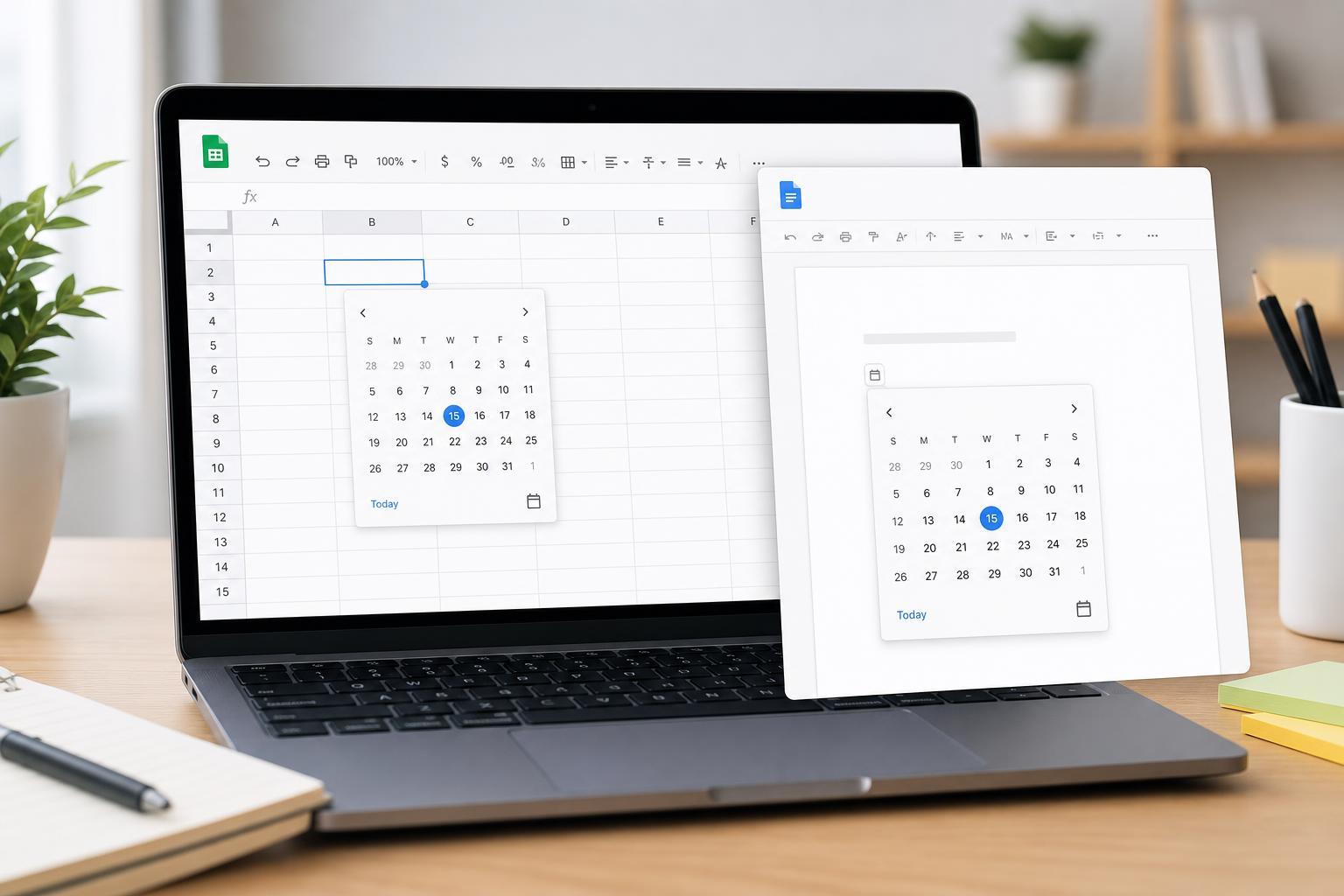
Insert a Date Picker in Google Sheets
- Open your Google Sheet and click the cell or range where you want users to enter dates.
- Go to Format in the top menu, then choose Number and select Date.
- Click the cell again. If the cell is set correctly, a calendar date picker should appear when you select it.
- If you want to limit entries to valid dates only, select the cells, then go to Data and choose Data validation.
- Set the criteria to Date or Date is valid, then save the rule.
If you are building a sheet for other people to use, data validation is especially helpful because it prevents inconsistent entries such as text strings, partial dates, or dates outside a certain range.
Use a Date Picker with a Date Range in Google Sheets
You can also make Sheets more useful by restricting dates to a valid range. This is common for deadlines, booking forms, and event planning templates.
- Select the cells you want to control.
- Open Data validation.
- Choose Date as the rule type.
- Set conditions such as before a specific date, after a specific date, or between two dates.
- Choose whether to show a warning or reject invalid input, then save.
How to Work with Dates in Google Docs
Google Docs does not include a native calendar-style date picker for normal document text the way Google Sheets does. If you need to insert dates into a document, the best option depends on whether you want a manually typed date, a linked spreadsheet value, or an automated workflow.
- Type the date manually if you only need it once or twice in the document.
- Copy a date from Google Sheets if the date is already stored in a spreadsheet.
- Use a fill-in form, template, or add-on if you need repeated date entry in a document workflow.
- If you only need a formatted date, insert it using the document's normal text tools and style it like the rest of the document.
Best Way to Add Dates in Google Docs If You Need a Picker
If your real goal is to collect dates from other people, consider whether Google Docs is the right tool. Google Forms is often a better choice because it supports a date question with a calendar picker, and the responses can still be sent to Google Sheets for tracking.
- Use Google Forms for date collection from users.
- Use Google Sheets for sortable, filterable date data.
- Use Google Docs for writing and presenting the final information, not for date entry forms.
Troubleshooting a Missing Date Picker in Google Sheets
If the calendar icon or picker does not show up in Sheets, the issue is usually one of a few simple setup problems.
- The cell is formatted as plain text instead of a date.
- The sheet has a custom format that hides date behavior.
- The data validation rule was not applied to the selected cells.
- The browser is showing an outdated page state, so the format change has not fully applied yet.
- The cell is inside a protected range or other sheet rule that limits editing.
- Check the cell format and set it to Date.
- Remove any custom text formatting that may conflict with date entry.
- Reapply data validation if needed.
- Click away and back into the cell to test whether the picker appears.
- If the problem continues, open the sheet in another browser tab and test again.
Choosing the Right Tool for the Job
If you need structured date entry, Google Sheets is the better choice. If you are writing a document and just need to mention a date, Google Docs is usually enough. And if you want other people to select a date from a calendar, Google Forms is often the most practical option.
So the short version is this: use Sheets for a true date picker, Docs for written content, and Forms when you want to collect dates from others with minimal friction.





