
Tumblr’s messaging features can be useful for staying in touch, but they can also lead to unwanted messages, spam, or distractions. If you want more control over who can contact you, Tumblr gives you a few privacy options that can help you restrict or effectively disable instant messaging on your blog.
The exact settings available can vary depending on whether you use Tumblr on the web or in the app, and Tumblr occasionally changes how messaging works. In most cases, the goal is to limit replies, asks, chat messages, and direct messaging rather than “turn off” every contact feature in one single switch.
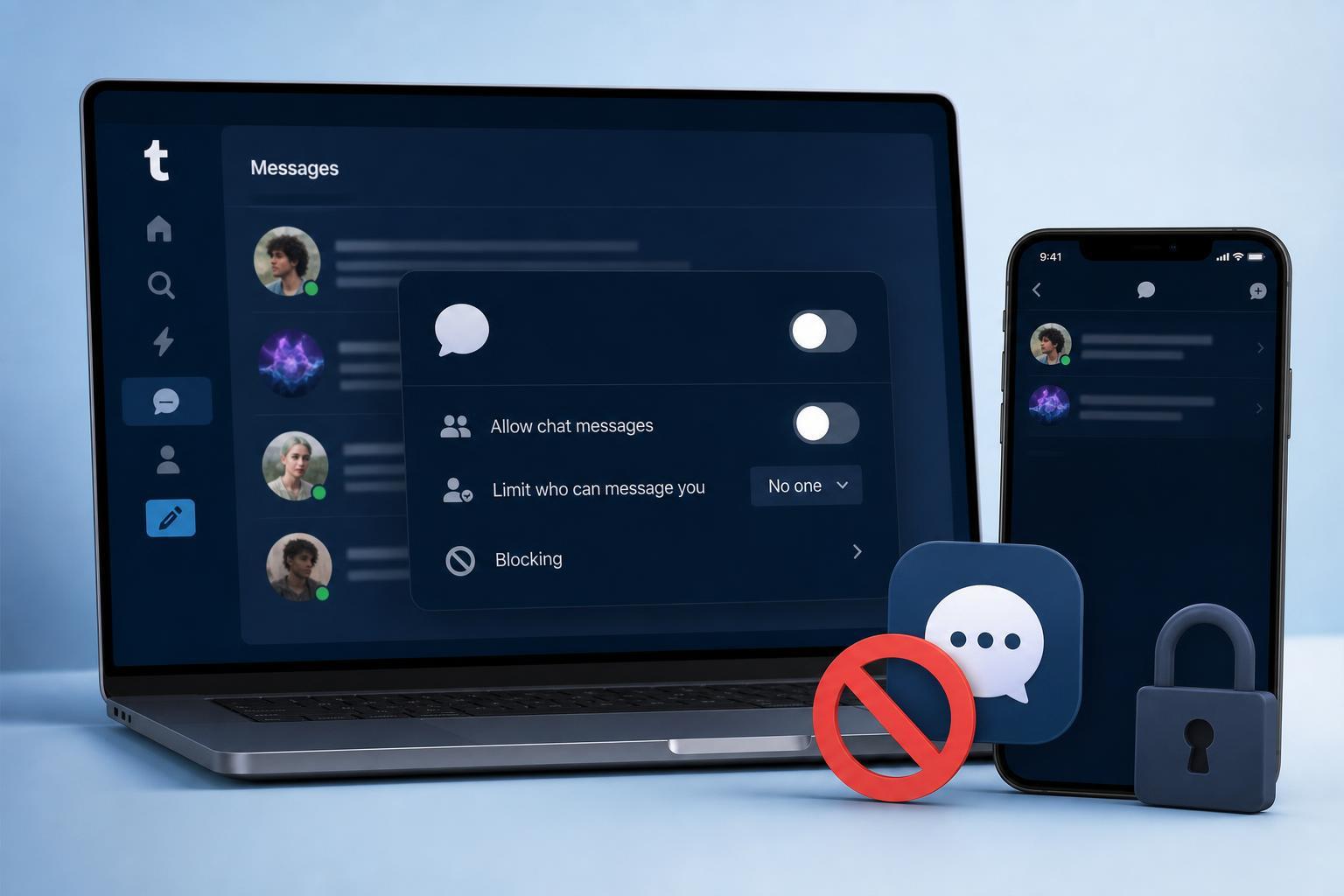
What Tumblr Messaging Options You Can Control
Before changing settings, it helps to know what you are trying to stop. On Tumblr, communication can happen in a few different ways, and each one may need a separate setting.
- Asks: anonymous or named questions sent to your blog
- Replies: responses left on posts
- Fan mail or message-style contact, depending on Tumblr’s current features
- Direct messages or chat-style conversations, if available on your account
- Reblogs and mentions, which are not private messages but can still create interaction
Restrict Messages From Your Tumblr Settings
The main place to control messaging is your blog’s settings. The exact labels may differ slightly, but the options are usually under the privacy or messaging sections for your blog.
- Open Tumblr and sign in to the account you want to change.
- Go to your account or blog settings.
- Select the blog you want to manage if you have more than one.
- Look for privacy, messaging, asks, or reply settings.
- Turn off or limit the features you do not want people to use.
- Save your changes if Tumblr does not do this automatically.
Disable Asks if You Do Not Want Random Messages
If your main concern is unwanted questions or anonymous contact, turning off asks is often the most effective step. This stops people from sending you ask-style messages through your blog.
- Open the settings for the blog you want to protect.
- Find the asks option.
- Disable asks or limit them to certain users if Tumblr offers that choice.
- If available, decide whether anonymous asks should also be blocked.
- Check your blog after saving to confirm the ask button is no longer available.
Limit Replies on Your Posts
Replies are not the same as direct messages, but they can still feel like unwanted chat. If you want fewer interruptions, restrict who can reply to your posts.
- Everyone can reply, if you want open discussion
- People you follow, if you want a more controlled audience
- Only people you mention, depending on Tumblr’s available options
- No one, if you want to stop replies entirely on a post-by-post basis
On Tumblr, reply settings may be available globally or per post. If you only want to stop message-like interaction on certain posts, changing the reply setting for those individual posts can be a good compromise.
Turn Off or Limit Direct Messaging and Chat
If Tumblr offers direct messaging or chat on your account, look for a setting that controls who can message you. Depending on your account type and Tumblr’s current interface, you may be able to limit messages to people you follow or disable them completely.
- Open your account or blog settings.
- Look for messaging, chat, inbox, or contact settings.
- Set messages to a more restrictive audience if the option is available.
- Disable message requests or chat invitations if Tumblr provides those toggles.
- Test the setting by checking your inbox or message button from another account, if possible.
Use Tumblr Privacy Controls to Reduce Unwanted Contact
If you cannot fully disable instant messaging, you can still make your blog much harder to contact by tightening your privacy settings.
- Hide your blog from search engines if that option is available
- Limit who can follow or interact with your blog
- Block or report users who keep sending unwanted messages
- Review who can see your posts if your blog is intended to be private
- Remove your blog’s contact links or public bio details if they invite messages
Block Users Who Keep Messaging You
If a specific person is sending unwanted messages, blocking them is often faster than trying to change broader settings. Blocking prevents that account from interacting with you in most normal ways on Tumblr.
- Open the user’s profile or message thread.
- Select the block option from their profile or menu.
- Confirm the block if Tumblr asks you to.
- Check whether the account disappears from your inbox or interaction list.
Blocking is especially useful if the problem is harassment, repeated spam, or a user who keeps creating new conversations after you respond once.
If You Want Tumblr to Feel Private but Still Usable
Sometimes you do not want to shut everything down completely. In that case, the best approach is usually a combination of settings rather than a full disable.
- Disable anonymous asks
- Limit replies to people you follow
- Turn off message requests if available
- Block persistent users
- Keep your blog profile information minimal
- Check your settings after Tumblr updates its interface
What to Do if You Cannot Find the Right Setting
If the messaging option you expect is missing, Tumblr may have changed the feature name, moved it to another menu, or limited it to certain accounts or blog types. In that case, look through all blog privacy settings carefully and check both the web version and the mobile app.
- Search your settings for words like asks, replies, messages, chat, inbox, privacy, and contact
- Compare the web and app interfaces, since they may not match exactly
- Check whether you are editing the correct blog
- Make sure the Tumblr app is updated
- Review Tumblr help pages if the feature seems to have changed recently
Choosing the Right Level of Restriction
If your goal is simply to cut down on distractions, disabling asks may be enough. If you want stronger privacy, combine asks restrictions, reply limits, and blocking. If you need a near-private Tumblr experience, reduce discoverability and disable any message-style contact options that remain available.





