Sometimes Windows Update pushes a patch you are not ready to install. It may cause a driver conflict, break a feature you rely on, or simply need more testing before you let it onto your PC. While Windows does not always make it easy to block one update forever, there are several ways to stop a specific update from installing, at least for as long as you need.
The right method depends on whether you are on Windows 10 or Windows 11, whether the update is already downloaded, and whether you want a temporary pause or a longer-term block. Start with the simplest option and move to more advanced tools only if needed.
What You Can and Cannot Block
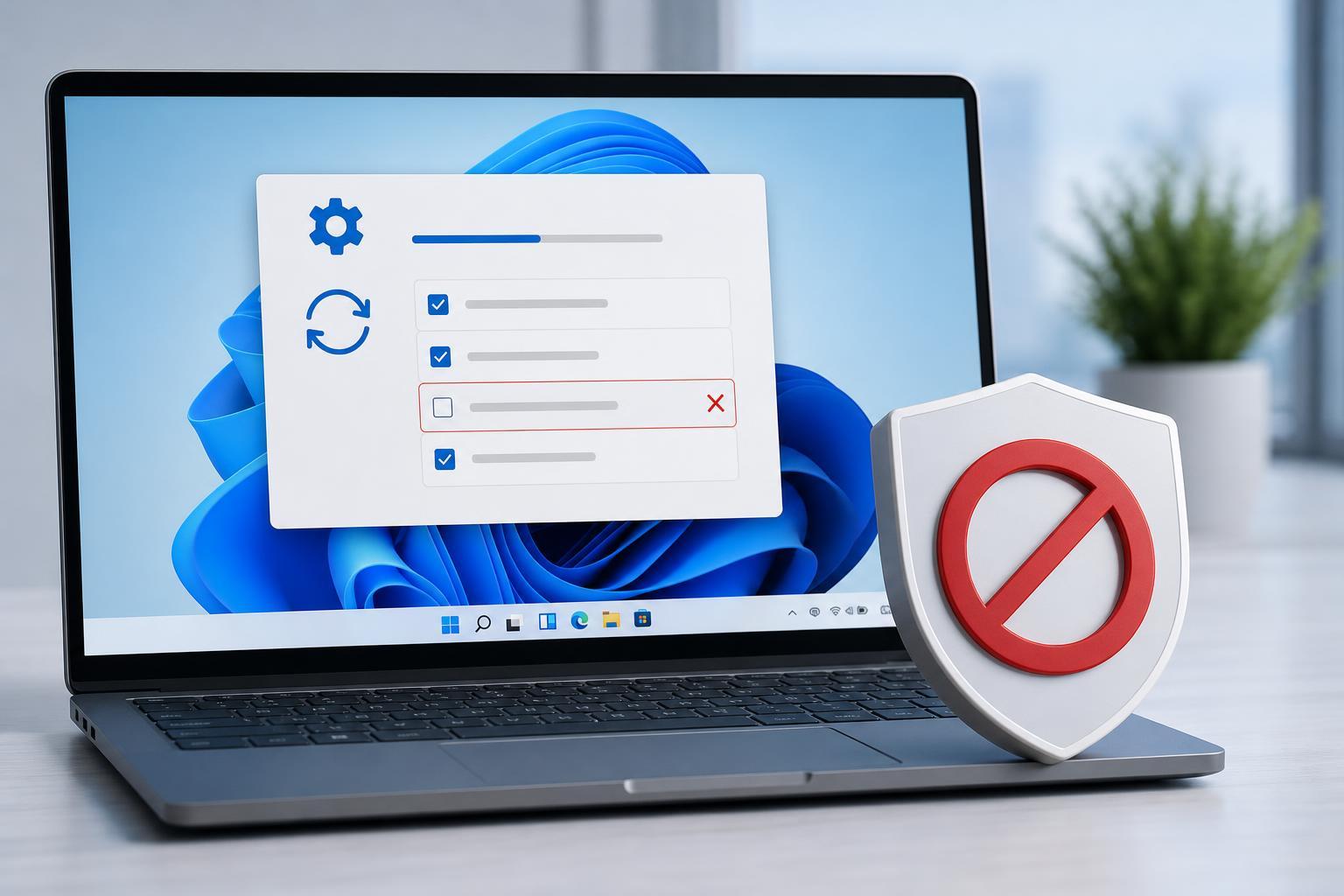
Windows Update behaves differently depending on the type of update. Feature updates, quality updates, and driver updates are handled in different ways, so the easiest method to stop one update may not work for another.
- Quality updates: Monthly security and reliability patches. These are often the ones people want to delay because they can cause immediate problems.
- Feature updates: Bigger version upgrades such as moving to a new Windows release. These are easier to defer than to block forever.
- Driver updates: Hardware driver packages pushed through Windows Update. These can sometimes be hidden or prevented through device settings or policy.
- Cumulative updates: Bundled updates that include multiple fixes in one package, which makes selective blocking more limited.
Pause Updates First if You Only Need a Short Delay
If you just need time to confirm that an update is safe, pausing Windows Update is the quickest option. This does not block one specific update by itself, but it can prevent Windows from downloading anything new while you investigate.
- Open Settings.
- Go to Windows Update.
- Select Pause updates and choose a pause period if available.
- Check the update history or update details so you know which update is currently pending.
- Resume updates later when you are ready to test again.
Use Microsoft’s Hide Update Tool for One-Off Updates
For a specific driver or quality update, Microsoft’s older hide-update troubleshooter can still be useful on many systems. It lets you select a particular update and hide it so Windows ignores it for now.
- If the update is already installed, uninstall it first from Settings > Windows Update > Update history > Uninstall updates.
- Download and run the 'Show or hide updates' troubleshooter if it is available for your version of Windows.
- Choose to hide updates.
- Select the update you do not want installed.
- Finish the tool and check Windows Update again to confirm it no longer appears as an available install.
Uninstall the Update and Keep It From Returning
If Windows already installed the update and it is causing a problem, uninstalling it is often the first step. After that, you need to block it from reinstalling automatically.
- Open Settings and go to Windows Update.
- Open Update history, then select Uninstall updates.
- Find the KB number or driver update you want to remove.
- Uninstall it and restart only if Windows asks you to.
- Immediately pause updates or hide the same update so Windows does not reinstall it on the next scan.
Block Driver Updates Separately if a Hardware Driver Is the Problem
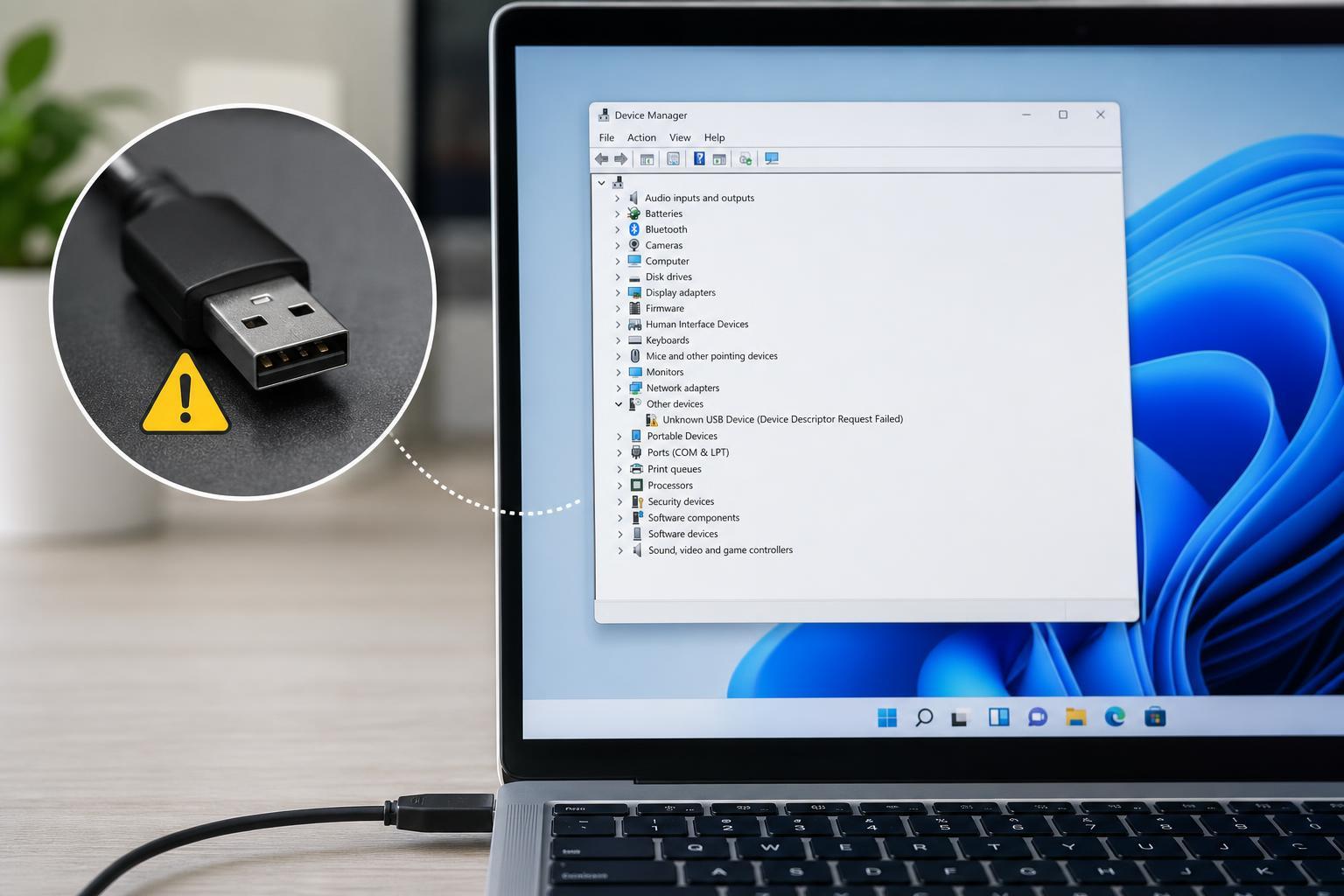
A troublesome driver update is a common reason people want to stop Windows Update from installing one specific package. In many cases, the issue is not Windows itself but a graphics, audio, Wi-Fi, or chipset driver that worked better before the update.
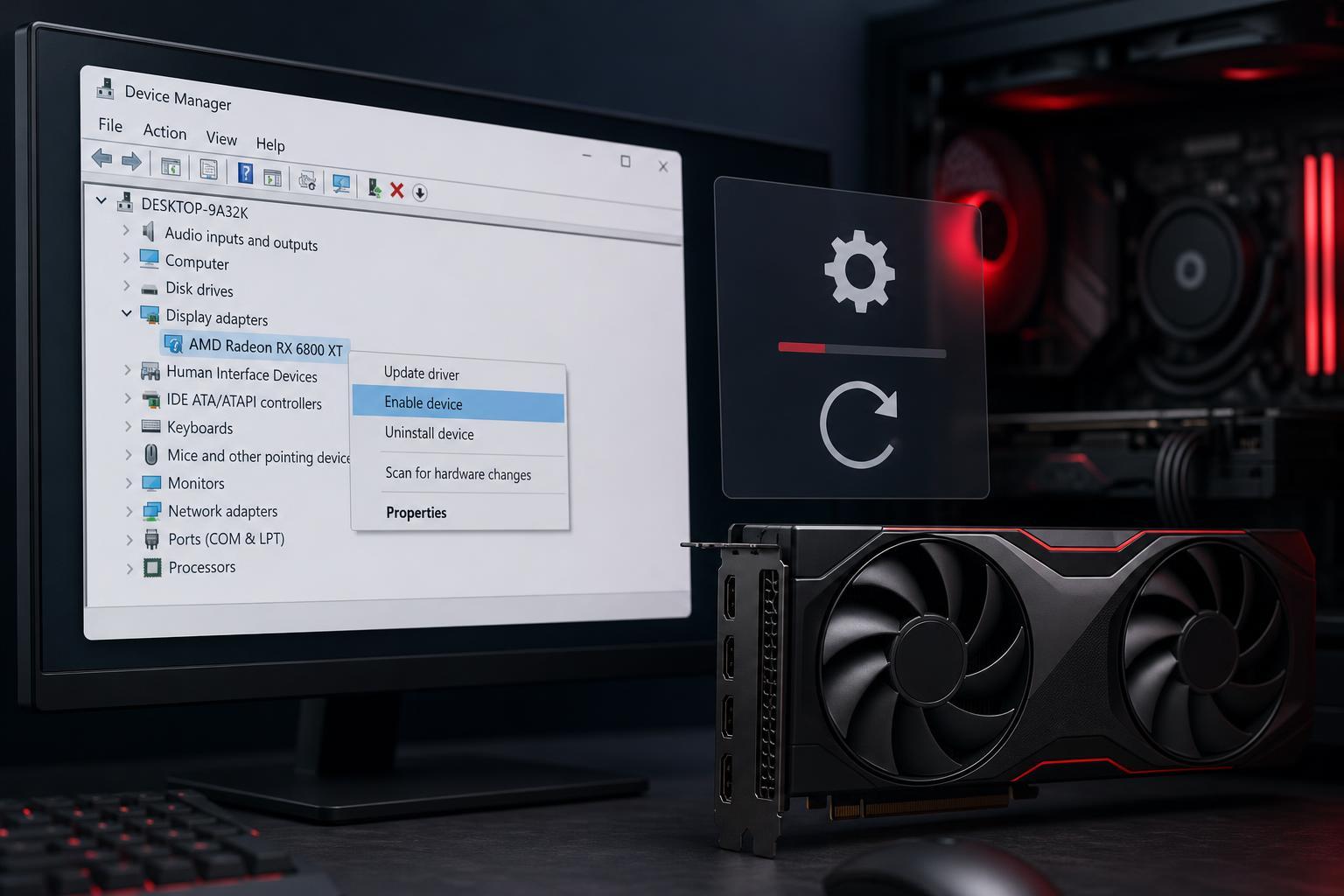
- Use Device Manager to roll back the driver if the previous version is still available.
- Hide the specific driver update if Windows keeps offering it again.
- If the driver comes from a hardware vendor utility, check whether that utility also manages driver updates.
- For persistent problems, use policy settings to stop Windows from delivering drivers through Windows Update.
Use Group Policy to Stop Automatic Driver Updates
On Windows Pro, Enterprise, or Education, Group Policy gives you more control over how drivers are delivered. This is useful if Windows keeps reinstalling the same driver after you remove it.
- Press Windows + R, type gpedit.msc, and press Enter.
- Go to Computer Configuration > Administrative Templates > Windows Components > Windows Update > Manage updates offered from Windows Update.
- Look for the policy related to drivers or include drivers with Windows Updates, depending on your version of Windows.
- Set the policy to disable driver delivery from Windows Update if that option is available.
- Apply the change and run Windows Update again to confirm the driver no longer appears.
Use the Registry Only If You Need a Stronger System-Wide Block
Some Windows editions do not include Group Policy Editor, and in those cases registry changes may be the only built-in route. Registry edits can be effective, but they should be handled carefully because a mistake can affect system behavior.
- Create a restore point or a backup before changing the registry.
- Press Windows + R, type regedit, and open Registry Editor.
- Go to the Windows Update policy area used by your version of Windows.
- Create or modify the value that disables driver delivery or update installation for the category you want to block.
- Close Registry Editor and check whether Windows Update still offers the problem update.
If the Update Is a Feature Update, Use Deferral Settings Instead
Feature updates are usually harder to block permanently, but you can often defer them for a meaningful period. This is a good option if you want to stay on a stable Windows version until compatibility issues are resolved.
- Open Settings and go to Windows Update.
- Look for Advanced options or update deferral controls.
- Choose how long to defer feature updates if your edition supports it.
- Leave quality updates enabled if you still want security patches.
- Review the update history later to decide when to allow the upgrade.
This approach does not stop Windows from ever installing the feature update, but it gives you time and reduces the chance of being forced onto a new version too early.
How to Identify the Exact Update to Block
Before you try to hide or uninstall anything, identify the update precisely. Windows Update often lists only a short description unless you open the details.
- Look for the KB number for Windows quality updates.
- Check the driver name and version for hardware updates.
- Note whether the update is marked as cumulative, security, optional, or feature-related.
- Use Update history to confirm whether the problem update has already been installed or is only pending.
What to Do If Windows Still Reinstalls the Update
If the same update keeps coming back, the block may not be strong enough for the type of update you are dealing with. In that case, move to a more specific method rather than repeatedly uninstalling it.
- For driver updates, use Device Manager rollback or policy-based blocking.
- For quality updates, use the hide-update tool if available and pause updates afterward.
- For feature updates, use deferral settings rather than trying to hide them like a normal patch.
- If the update returns after a major Windows servicing event, re-check your policy settings because they may have reset or become less effective.
Choosing the Right Method
There is no single best way to stop a specific Windows update. The right choice depends on how long you want to block it and what type of update it is.
- Pause updates: Best for a short delay while you test.
- Hide update tool: Best for one specific update you do not want Windows to install again.
- Uninstall then block: Best when an update is already causing problems.
- Group Policy: Best for Windows Pro and higher when a driver keeps returning.
- Registry changes: Best for advanced users on editions without Group Policy.
- Deferral settings: Best for feature updates you want to postpone rather than permanently block.
When You Should Let the Update Install
Not every troublesome update should stay blocked. If Microsoft has released a fix, the safest path may be to install the corrected version instead of keeping the old update out indefinitely.
- The issue only affects a specific driver version and a newer one is available.
- The update is security-related and your system is at risk without it.
- The problem has been confirmed as fixed in a later cumulative update.
- The software or hardware vendor recommends a newer patch or driver.
A Practical Way to Approach It
If you are unsure where to start, use this order: identify the update, uninstall it if needed, pause updates briefly, then hide or defer the exact package. If the problem update is a driver, use driver-specific controls rather than trying to shut down all of Windows Update.
That approach keeps your PC protected while reducing the chance that the same bad update returns immediately. It also gives you a clear path to reverse the change later when the update is fixed or replaced.