
If your Windows 11 laptop stops playing audio after you close the lid and open it again, the problem is usually tied to sleep behavior, a changed playback device, or a driver glitch. In many cases, the sound system is still working — Windows is just sending audio to the wrong output or the device did not wake up properly.
The good news is that this issue is often fixable without reinstalling Windows or replacing hardware. The steps below move from the simplest checks to the more likely system-level causes.
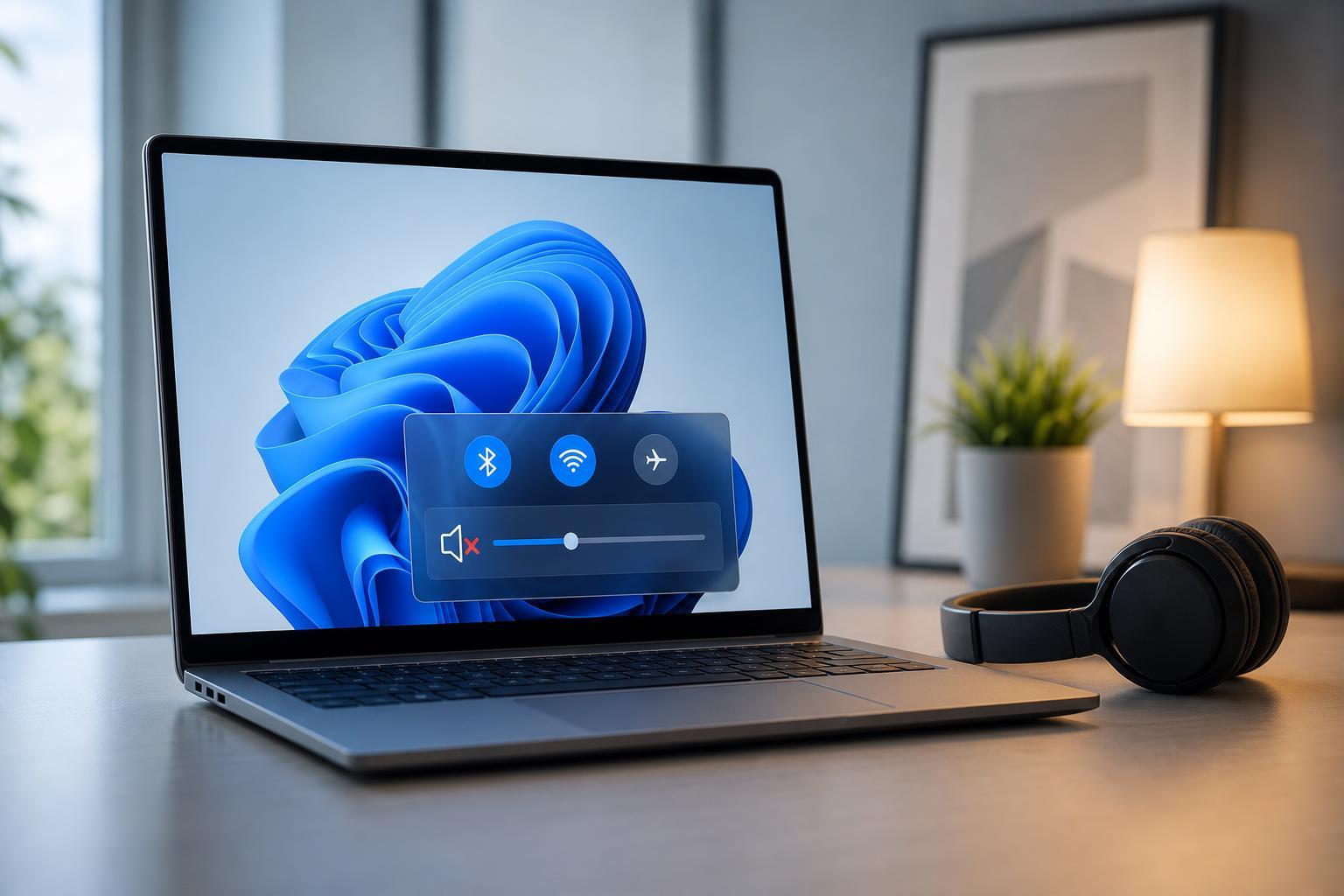
Check Whether Windows Switched to the Wrong Output Device
After a laptop wakes from sleep or lid close, Windows can sometimes change the default audio output. This is especially common if you have Bluetooth headphones, a dock, HDMI monitor, or USB audio device connected.
- Click the speaker icon in the taskbar.
- Select the output device list next to the volume slider.
- Choose your laptop speakers or the correct headphones/speakers.
- Play a video or sound test to confirm audio is coming through the right device.
Make Sure the Laptop Is Not Muted or Set Too Low
When audio fails after reopening a laptop, check both the system volume and the app volume. Some apps keep their own volume level, and Windows can remember mute states separately from the main mixer.
- Click the speaker icon and confirm the volume is turned up.
- Open Volume mixer from the sound panel and check whether the affected app is muted.
- If you use media keys, make sure they are not stuck or mapped to a mute function.
- If headphones were previously connected, unplug them and test the speakers again.
Wake the Audio Driver by Changing the Output Device
Sometimes the audio driver does not recover cleanly after the laptop lid is closed. A quick way to force Windows to reinitialize sound is to switch outputs and switch back.
- Open Sound settings.
- Change the output device from your speakers to another available device, such as headphones or HDMI audio.
- Wait a few seconds.
- Switch back to the laptop speakers and test again.
If no alternate device is available, disconnect any Bluetooth audio devices, unplug docks, and reconnect them after the laptop is awake.
Adjust Lid Close and Sleep Behavior
This problem can happen because the laptop enters a sleep state that the audio driver handles poorly. If audio only fails after closing the lid, your power settings are an important clue.
- Open Control Panel and go to Power Options.
- Choose what closing the lid does.
- Check the setting for When I close the lid for both battery and plugged in use.
- If the laptop is set to sleep, try testing with Hibernate or Do nothing temporarily to see whether the problem changes.
Restart the Windows Audio Services
Windows depends on background services to manage sound. If those services become unresponsive after sleep, restarting them can restore audio without a full reboot.
- Press Windows + R, type services.msc, and press Enter.
- Find Windows Audio and Windows Audio Endpoint Builder.
- Right-click each one and choose Restart.
- Test sound again after the services restart.
Update or Reinstall the Audio Driver
A buggy or outdated audio driver is one of the most common reasons sound fails after a laptop wakes up. This is especially true for built-in Realtek audio, USB audio interfaces, and some laptop-specific sound control software.
- Right-click the Start button and open Device Manager.
- Expand Sound, video and game controllers.
- Right-click your audio device and choose Update driver.
- If updating does not help, choose Uninstall device, then restart the laptop so Windows can reinstall it.
If Windows Update offers an optional driver update from your laptop manufacturer, it is often worth trying that version as well. Generic drivers work for basic audio, but vendor drivers may handle sleep and wake behavior better.
Disable Audio Enhancements Temporarily
Audio enhancements can sometimes interfere with playback after the system wakes. Turning them off is a useful test, especially if the issue started after a driver update or software change.
- Open Settings and go to System > Sound.
- Select your playback device.
- Look for Audio enhancements or Advanced settings.
- Turn enhancements off and test whether audio returns after closing and reopening the laptop.
Check for Bluetooth and Docking Conflicts
If your laptop is paired with Bluetooth headphones, a wireless speaker, or a USB-C dock, Windows may reconnect to one of those devices after wake and keep audio routed there. Some docks also create a separate audio device that stays active even when nothing is playing.
- Turn off Bluetooth headphones and test the built-in speakers.
- Disconnect any USB-C or Thunderbolt dock and test again.
- Remove unused audio devices from the output list if they keep taking over after sleep.
- If you use a monitor with speakers, check whether Windows is sending sound over HDMI or DisplayPort.
Run the Built-in Audio Troubleshooter
Windows 11 includes a troubleshooter that can detect some common sound configuration problems. It does not solve every issue, but it can catch obvious device or service failures.
- Open Settings.
- Go to System > Sound.
- Scroll to Advanced and select Troubleshoot common sound problems.
- Follow the prompts and apply any recommended fixes.
Look for Sleep-Related BIOS or Firmware Updates
If the problem persists across driver updates and audio settings changes, the laptop firmware may be part of the problem. Some manufacturers release BIOS or UEFI updates that improve power-state handling, USB behavior, and device wake-up reliability.
Check your laptop maker’s support page for your exact model and look for firmware updates, audio driver packages, and chipset drivers. Install only files intended for your specific device.
When the Problem Is More Likely Hardware
If audio fails even when the laptop has not been sleeping, or if the speakers cut out permanently after a close-and-open cycle, hardware may be involved. That does not always mean the speakers themselves are bad, but the issue may be with the audio jack, speaker cable, mainboard audio chip, or a loose internal connection.
- Sound works through headphones but never through the built-in speakers
- Audio disappears after a physical movement, not just after sleep
- The device is missing from Device Manager even after driver reinstalls
- Windows reports the device, but the speakers never make any sound
If the laptop is still under warranty, contact the manufacturer before opening the chassis yourself.
What to Try First
If you want the fastest path, start with the checks most likely to fix this specific problem:
- Confirm the correct playback device is selected.
- Check volume and mute status in both Windows and the app.
- Switch audio output away from and back to the laptop speakers.
- Restart Windows Audio services.
- Update or reinstall the audio driver.
- Test lid close and sleep settings to see whether the issue is tied to power management.
If the laptop only loses audio after being closed, the most likely causes are a bad wake state, a driver that does not resume correctly, or Windows routing sound to the wrong device. Once you narrow down which of those is happening, the fix is usually straightforward.





