
Google Meet lets you share your iPhone or iPad screen during a call so others can see an app, website, document, or walkthrough in real time. The process is simple, but on iPhone and iPad there are a few things worth knowing before you start, especially if you want to avoid interruptions or audio confusion.
This guide shows you how to start screen sharing in Google Meet on iPhone and iPad, what participants will see, and what to do if the share option does not appear or does not work correctly.
Before You Start
- You need the Google Meet app installed on your iPhone or iPad.
- You must be in an active Google Meet call or meeting.
- Your device should allow screen recording and microphone access for Google Meet.
- If you want to show an app smoothly, close anything private or distracting before you begin sharing.
How to Share Your Screen in Google Meet on iPhone and iPad
- Join the meeting in the Google Meet app on your iPhone or iPad.
- Tap the screen if the meeting controls are hidden.
- Tap the More options button, usually shown as three dots.
- Select Share screen or Present screen, depending on your app version.
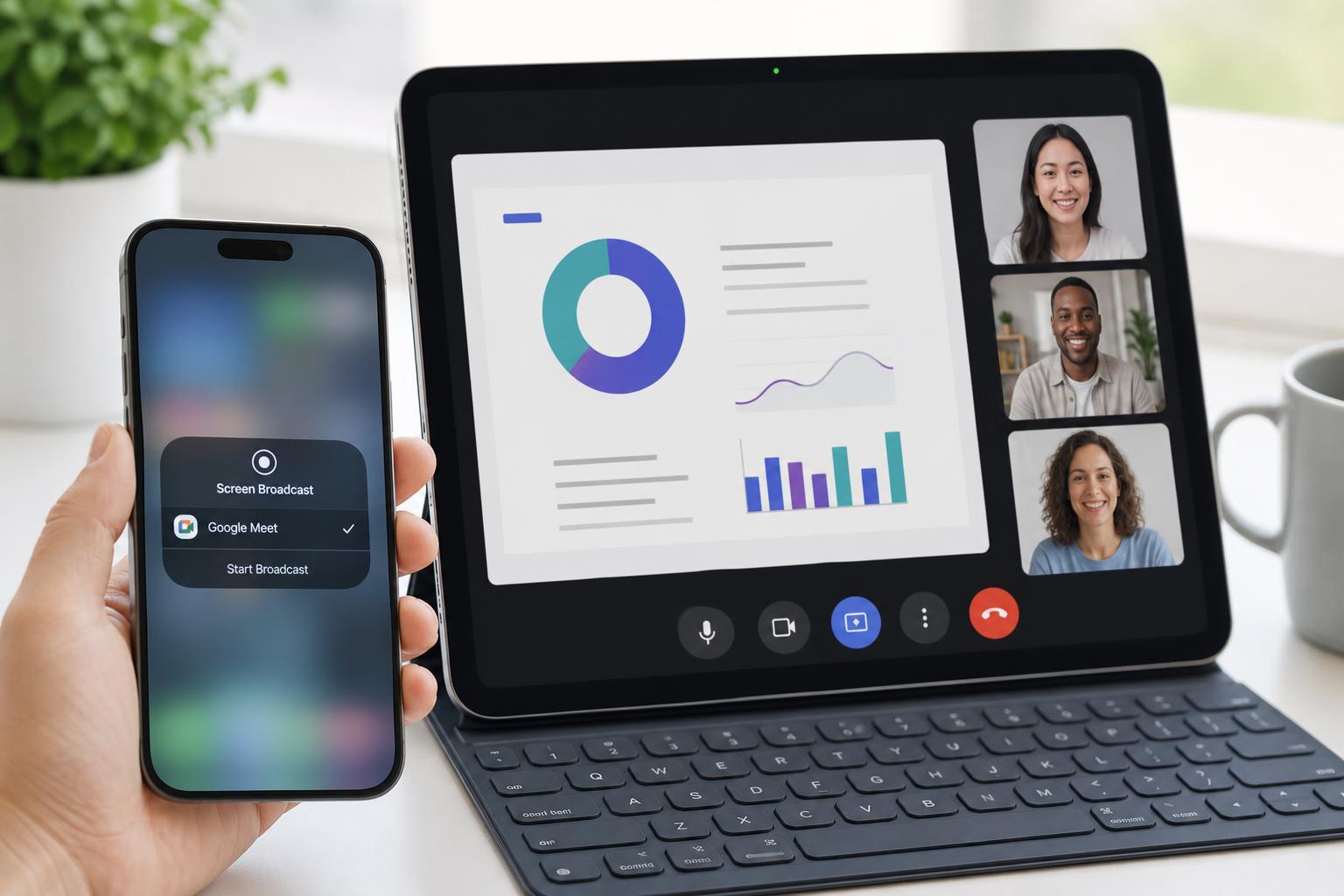
- If prompted, confirm that you want to start broadcasting your screen.
- Choose whether you want to include microphone audio if that option is shown, then start the share.
After you begin sharing, Google Meet will show a screen-sharing indicator. Switch to the app, browser page, photo, or document you want to present. Everything visible on your device screen may be seen by other meeting participants.
What People in the Meeting Will See
Once screen sharing starts, participants will see your live device display. That can be useful for demos, tutoring, support calls, and presentations, but it also means you should be careful about notifications, pop-ups, and app switcher thumbnails.
- Apps and websites you open
- Navigation between screens and menus
- Notifications that appear while sharing
- Any text or images displayed on the screen
- Some overlays or system prompts, depending on the app and iOS version
How to Stop Sharing Your Screen
- Return to Google Meet, or open the meeting controls from the top of the screen.
- Tap Stop sharing or the screen-sharing indicator.
- Confirm if prompted.
You can stop sharing at any time without leaving the meeting. If you were presenting an app or walkthrough, it is a good idea to stop sharing before opening anything private or unrelated.
If the Screen Share Option Is Missing
If you do not see the screen sharing option in Google Meet, the cause is usually one of a few common issues. Check these points in order:
- Make sure you are using the Google Meet app, not only the browser version.
- Confirm that you are already inside a live meeting.
- Update the Google Meet app from the App Store.
- Check whether your organization or school account has restricted presenting features.
- Make sure Screen Recording is not blocked by device restrictions or parental controls.
How to Improve Screen Sharing on iPhone and iPad
- Turn on Do Not Disturb or a Focus mode to reduce notification pop-ups.
- Connect to a stable Wi-Fi network if possible.
- Close unused apps to reduce lag and accidental switching.
- Use landscape orientation if you want more room for documents or slides.
- Keep the app you want to present open before you start sharing.
Common Problems and Quick Fixes
- Blank or frozen shared screen: switch back to Meet and stop sharing, then start again.
- No sound heard by others: check whether microphone audio was included, if that option was available.
- Unexpected notifications appear: enable Focus mode before sharing.
- Meeting participants cannot see your screen: confirm that sharing actually started and that you did not dismiss the broadcast prompt.
- App crashes during sharing: update Meet and iOS/iPadOS, then try again.





