
iPhone Dictation is a handy way to turn speech into text, but it can stop working for a few different reasons. Sometimes the microphone is the issue, sometimes the setting is disabled, and sometimes the problem comes from language, restrictions, or network-related features.
This guide walks through the most common causes of Dictation problems on iPhone and the practical fixes that usually solve them.
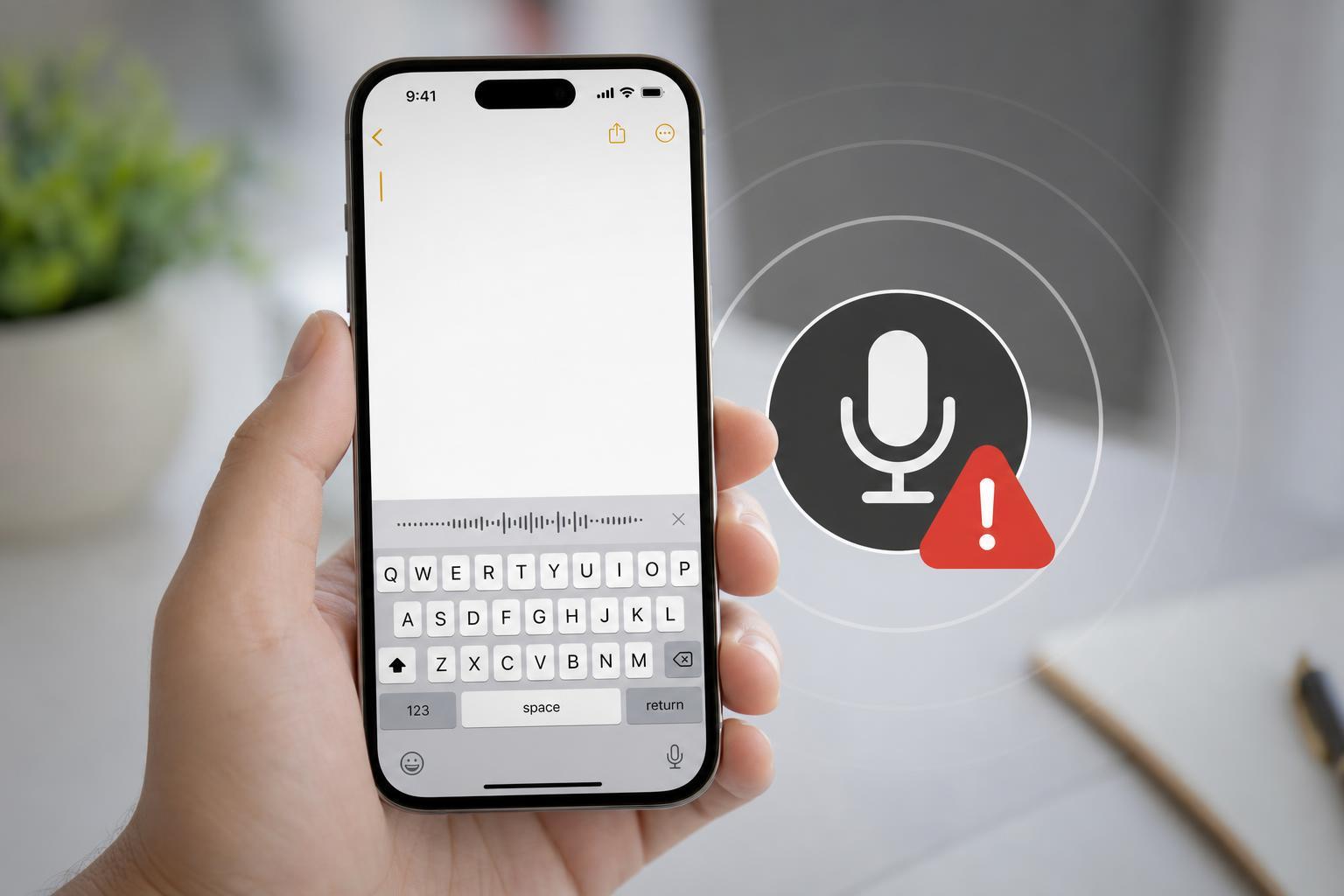
Check Whether Dictation Is Enabled
The most common reason Dictation does not work is that it has been turned off in settings. If the microphone button does not appear on the keyboard, or Dictation seems unavailable, start here.
- Open Settings.
- Tap General.
- Tap Keyboard.
- Scroll down and make sure Enable Dictation is turned on.
- If prompted, confirm that you want to enable Dictation.
Make Sure the Microphone Is Working
If Dictation is enabled but your iPhone still does not hear you, the microphone itself may be blocked, dirty, or unavailable to the app you are using.
- Remove any case, screen protector edge, or accessory that may cover a microphone opening.
- Check for dust or debris around the bottom microphone openings.
- Test the microphone in another app, such as Voice Memos or a phone call.
- If sound is faint or missing in other apps too, the issue is likely hardware-related or caused by a blocked mic.
Check Language and Keyboard Settings
Dictation only works reliably when the language you are speaking matches the keyboard language or Dictation language setting. A mismatch can make Dictation seem broken even when it is working normally.
- Open Settings.
- Tap General, then Keyboard.
- Check that the keyboard language you use is installed and selected.
- If needed, add the correct language keyboard.
- Try Dictation again using the same language you selected for the keyboard.
Confirm Siri and Dictation Restrictions Are Not Blocking It
Some screen time or device restriction settings can prevent Dictation from working. This is especially common on managed phones, family devices, or iPhones with content restrictions enabled.
- Open Settings.
- Tap Screen Time.
- Check Content & Privacy Restrictions.
- Look for Siri & Dictation or related allowed-app settings.
- If restrictions are enabled, make sure Dictation is not being blocked.
Check Your Internet Connection
Some Dictation features may depend on a stable internet connection, especially for certain languages or longer dictation tasks. A weak or unstable connection can make Dictation fail to start, lag, or stop midway.
- Switch between Wi‑Fi and cellular data to see whether one connection works better.
- Try Dictation in an area with a stronger signal.
- Turn Airplane Mode on and off only if you are specifically testing connectivity changes.
- If other online features are also slow, the connection may be the real problem.
Restart the App, Then Test Another App
If Dictation fails in only one app, the app itself may be the problem rather than iPhone Dictation system-wide. Testing another app helps separate an app-specific issue from a device-wide one.
- Close the app where Dictation is failing.
- Open another app that uses the keyboard, such as Notes or Messages.
- Tap the text field and try Dictation again.
- If it works in one app but not another, update or reinstall the broken app if possible.
Update iOS
Software bugs can affect Dictation, especially after a major iOS update or if the phone has not been updated in a while. Installing the latest version of iOS can fix system issues affecting voice input.
- Open Settings.
- Tap General.
- Tap Software Update.
- Install any available update.
- Test Dictation again after the update finishes.
Reset Keyboard-Related Settings if Dictation Still Fails
If the basic settings look correct but Dictation still does not work, the keyboard configuration may be corrupted or misconfigured. Removing and re-adding languages or keyboards can sometimes clear the problem.
- Go to Settings > General > Keyboard.
- Remove any unnecessary keyboards.
- Re-add the keyboard language you actually use.
- Try Dictation again in a simple app like Notes.
- If the problem remains, consider resetting all settings only after you have tried the simpler fixes first.
When to Suspect a Hardware Problem
If Dictation fails everywhere, the microphone does not work in other apps, and cleaning or removing accessories does not help, the issue may be hardware-related.
- No sound in Voice Memos or calls
- People also cannot hear you during phone calls
- Dictation fails in every app that uses the microphone
- The problem started after the phone was dropped or exposed to moisture
Which Fix Should You Try First?
Start with the quickest checks: confirm Dictation is enabled, test the microphone, and make sure the correct language is selected. If those look fine, move on to connectivity, restrictions, and iOS updates. That order solves most Dictation issues without unnecessary troubleshooting.





