
Instagram’s video calls now include screen sharing on supported devices, which can be useful for showing photos, troubleshooting an app, browsing together, or walking someone through something on your phone. The process is simple once you know where to look, but the option may not appear for every account, device, or app version.
This guide explains how to start screen sharing in an Instagram video call, what the other person will see, and what to do if the feature is missing or not working.
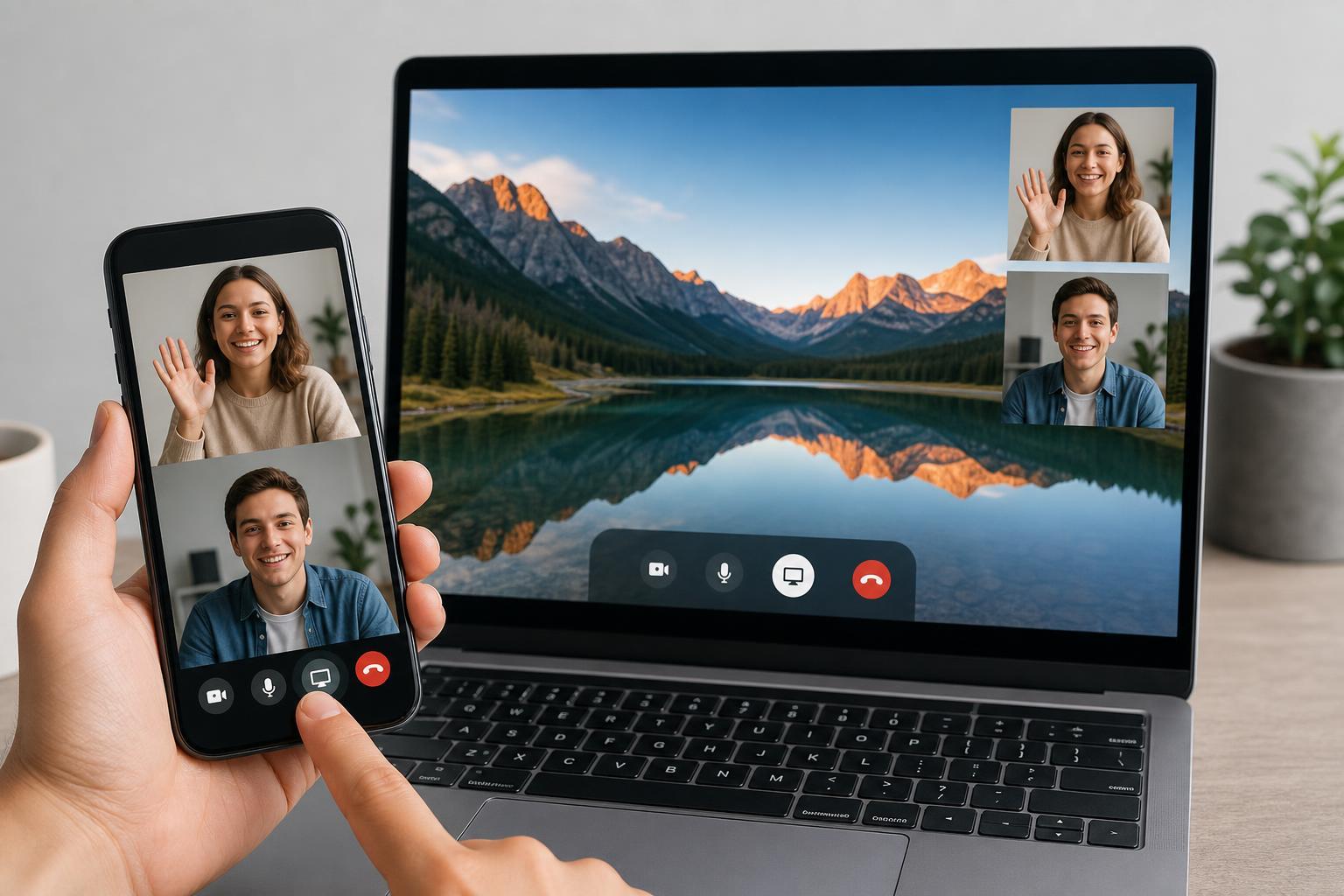
Before You Start
Screen sharing in Instagram video calls is mainly designed for mobile devices. You’ll usually need the Instagram app updated to a recent version, and the person you’re calling should also be in the app during the call.
- A recent version of the Instagram app
- A stable internet connection
- Permission for Instagram to use your microphone and camera
- A supported phone or tablet
- A video call already in progress
How to Share Your Screen in an Instagram Video Call
- Open Instagram and start or join a video call from Direct Messages.
- Once the call is connected, tap the screen to reveal the call controls if they are hidden.
- Look for the screen share option, which may appear as Share screen, a screen icon, or a similar control depending on your app version.
- Tap the screen share option and confirm any prompt asking for permission to record or capture your screen.
- Choose whether to share your entire screen if prompted.
- Switch to the app, page, photo, or document you want to show. Instagram will broadcast whatever is visible on your device screen until you stop sharing.
- When you are finished, return to the call and tap Stop sharing or End screen share.
What Other People Can See
During screen sharing, the other person sees your live screen output, not just the app you intended to show. That can be helpful for demonstrations, but it also means private content may appear if you switch apps or receive notifications.
- App switching and home screen activity
- Incoming notifications, depending on your device
- Photos, videos, and documents you open
- Anything shown in pop-ups or banners
If the Screen Share Option Does Not Appear
If you cannot find screen sharing, the most likely cause is that the feature is not available on your device, app version, or account yet. Instagram rolls features out gradually, and not every phone gets them at the same time.
- Update Instagram from the App Store or Google Play
- Check that you are in a video call, not just a voice or text chat
- Make sure you are using the mobile app, not the web version
- Restart the call after updating the app
- Check whether the other person is also using a supported app version
If Screen Sharing Starts but Does Not Work Properly
If the feature starts but your audience sees a black screen, lag, or the call drops, the problem is usually connection quality, permissions, or a device limitation.
- Check that Instagram has permission to record or display your screen when prompted.
- Reduce heavy background activity, such as video downloads or large app updates.
- Move to a stronger Wi-Fi or mobile data connection if the call is unstable.
- Close and reopen Instagram if the share session freezes.
- Try a different device if the feature consistently fails on one phone.
Good Times to Use Screen Sharing in Instagram
Screen sharing is most useful when you want to show something quickly without leaving the call.
Tips for a Smoother Call
- Turn on Do Not Disturb if you do not want notifications to appear.
- Open the app, page, or file you want to show before starting the screen share.
- Keep the call short if your connection is weak, since screen sharing uses more bandwidth than a normal voice chat.
- If your phone gets hot or slows down, stop sharing and let it cool for a moment.
- Use a clean, uncluttered home screen if you plan to switch apps during the call.
Stopping Screen Share Safely
When you are done, stop sharing from the call controls before switching away from the content you were showing. That is the easiest way to avoid accidentally revealing private information after the demonstration is over.
- Return to the Instagram call screen.
- Tap Stop sharing or the screen share control again.
- Confirm that the call has returned to normal video mode.
- Check that no private app or document is still open in the foreground.





