
Instagram lets you turn some Story comments into a shareable post on your Story, but the option does not always appear for every comment or every account. If you are trying to highlight a reply, respond publicly, or make a comment part of a bigger conversation, it helps to know exactly where the feature is and how it works.
This guide walks through the steps to share a comment on an Instagram Story, explains the usual requirements, and covers common reasons the option may be missing.
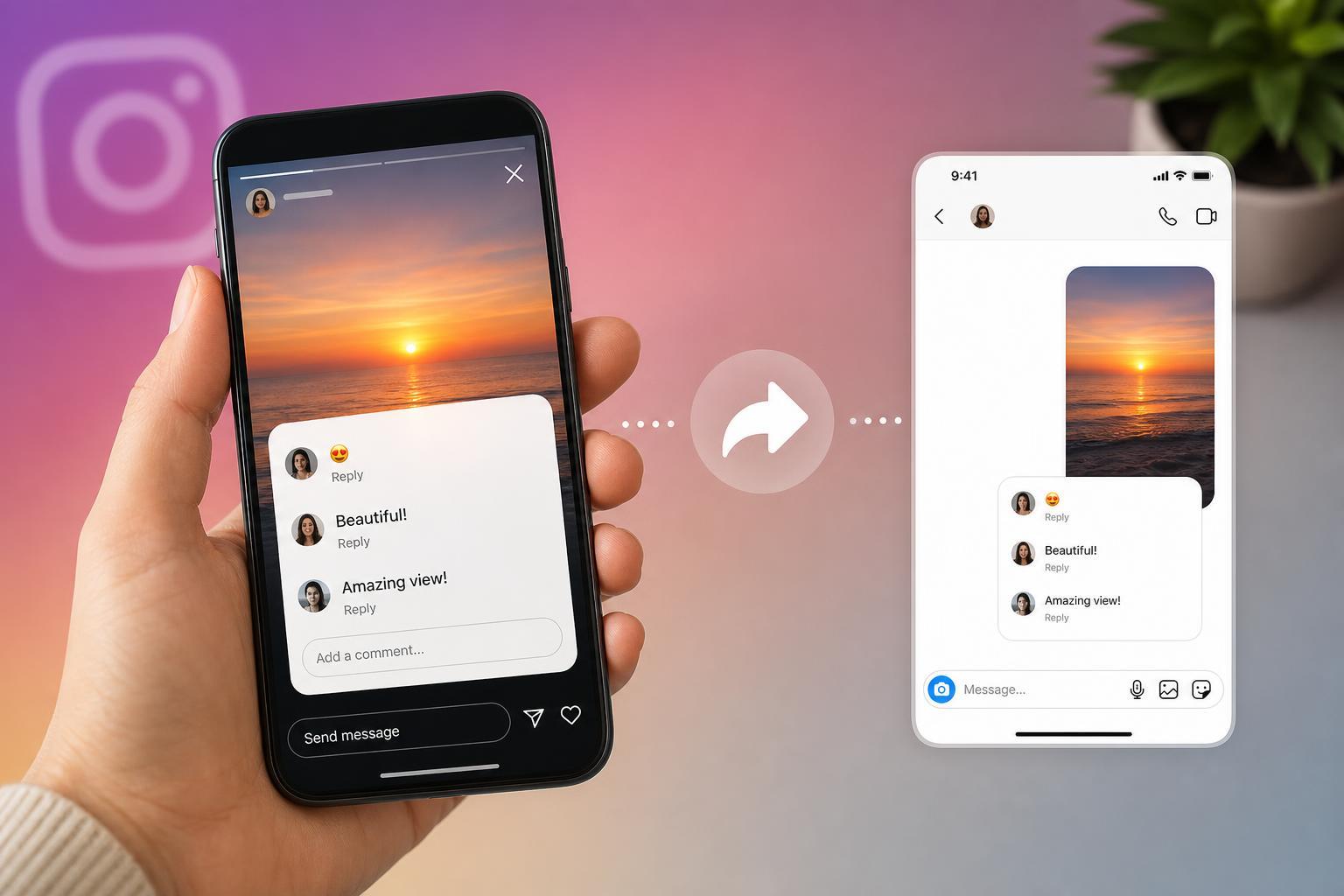
What Instagram Means by Sharing a Story Comment
On Instagram, you may be able to take a reply or comment tied to your Story and repost it as part of your own Story. This is useful when you want to respond to someone publicly, showcase a nice message, or clarify something for your viewers.
How to Share a Comment on Your Instagram Story
- Open Instagram and go to the Story that received the comment or reply.
- Tap your profile picture or open your Story insights/messages to find the response you want to share.
- Open the comment or reply, then look for the share option or paper-airplane style button if Instagram shows one.
- Choose Add to Story or Share to Story, depending on the wording you see.
- Edit the Story if you want to add text, stickers, or other context before posting it.
- Tap Your Story to publish it.
If You Don’t See the Share Option
Not every comment can be shared to a Story. Instagram may limit the option based on the type of comment, the account settings involved, or how the message was posted.
- The comment is not attached to a Story reply that can be reposted.
- The sender has privacy settings or restrictions that prevent sharing.
- Instagram has not enabled the feature for that account or app version.
- The comment was deleted, hidden, or restricted before you tried to share it.
How to Make the Shared Comment More Useful
When you share a comment, the best results usually come from adding context. A shared comment on its own can confuse viewers if they do not know what it refers to.
- Add a short caption explaining why you are sharing it.
- Use a sticker or arrow to point out the part you want viewers to notice.
- Cover private details if the comment includes information you do not want public.
- Keep the tone respectful, especially if the comment is critical or sensitive.
Privacy and Etiquette to Keep in Mind
Even when Instagram allows sharing, good judgment matters. A comment that seems harmless in a private reply may feel different once it is placed in front of all your Story viewers.
- Avoid sharing anything that includes phone numbers, email addresses, or other personal details.
- Do not repost content that could embarrass or misrepresent the sender.
- If the comment is negative, consider responding privately instead of turning it into a public Story post.
- When in doubt, ask for permission first.
What to Try If Instagram Still Will Not Let You Share
- Update Instagram to the latest version.
- Check whether the reply or comment is still available.
- Try a different Story reply or another message to see whether the option appears there.
- Review your account privacy and message settings.
- Log out and back into the app only if other features are also behaving strangely.
A Simple Rule of Thumb
If Instagram shows the share option, you can usually repost the comment to your Story and edit it first. If it does not show up, the comment likely cannot be shared in that format.
The feature is easy to use once it appears, but the important part is choosing the right comment to share and making sure the repost still makes sense on its own.





