
Spotify’s sleep timer lets you stop music or podcasts automatically after a set amount of time, which is useful when you listen while falling asleep. The exact steps depend on the device you are using, and some platforms support the feature directly while others require a workaround.
This guide shows how to set a Spotify sleep timer on phones, tablets, and desktop devices, and explains what to do if you cannot find the option.
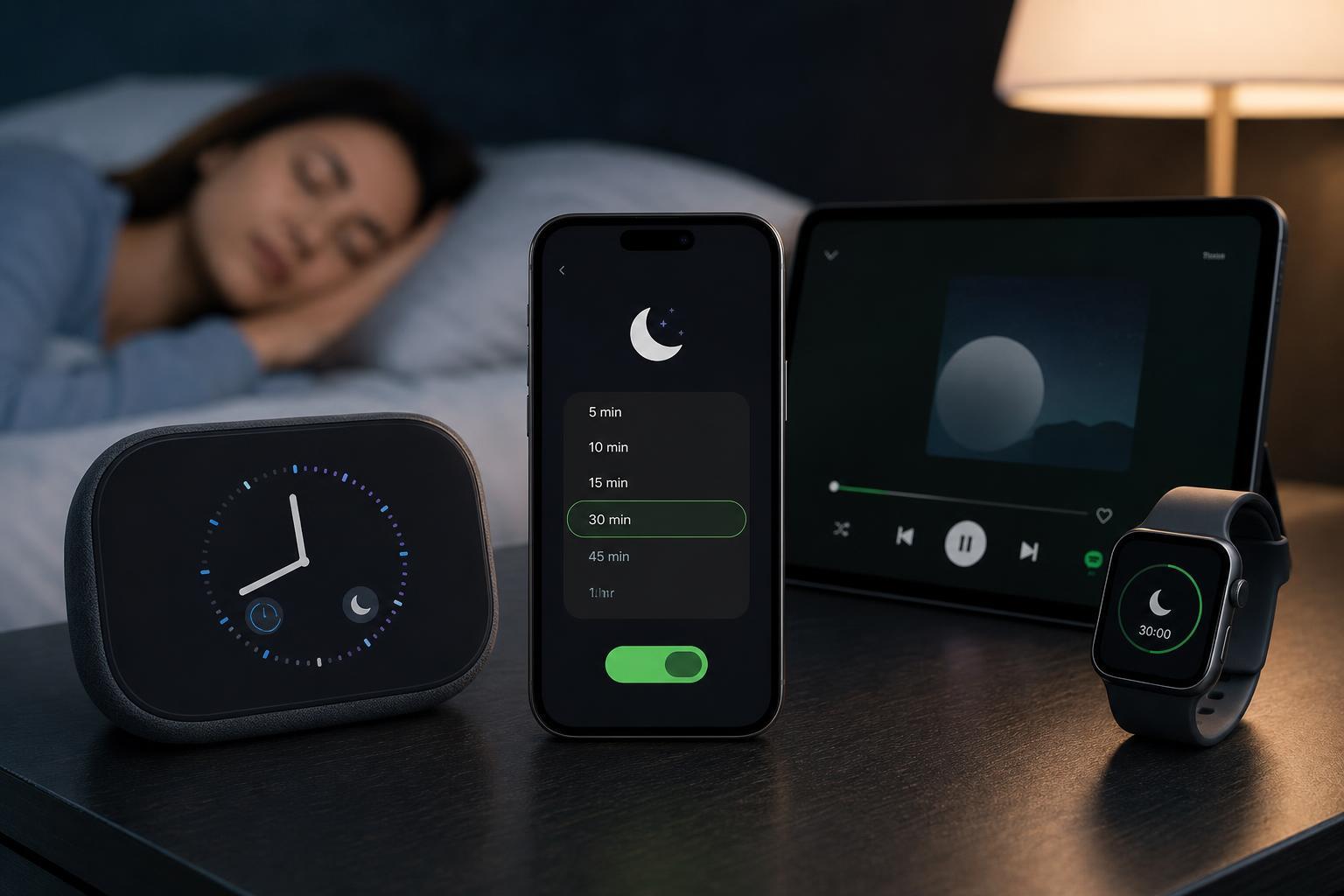
How Spotify Sleep Timer Works
A Spotify sleep timer stops playback after a chosen time period. It is most commonly used for music, podcasts, and audiobooks when you do not want audio to keep playing all night.
Set a Sleep Timer on iPhone or Android
The easiest way to use Spotify’s sleep timer is inside the Spotify mobile app.
- Open Spotify on your iPhone or Android phone.
- Start playing a song, playlist, album, or podcast.
- Tap the Now Playing bar at the bottom of the screen to open the playback view.
- Tap the three-dot menu icon.
- Scroll down and select Sleep timer.
- Choose how long you want playback to continue.
Use Spotify Sleep Timer on iPhone or Android Podcasts
Spotify often makes the sleep timer easier to find in podcast playback controls than in music playback. If you mainly use Spotify for spoken content, open the episode first and then check the playback menu for the timer option.
- Works well for podcasts you do not want to continue after you fall asleep
- Can be adjusted for a short or longer listening session
- Usually available from the same playback menu as other episode controls
How to Set a Spotify Sleep Timer on Desktop
Spotify desktop apps for Windows and macOS do not always include a built-in sleep timer. If you only use Spotify on a computer, you may need to use your operating system’s sleep settings or an external timer workaround instead.
- Set a system sleep timer or automatic sleep setting on your PC or Mac
- Use a browser or app-based timer to remind you to stop playback
- Control playback from your phone if the timer is available there
Use a Sleep Timer on Other Devices
Not every device that can play Spotify includes the same timer controls. Smart speakers, TVs, game consoles, and some car systems may not show Spotify’s sleep timer at all.
- Use the Spotify mobile app to control playback when possible
- Set a device-level sleep timer on the speaker, TV, or phone if the device supports one
- Use a routine or automation in your smart home app if you are listening through a connected speaker
If You Do Not See the Sleep Timer Option
If the sleep timer is missing, the cause is usually one of a few simple issues rather than a problem with your account.
- You are not in the full Now Playing view
- Playback has not started yet
- You are using a device or app version that does not support the feature
- Spotify needs an update
- The option is not available for the current content type on that device
- Start playing something first.
- Open the full playback screen, not just the mini player.
- Look for the three-dot menu or timer option again.
- Update Spotify from the App Store or Google Play.
- Try the same steps on another device, such as your phone instead of your desktop app.
Alternative Ways to Stop Playback Automatically
If Spotify’s built-in timer is unavailable on your device, you still have a few practical options.
- Use your phone’s Clock app or sleep timer feature, if available, to remind you when to stop listening.
- Set an automation or routine that pauses media after a certain time.
- Use the device’s own sleep or power settings to shut down playback indirectly.
- For podcasts, consider downloading episodes and playing them from a device that supports the timer.
Which Method Is Best?
The best method depends on where you listen most often. On phones, Spotify’s built-in sleep timer is the simplest option. On desktops and some connected devices, system sleep settings or automation tools may be the only practical alternatives.
- Best mobile option: Spotify’s built-in sleep timer
- Best desktop workaround: operating system sleep or a trusted timer app
- Best smart-home option: a routine or automation that pauses playback
What This Means for Bedtime Listening
If you listen to Spotify before bed, setting a timer is usually the easiest way to avoid wasting battery, missing the end of an episode, or leaving music playing all night. On phones, it only takes a few taps. On other devices, the method may be less direct, but you can still usually find a reliable workaround.





