
Discord reactions are a quick way to respond to a message without typing a full reply. You can use them on both mobile and desktop, and the process is slightly different depending on which device you are using.
This guide shows how to react to messages on Discord, how to remove a reaction, and a few useful details that can help if the reaction menu is not behaving the way you expect.
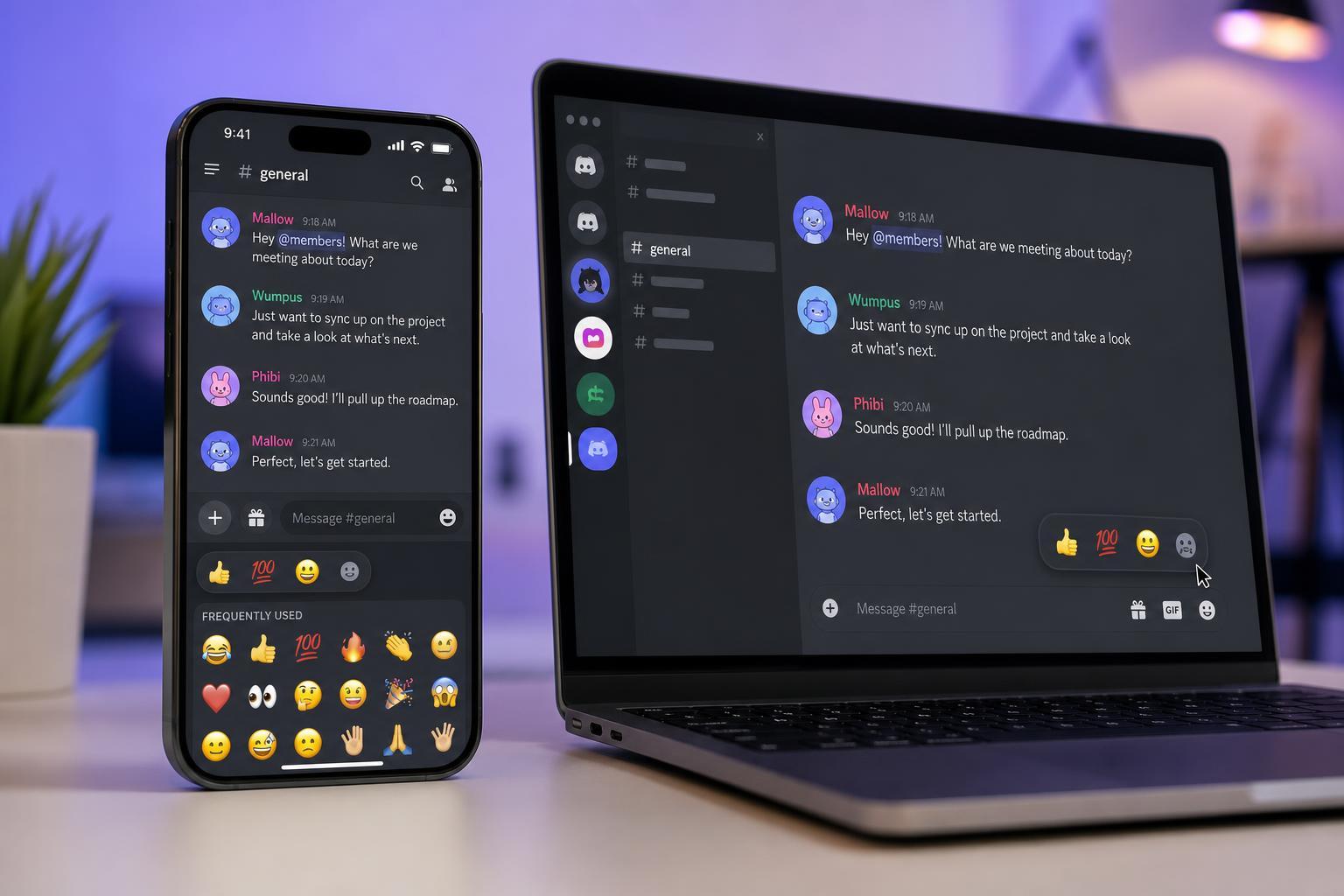
What a Discord Reaction Does
A reaction adds an emoji to a message. It can be used as a simple acknowledgment, a vote in a discussion, or a fast way to show agreement, confusion, humor, or any other response that fits the conversation.
How to React to a Message on Discord Desktop
- Open Discord and go to the channel, direct message, or group chat that contains the message you want to react to.
- Move your mouse over the message.
- Click the smiley face with a plus sign that appears on the right side of the message.
- Select one of the suggested emojis, or search for a different emoji in the picker.
- The emoji will appear under the message as your reaction.
How to React to a Message on Discord Mobile
- Open the Discord app on your phone or tablet.
- Go to the message you want to react to.
- Press and hold the message for a moment.
- Tap one of the suggested emoji reactions, or tap the emoji picker if you want a different one.
- Your reaction will be added under the message.
How to Change or Add Another Reaction
You can react to the same message with more than one emoji if the server permissions allow it. If you want to use a different emoji, simply add the new reaction as well. Discord keeps each emoji reaction separate, so one message can collect many reactions from the same person or from different users.
How to Remove Your Reaction
- Find the message that already has your reaction.
- Tap or click the emoji you added under the message.
- The reaction will disappear.
If the reaction was added by someone else, you cannot remove it unless you have moderation permissions in that server or channel.
Why You Might Not See the Reaction Option
- The message is in a channel where reactions are disabled or limited by permissions.
- You are viewing the message in a restricted server or thread.
- The Discord app needs to be updated.
- The message type does not support reactions in the way you expect.
- The channel owner or server settings restrict emoji use.
If you can react in some channels but not others, the issue is usually related to permissions rather than a problem with your device.
Useful Things to Know About Discord Reactions
- Reactions work in direct messages, group chats, servers, and many threads.
- Some servers use custom emojis, and you may only be able to use them if you have access to that server or specific Nitro-related permissions depending on the emoji type.
- A message can collect many reactions from different people, which makes them useful for polls and quick feedback.
- If you react by mistake, you can remove it by tapping or clicking the same emoji again.
If You Want Faster Access to Reactions
On desktop, hover actions make reactions very quick to use. On mobile, press-and-hold is the standard method, so if the reaction menu feels slow, it is usually just the normal interaction style for the app.





