If you want to play audio from your phone, tablet, or computer through an Alexa speaker, the first step is putting the device into Bluetooth pairing mode. There are two common ways to do it: by voice command or through the Alexa app.
The exact wording and menu labels can vary a little depending on your Echo model and app version, but the basic process is the same.
Way 1: Use a Voice Command
The fastest method is usually to ask Alexa directly. This works well when your Echo is already set up and connected to Wi-Fi.
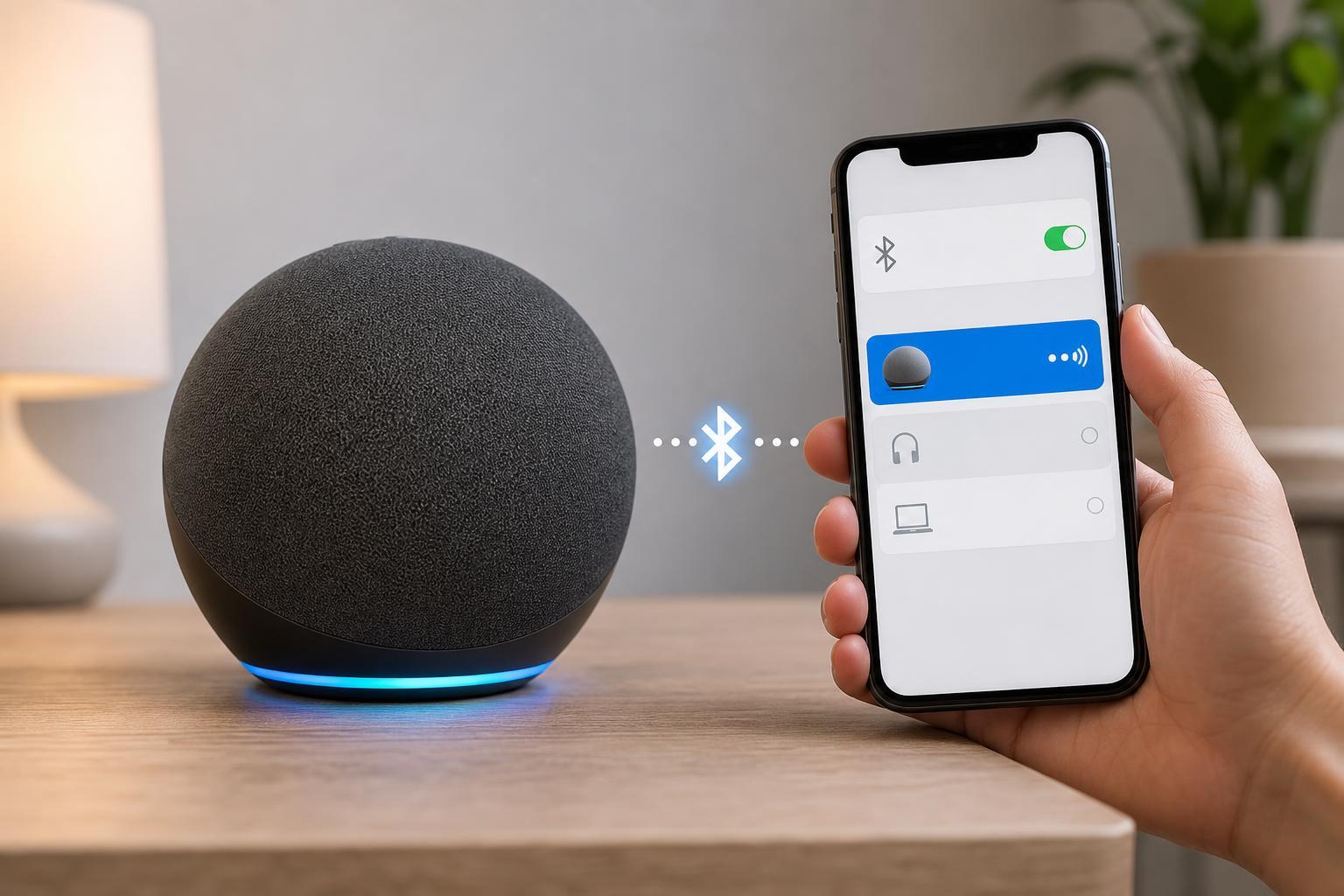
- Say, “Alexa, pair” or “Alexa, Bluetooth pair.”
- Wait for Alexa to respond that it is ready to pair.
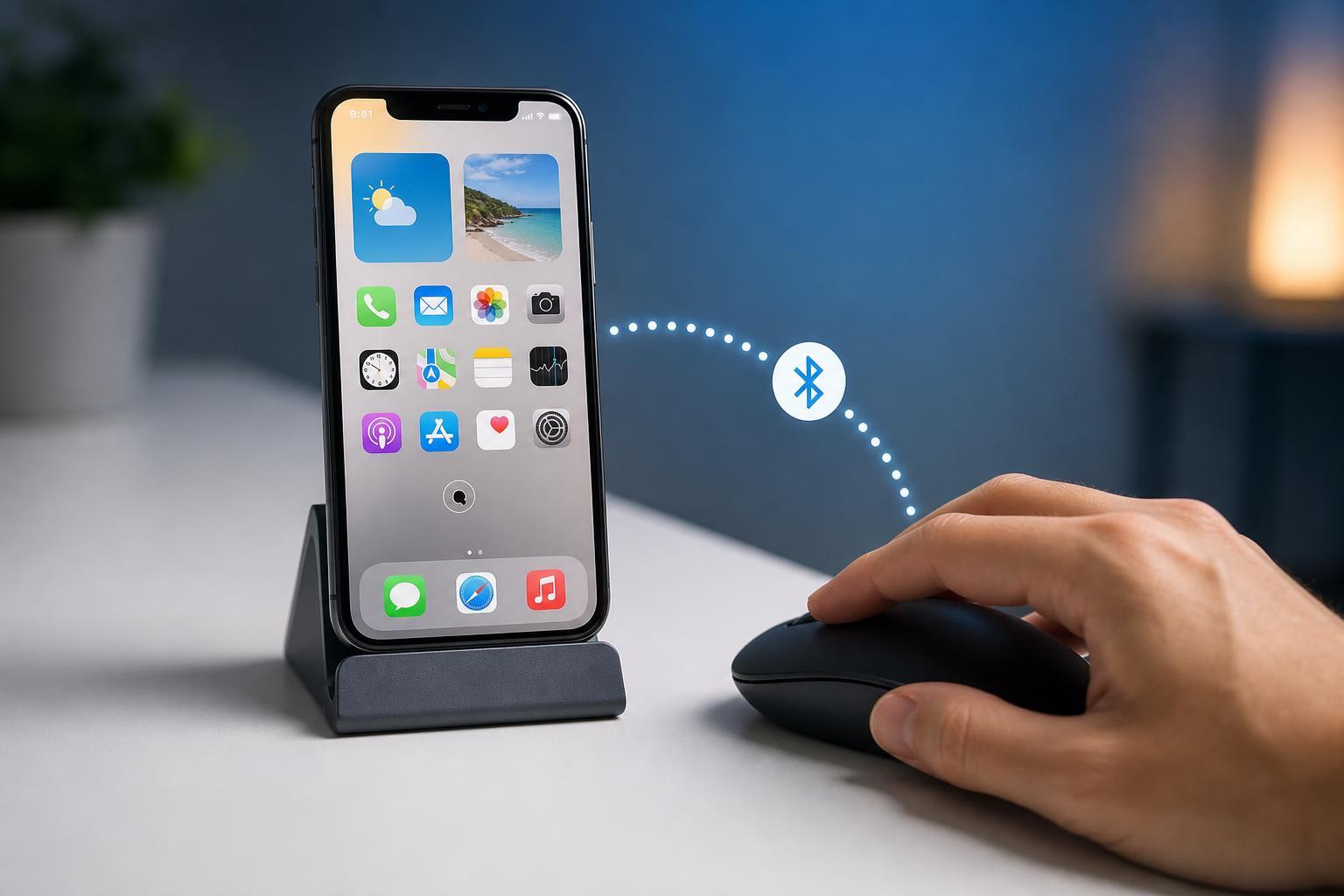
- On your phone, tablet, or PC, open Bluetooth settings and look for your Echo device in the available devices list.
- Select the Alexa device to complete the connection.
Way 2: Use the Alexa App
If voice commands do not work, or you want to control the process manually, you can put Alexa into pairing mode from the app.
- Open the Alexa app on your phone or tablet.
- Tap Devices.
- Select Echo & Alexa, then choose the Echo device you want to use.
- Tap Bluetooth Devices.
- Choose Pair a New Device.
- Wait for Alexa to enter pairing mode, then open Bluetooth settings on your other device and connect to the Echo speaker.
What to Do If Alexa Does Not Show Up
If your phone or computer cannot find the Echo device, the problem is often on the Bluetooth side rather than with Alexa itself.
- Make sure Bluetooth is turned on for the device you are trying to connect.
- Move the phone or computer closer to the Echo speaker.
- Check that the Echo is actually in pairing mode and not just powered on.
- Disconnect the Echo from other nearby devices if it keeps reconnecting to something else.
- If the Echo was paired before, remove it from the Bluetooth list on the other device and try again.
How to Stop Bluetooth Pairing Mode
Alexa usually exits pairing mode automatically after it connects to a device. If you want to stop the process, you can simply tell Alexa to disconnect or turn Bluetooth off from the device you are using.
Which Method Should You Use?
- Use voice commands if you want the quickest option and are already near the Echo.
- Use the Alexa app if voice commands are not working or you need to select a specific Echo device.
- Use Bluetooth settings on your phone or PC after Alexa enters pairing mode, since the final connection is completed from the other device.