The Steam Deck is capable of running a wide range of PC games, but performance can vary a lot from game to game. If you want smoother gameplay, better battery life, or fewer stutters, the key is to balance graphics settings, power use, and thermal limits instead of just turning everything to the lowest option.
This guide covers the most effective ways to optimize Steam Deck performance in games, starting with the settings that usually make the biggest difference and moving on to more advanced tweaks.
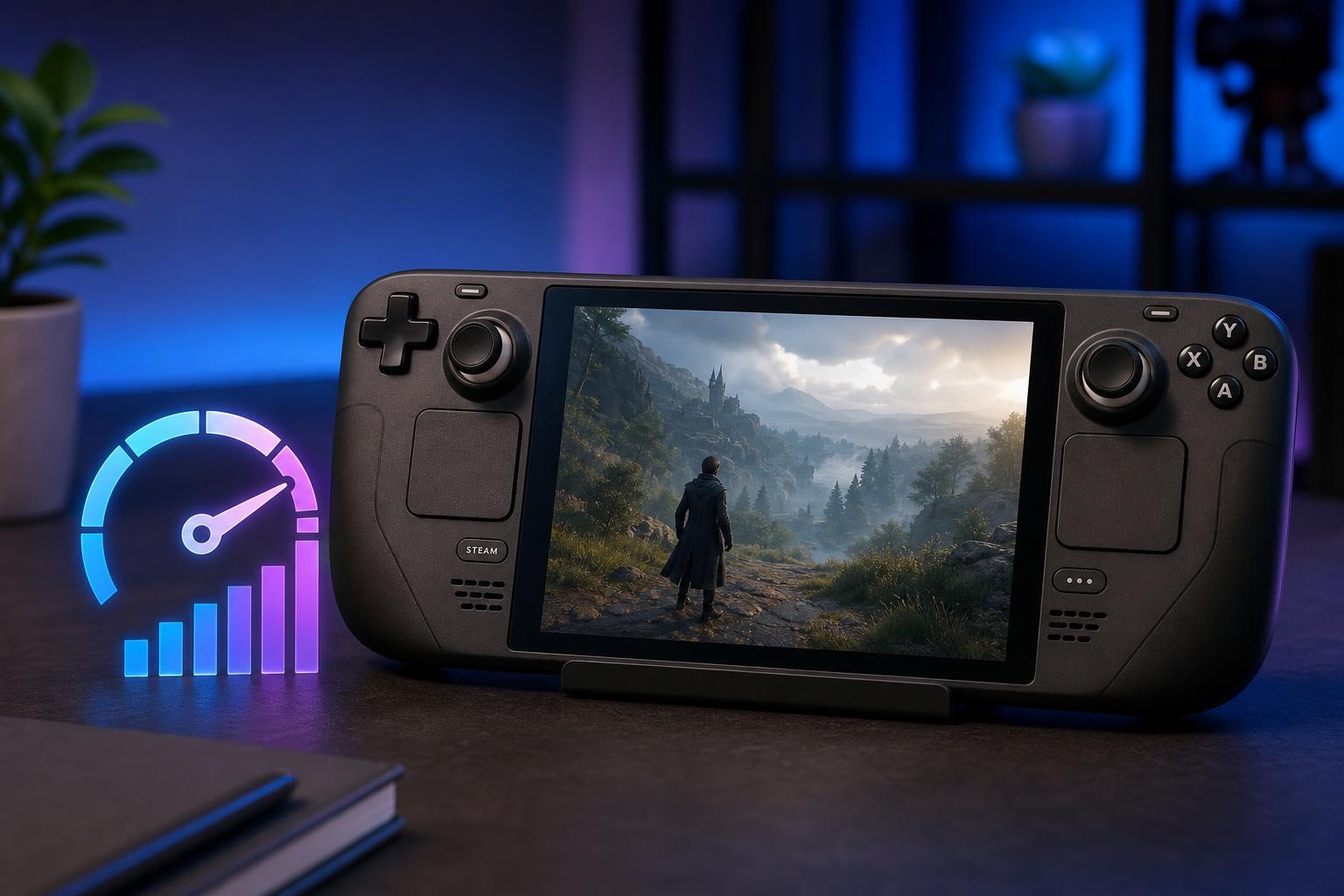
Start with the Steam Deck quick performance tools
Before changing individual game settings, open the Quick Access menu and check the built-in performance controls. These let you cap frame rate, adjust refresh rate, and manage power use without needing extra software.
- Press the Quick Access button on the Steam Deck.
- Open the Performance menu.
- Enable the performance overlay if you want to see frame rate, wattage, and temperatures while testing changes.
- Try a frame rate cap such as 30 or 40 FPS if the game struggles to stay at 60.
- Match the display refresh rate to the frame rate cap when appropriate for smoother pacing and better battery life.
Use the right in-game graphics settings
In-game settings usually have the biggest effect on performance. The Steam Deck can handle many games well, but it rarely needs high-end PC presets to look good on the built-in screen.
- Lower shadows first, since they often cost a lot of performance.
- Reduce anti-aliasing if the game still looks acceptable without it.
- Drop texture quality only if the game is running out of memory or showing hitching.
- Turn down ambient occlusion, reflections, volumetric effects, and motion blur if available.
- Use medium or low settings before touching resolution in games that still look sharp at the Deck’s screen size.
Adjust resolution and scaling carefully
Running games at the Deck’s native resolution is not always necessary. Many titles perform better when rendered at a lower resolution and then scaled to the screen.
- Use the game’s built-in resolution options if they scale cleanly.
- Try 1280 x 800 first for supported games, then lower if needed.
- If the game supports FSR or another upscaling option, test it before lowering settings too far.
- Avoid forcing a very low resolution if the image becomes too soft or UI elements become hard to read.
Limit frame rate and refresh rate together
If you want smoother gameplay and better battery life, frame limiting is one of the most useful adjustments on the Steam Deck. A game locked to a steady 30 or 40 FPS often feels more consistent than a game that bounces between different values.
- Set the game’s target frame rate in the Steam Deck performance menu.
- Choose a refresh rate that matches or cleanly supports that cap.
- Test the game for a few minutes in an actual gameplay area, not just a menu.
- If the frame rate still dips often, lower a few graphics settings or reduce the cap further.
Check Proton compatibility and game-specific issues
Some performance problems are not caused by graphics settings at all. On Steam Deck, the Proton compatibility layer can affect how a game runs, and one Proton version may perform better than another.
- Try the default Proton version first if the game runs normally.
- If performance is poor or the game has stuttering, test a different Proton version from the game’s compatibility settings.
- Look for game-specific community notes if a particular title is known to work better with a certain Proton release.
- If a game recently updated and performance changed, compare behavior before changing many other settings.
Keep storage fast and avoid disk bottlenecks
Slow or nearly full storage can contribute to loading delays and texture streaming issues in some games. This is especially noticeable in larger open-world titles.
- Leave some free space on the internal drive or microSD card.
- Install your most demanding games on faster storage when possible.
- If a game stutters when moving through large areas, storage speed may be part of the problem.
- Avoid filling the drive to the point where the system has very little breathing room for updates and shader data.
Reduce heat and thermal throttling
When the Steam Deck gets too warm, it may lower performance to protect itself. Good airflow and sensible power settings help keep clocks more stable.
- Play in a place where the vents are not blocked.
- Avoid using the Deck on soft surfaces that trap heat.
- Remove thick cases or grips if they interfere with airflow.
- If the device feels unusually hot during a specific game, lower the frame cap or settings to reduce power draw.
Trim background load and update the system
The Steam Deck is usually focused on the game you are playing, but system updates, downloads, or other background tasks can still affect responsiveness.
- Pause large downloads before starting a demanding game.
- Install SteamOS updates when available, especially if they include fixes for compatibility or performance.
- Keep game files and shader data organized by letting Steam finish its normal maintenance tasks.
- If a game recently became slower, check whether a patch or system update changed behavior.
Know when a game is simply too demanding
Not every PC game can be optimized into running well on the Steam Deck at high settings. Some modern AAA games need compromises such as lower frame caps, reduced visual quality, or occasional acceptance of heavier battery drain.
- Fast-paced competitive games usually benefit most from stable performance settings.
- Large open-world and graphically intense games may need lower expectations on handheld hardware.
- If a game is still unstable after reasonable tuning, use a lower target such as 30 FPS.
- Sometimes the best result is a clean, consistent image rather than pushing for high settings.
A simple tuning order that usually works
If you do not want to tweak everything at once, use this order. It solves most performance issues without wasting time.
- Set a frame rate cap that the game can realistically hold.
- Lower shadows, reflections, and volumetric effects.
- Reduce resolution or enable upscaling if needed.
- Try a different Proton version if the game still behaves badly.
- Check storage space and temperature if stutter continues.
- Only then consider deeper tweaks or community-specific fixes.
What to focus on first for the best results
For most Steam Deck users, the biggest performance gains come from three changes: capping the frame rate, lowering the most expensive graphics effects, and keeping temperatures under control. Those three steps usually make games feel smoother without destroying image quality.
If you want, I can also turn this into a game-specific optimization guide, such as best Steam Deck settings for Cyberpunk 2077, Elden Ring, or Hogwarts Legacy.