
Muting someone on Instagram lets you hide their posts and stories without unfollowing them or blocking them. It is a useful way to clean up your feed, avoid certain updates for a while, or reduce clutter without changing your relationship with the account.
You can mute accounts from the Instagram app on a phone or from Instagram in a web browser. The exact options may look slightly different depending on your device, but the process is simple once you know where to tap or click.
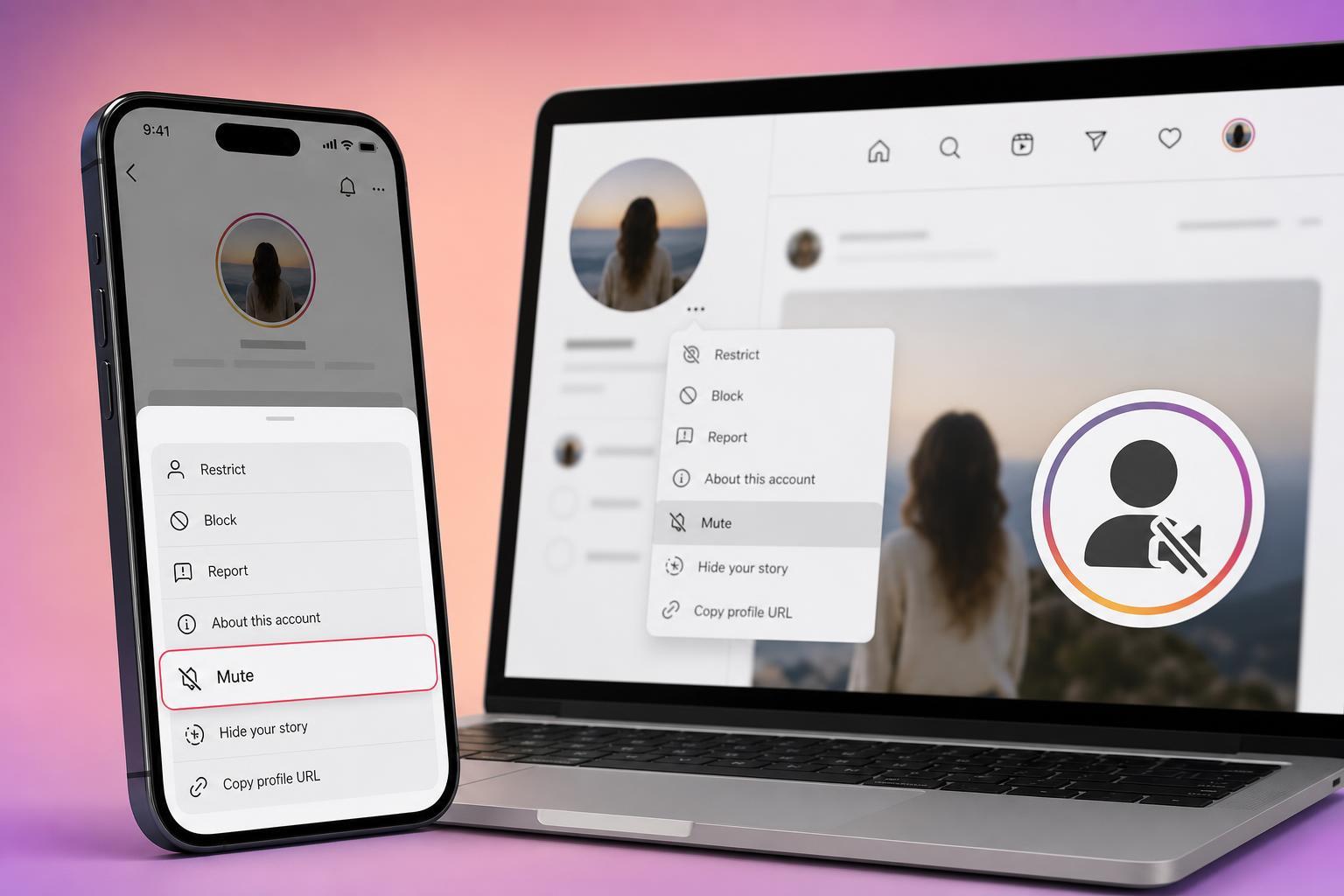
What Muting Does on Instagram
When you mute someone, Instagram stops showing their posts, stories, or both, depending on what you choose. They are not notified that you muted them, and you can still visit their profile, send messages, or unmute them later.
How to Mute Someone on Instagram Using the Mobile App
The easiest method on mobile is to use the person’s profile or the options shown directly on a post or story.
- Open the Instagram app and go to the profile of the person you want to mute.
- Tap Following near the top of their profile.
- Select Mute from the menu that appears.
- Choose what you want to mute: Posts, Stories, or both.
Mute Someone from Their Post or Story on Mobile
If you are already looking at one of their posts or stories, you can mute them from there without opening their profile first.
- For a post, tap the three dots in the upper-right corner of the post.
- Choose Hide, then use the profile options if you want to mute the account more permanently.
- For a story, press and hold the story tile or open the account’s story controls if available.
- Select Mute and then choose whether to mute stories or posts.
How to Mute Someone on Instagram Using a Desktop Browser
Instagram’s desktop site has fewer controls than the mobile app, but you can still mute an account if the option is available on your version of the site.
- Open Instagram in a browser and sign in.
- Go to the profile of the account you want to mute.
- Click Following.
- If the Mute option appears, select it and choose whether to mute posts, stories, or both.
How to Unmute Someone
If you change your mind, you can reverse the setting at any time.
- Open the person’s profile.
- Tap or click Following.
- Choose Mute.
- Turn off Posts, Stories, or both, depending on what you want to restore.
Troubleshooting If You Cannot Find the Mute Option
If the mute control is missing, it is usually because of the path you are using rather than a problem with your account.
- Make sure you are on the person’s profile and not just viewing a post in your feed.
- Check the Following button rather than the message or options menu.
- Update the Instagram app if the mobile menus look different from the steps above.
- Try the mobile app if the desktop site does not show the mute setting.
- If the account is already muted, the menu may show Unmute instead of Mute.
A Better Alternative for Certain Situations
If you only need a break from someone for a short time, muting is usually the safest choice because it is private and easy to undo. If you want to stop all interaction, though, blocking or restricting the account may be more appropriate.





