A fillable Word document is useful when you want other people to type answers, select options, or complete a form without changing the rest of the layout. Microsoft Word can do this in a few different ways, depending on whether you want a simple form or a more controlled template.
The best method depends on how much control you need. For basic documents, you can insert form fields manually. For more structured forms, the Developer tab gives you check boxes, drop-down lists, and text controls that are easier for other people to complete.
Choose the Right Kind of Fillable Form
Before you start, decide what you want the document to do. A fillable Word document can mean a few different things:
- A simple document with blank lines or placeholders that people type into
- A form with check boxes, drop-down menus, and date fields
- A protected template that only allows users to fill in designated areas
- A document that can be converted later into a PDF form
Turn on the Developer Tab in Word
The Developer tab is where Word keeps its form controls. If you do not see it, you need to enable it first.
- Open Word and click File.
- Select Options.
- Click Customize Ribbon.
- In the right-hand list, check Developer.
- Click OK.
Add Fillable Text Fields
For areas where users need to type text, use a plain text content control or rich text content control.
- Place your cursor where the fillable field should appear.
- Go to the Developer tab.
- Click Plain Text Content Control for short entries such as names or dates.
- Click Rich Text Content Control if you want users to enter formatted text, such as a paragraph.
- Type any label or instruction text around the field.
Add Check Boxes, Drop-Downs, and Date Pickers
Word can include several control types so users can choose answers instead of typing everything manually.
- Check Box Content Control: useful for yes/no choices or task lists
- Drop-Down List Content Control: useful when you want users to choose from fixed options
- Combo Box Content Control: similar to a drop-down, but users can also type their own answer in some cases
- Date Picker Content Control: useful for dates that should stay in a consistent format
- Click where you want the control to appear.
- Open the Developer tab.
- Select the control type you want to insert.
- Click Properties if you need to customize the available options or placeholder text.
- Save the document when you are finished.
Create a Printable Form Layout
If you only need a document that looks like a form and does not need advanced restrictions, you can build one using tables, lines, and content controls. This approach is often easier for short forms such as contact sheets, request forms, or simple questionnaires.
- Insert a table to align labels and fields neatly.
- Type the field labels in the first column.
- Add content controls in the second column where people will type or select answers.
- Adjust column widths so the form is easy to read.
- Format the table borders if you want visible lines, or remove them for a cleaner look.
Lock the Form So It Can Only Be Filled Out
If you want to prevent users from changing the layout, you can restrict editing after the form controls are in place.
- Go to the Developer tab.
- Click Restrict Editing.
- Under editing restrictions, choose Filling in forms.
- Click Yes, Start Enforcing Protection.
- Set a password if you want to prevent others from turning protection off.
Make a Word Document Easier to Fill Out
A good form should be simple to understand and quick to complete. Small layout choices can make a big difference.
- Use clear field labels instead of vague instructions
- Keep related questions close together
- Leave enough space for typing in longer answers
- Use consistent fonts and spacing throughout the form
- Test the form yourself before sharing it with others
Save and Share the Fillable Document
Once the form is finished, save it as a regular Word document or as a template if you plan to reuse it often. If you want people to complete it without editing the file structure, share the protected version.
- Click File and then Save As.
- Choose a location and file name.
- Save it as a .docx file for normal use or .dotx if you want a reusable template.
- Send the file to others after testing the fillable fields.
If You Want People to Fill It Out Without Word
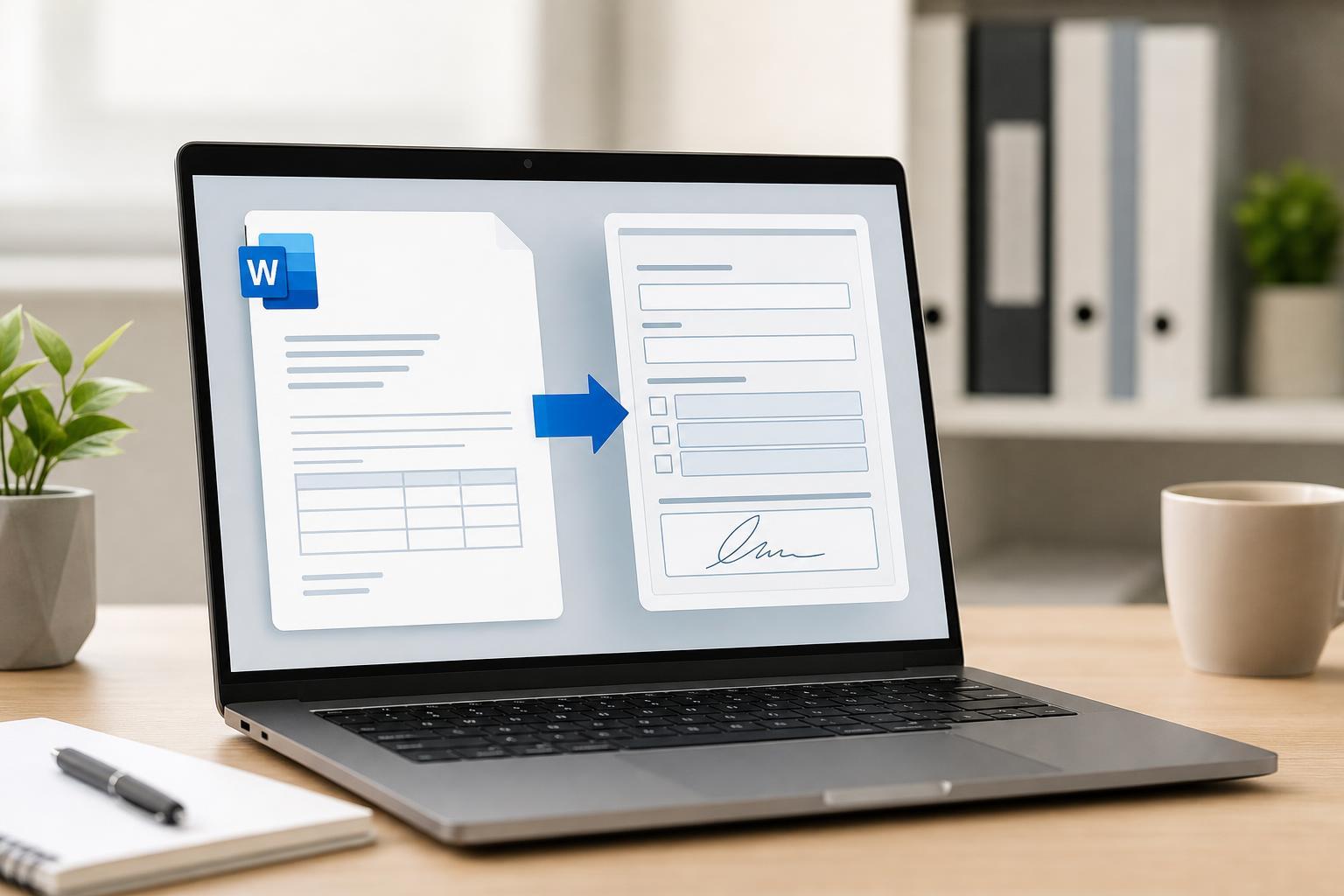
If the goal is to let users complete the form on any device without editing Word itself, consider converting it to PDF after building it in Word. That is often a better choice for distribution, especially when the layout must stay fixed.
Word is good for creating the form, but PDF is often better for collecting final responses when formatting needs to remain unchanged.