
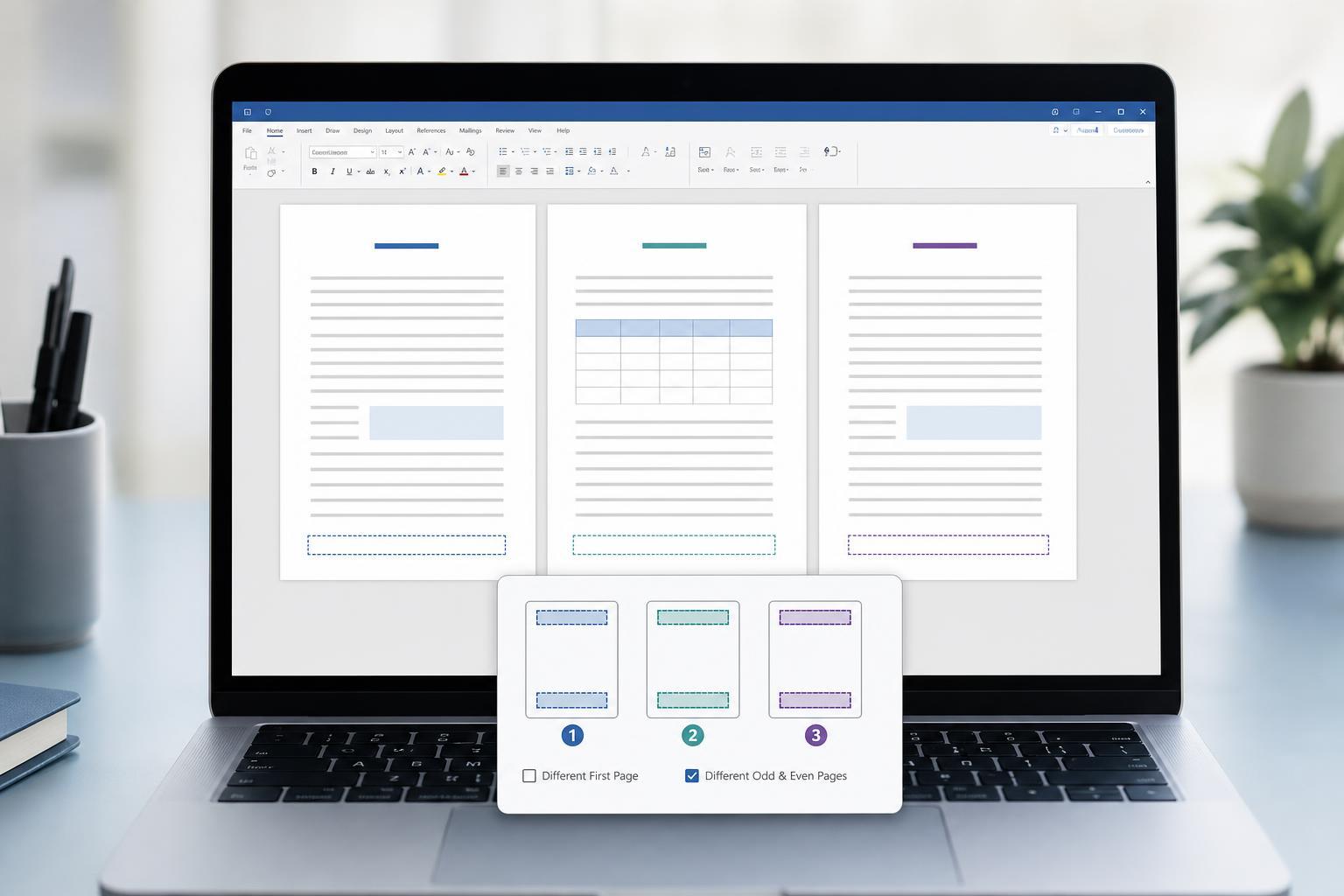
Microsoft Word can use different headers and footers on different pages, but the trick is that Word controls them by section, not by individual page. Once you understand section breaks and how to unlink headers and footers, you can make a document where the first page is different, odd and even pages differ, or each section has its own header and footer.
This guide shows the right way to set that up in Word without accidentally changing every page in the document.
What You Need to Know First
In Word, headers and footers are normally shared across a document section. If you want one page to have different text, a different logo, or no footer at all, you usually need to split the document into sections with section breaks.
How to Put Different Headers and Footers on Different Pages
- Place your cursor at the end of the page before the one where you want a new header or footer.
- Go to Layout or Page Layout, then choose Breaks.
- Under Section Breaks, select Next Page if the new content should start on a fresh page.
- Double-click in the header or footer area of the new section.
- On the Header & Footer tab, turn off Link to Previous. Do this for the header, footer, or both depending on what you want to change.
- Edit the header or footer in the new section. Your changes will now apply only to that section.
- Repeat the process for any other page groups that need different headers or footers.
How to Make the First Page Different
If you only need the first page to have a different header or footer, Word has a built-in option for that. This is the easiest method when you want a title page without page numbers or with a special heading.
- Double-click in the header or footer area of the first page.
- On the Header & Footer tab, check Different First Page.
- Edit the first-page header or footer separately from the rest of the document.
- If needed, move to the second page and enter the normal header or footer there.
How to Use Different Headers on Odd and Even Pages
Word can also alternate headers and footers between odd and even pages. This is useful for printed documents, books, and bound reports where the inside and outside margins matter.
- Double-click in a header or footer area.
- On the Header & Footer tab, enable Different Odd & Even Pages.
- Edit the odd-page header and footer first.
- Move to an even page and enter the content you want there.
How to Change Only One Page in the Middle of a Document
If you want a single page in the middle of a document to have a unique header or footer, you need to isolate that page in its own section. This usually means adding a section break before and after it.
- Insert a Section Break: Next Page before the page you want to change.
- Insert another Section Break: Next Page after that page if the following pages should return to the original header or footer.
- Open the header or footer on the isolated page.
- Turn off Link to Previous.
- Type the new header or footer.
- Go to the next section and make sure its header or footer is linked or set up the way you want.
How to Keep Page Numbers Working
Page numbers are usually part of the footer, so changing footers can affect numbering. If the page number disappears or resets unexpectedly, it is often because a section break changed the footer connection.
- If you want numbering to continue, check that the new section's page number is set to continue from the previous section.
- If you want numbering to restart, use the page number format options for that section.
- If the first page should not show a number, use Different First Page or remove the page number from that first-page footer only.
Common Problems and Fixes
- The header changed on every page: the section is still linked. Open the header or footer and turn off Link to Previous.
- The first page still shows the same header as the rest: Different First Page is not enabled, or the first page is not in its own section when needed.
- Page numbers restarted unexpectedly: check the page number format for the section.
- A change affected the wrong page: confirm where the section breaks are placed.
- The footer disappeared after editing: the section may not have a footer enabled, or the footer content was deleted in that section.
A Simple Workflow That Avoids Mistakes
- Decide which pages need unique headers or footers.
- Insert section breaks around those pages.
- Open the header or footer in each section.
- Turn off Link to Previous where the content should differ.
- Add or edit the text, logo, or page numbers.
- Check each section in print layout view before finishing.
When to Use Each Method
- Use Different First Page when only the opening page needs a unique header or footer.
- Use Different Odd & Even Pages for books, manuals, and double-sided documents.
- Use section breaks when a specific page or group of pages needs its own header or footer.
- Use linked sections only when you want the same header or footer to continue across multiple sections.
Once you get used to section breaks, Word becomes much easier to control. The main idea is simple: if the header or footer should change, create a new section and unlink it from the previous one. That gives you precise control without affecting the rest of the document.





