If your Fire Stick has video but no sound, or the audio cuts out unexpectedly, the cause is usually a setting, cable, TV input issue, or an app-specific problem. The good news is that most Fire Stick audio problems can be narrowed down quickly by checking a few common causes first.
This guide walks through the most effective fixes in a practical order, starting with the simplest checks and moving to more advanced troubleshooting only if needed.
Check Whether the Problem Is the Fire Stick or the TV
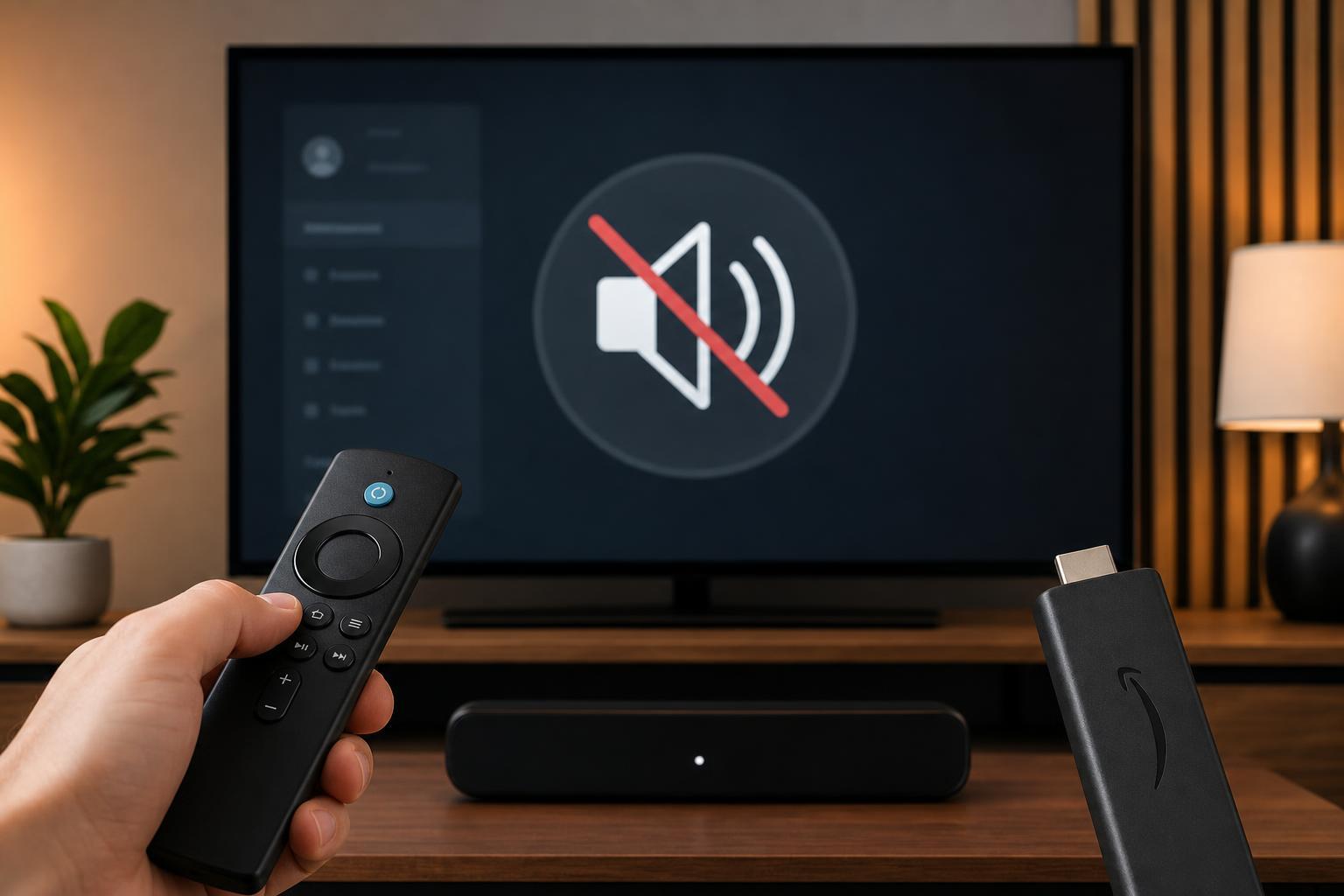
Before changing settings on the Fire Stick, confirm where the audio issue starts. If other devices connected to the same TV produce sound normally, the Fire Stick is the likely source. If nothing connected to the TV has audio, the problem is probably with the TV, soundbar, receiver, or speaker setup instead.
- Try another app on the Fire Stick to see whether the problem affects all audio or only one service.
- Switch to the TV’s built-in apps or another HDMI device to check whether the TV speakers work.
- If you use a soundbar or AV receiver, test whether audio plays through the TV speakers instead.
- Look for on-screen volume indicators, mute symbols, or audio format warnings that may point to the cause.
Check the Obvious Audio Settings First
A surprising number of sound problems come from accidental muting, a low TV volume, or a mismatched audio output setting. Start with the basic controls before digging deeper into device menus.
- Make sure the TV or sound system is not muted.
- Increase the TV volume using the TV remote, not just the Fire Stick remote.
- Press the Fire Stick remote volume buttons if your remote supports TV volume control.
- If you are using a soundbar or receiver, confirm that it is powered on and set to the correct input.
- If the Fire Stick is plugged into a receiver or soundbar, try routing it directly to the TV to rule out the audio system.
Restart the Fire Stick and TV
A restart can clear temporary glitches in the Fire Stick, HDMI handshake, or audio app that may be blocking sound.
- Unplug the Fire Stick from power for at least 30 seconds.
- Turn the TV off and back on.
- Reconnect the Fire Stick and wait for it to fully load.
- Test audio again in the Fire Stick home screen and inside an app.
Try a Different HDMI Port and Check the Cable Connection
A loose HDMI connection or a problematic port can prevent audio from passing correctly, even if the picture still appears normal.
- Unplug the Fire Stick from the HDMI port and plug it back in firmly.
- If possible, try a different HDMI port on the TV.
- Use the HDMI extender that came with the Fire Stick if the stick is crowded against the TV or other cables.
- If you are using an HDMI switch or splitter, bypass it temporarily and connect the Fire Stick directly to the TV.
Check the Fire Stick Audio Settings
Fire Stick audio settings can affect whether the device sends stereo, surround sound, or a specific digital format to your TV or sound system. If the selected format is not supported, you may get no sound at all.
- Open Settings on the Fire Stick.
- Go to Display & Sounds.
- Open Audio.
- Check whether the available audio options match your setup.
- If you use TV speakers, try a basic stereo or PCM-style output if available.
- If you use a soundbar or receiver, switch between supported surround sound options and test each one.
Test the Audio in Different Apps
If sound works in one app but not another, the Fire Stick itself may be fine and the issue may be limited to that streaming app or its current playback format.
- Play a different title in the same app.
- Try another app such as Prime Video, Netflix, or YouTube.
- Check whether the problem happens only with live TV, movies, or specific shows.
- Look for app updates in the Fire TV app store if one app appears broken.
Update the Fire Stick Software and Apps
Outdated system software or app versions can cause audio bugs, compatibility issues, and problems with new streaming formats.
- Go to Settings.
- Select My Fire TV.
- Choose About, then Check for Updates if available.
- Install any pending Fire TV system updates.
- Open the app store and update the streaming apps you use most often.
Remove and Reconnect External Audio Devices
Bluetooth headphones, soundbars, and speakers can take over audio output without making it obvious. If the Fire Stick is sending sound to the wrong device, the TV speakers may stay silent.
- Open Settings on the Fire Stick.
- Go to Controllers & Bluetooth Devices.
- Check Bluetooth devices and disconnect anything you are not using.
- Turn off Bluetooth headphones or speakers temporarily.
- Test the Fire Stick again using TV speakers only.
Adjust TV Audio Output Settings
Some TVs have their own audio output settings that can interrupt sound from HDMI sources. This is especially common when the TV is sending audio to an optical output, ARC/eARC port, or external speaker system.
- Make sure the TV audio output is set to the correct speakers or external audio device.
- Check whether the TV is set to a digital audio format your soundbar or receiver does not support.
- If your TV has HDMI-CEC, ARC, or eARC settings, confirm they are enabled correctly for your setup.
- Try switching the TV sound output back to internal speakers as a test.
Clear the Problem App’s Cache or Reinstall It
When the audio issue happens in only one app, that app may have corrupted temporary data or a bad playback configuration.
- Go to Settings.
- Open Applications.
- Select Manage Installed Applications.
- Choose the affected app.
- Try Clear Cache first, then test again.
- If that does not help, uninstall and reinstall the app.
Reset the Fire Stick if Nothing Else Works
If you have tried the common fixes and still have no sound, a factory reset may be necessary. This can resolve deeper software problems, but it will erase downloaded apps and sign-in details.
- Open Settings.
- Go to My Fire TV.
- Select Reset to Factory Defaults.
- Confirm the reset only if you are ready to set up the device again.
When the Problem Is Probably Hardware
If the Fire Stick has no sound on multiple TVs, across multiple HDMI ports, and after trying different apps and settings, the device or its power setup may be at fault. In that case, look for signs such as overheating, physical damage, or repeated crashes.
- The Fire Stick gets unusually hot.
- Audio and video both freeze or cut out.
- The device only works when plugged into a different power adapter.
- No HDMI device connected through the same setup works reliably.
- The Fire Stick behaves erratically even after a factory reset.
A Practical Order to Try the Fixes
If you want the fastest path to a solution, try the fixes in this order:
- Check volume, mute, and whether the problem affects other devices.
- Restart the Fire Stick and TV.
- Try a different HDMI port or reconnect the HDMI cable.
- Test audio in another app.
- Adjust Fire Stick audio settings.
- Disconnect Bluetooth audio devices.
- Check the TV’s audio output settings.
- Update Fire Stick software and apps.
- Clear the affected app’s cache or reinstall it.
- Reset the Fire Stick if nothing else works.
Most Fire Stick sound problems are solved before the factory reset step. Starting with the simplest checks usually gets you back to audio faster and avoids unnecessary setup work.