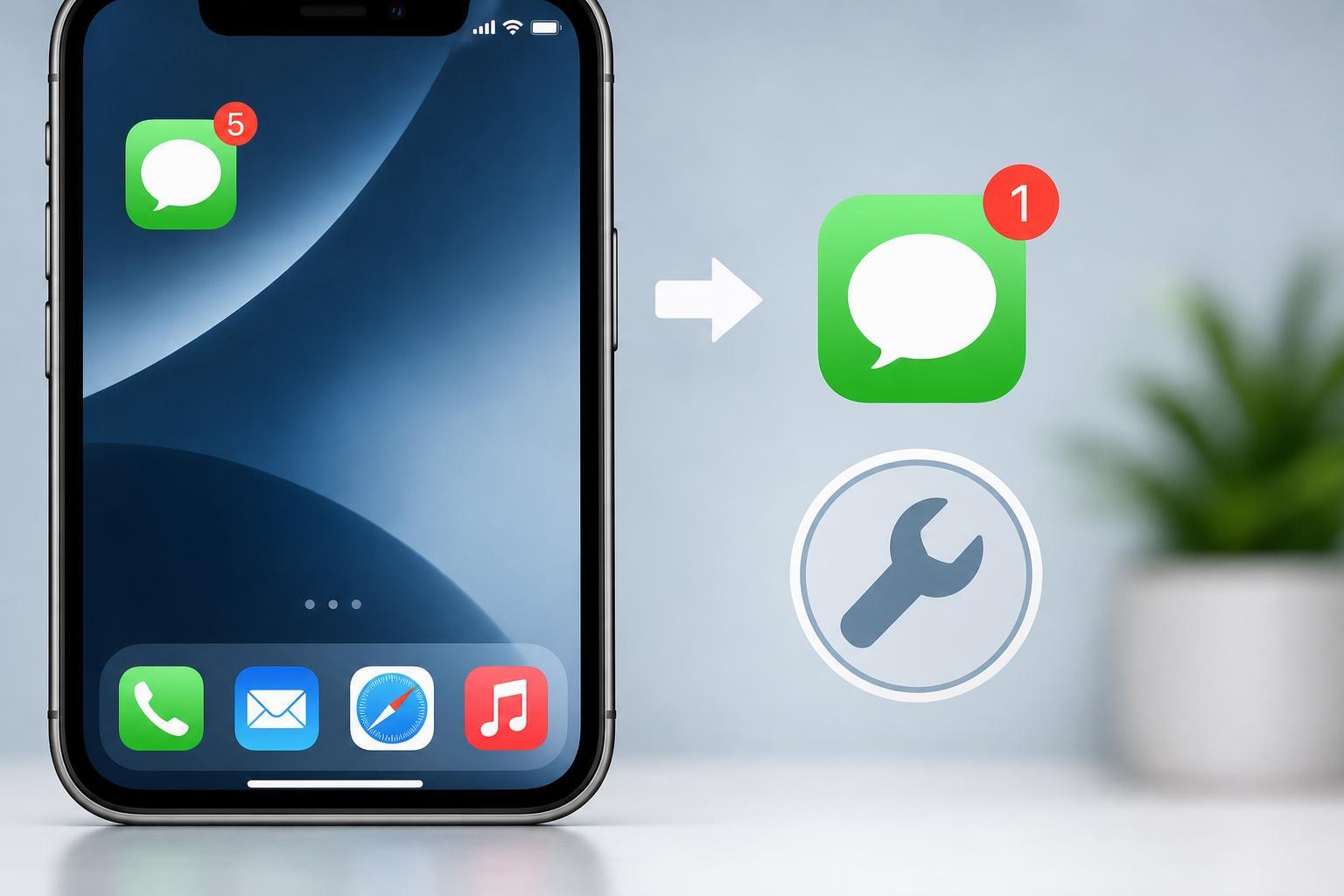
If the Messages app badge on your iPhone shows the wrong unread count, the problem is usually caused by a stuck conversation, a sync issue, or a notification setting that has not updated correctly. The badge may show unread messages that you already opened, or it may stay lower than the real count.
The good news is that this is usually a software problem, not a broken iPhone. In most cases, you can correct the unread badge by finding missed message threads, refreshing Messages and iCloud sync, or adjusting a few iPhone settings.
Check for Messages You Have Not Actually Opened
Before changing settings, make sure the count is not correct and the problem is only that one conversation is easy to miss. Messages from unknown senders, group chats, and pinned conversations can be easy to overlook.
- Open the Messages app and scroll through all conversations.
- Look for blue dots next to threads, which indicate unread messages.
- Open group chats, spam/unknown sender threads, and any recently muted conversations.
- If you use message filtering, check the Unknown Senders tab as well.
- Swipe down in Messages and use search if you suspect a specific thread still has unread content.
Mark All Messages as Read
If the badge is stuck because Messages has not refreshed properly, marking all conversations as read can reset the count.
- Open the Messages app.
- Tap Edit in the top-left corner if it appears.
- Choose Select Messages or Mark All as Read, depending on your iPhone and iOS version.
- If you do not see that option, open each unread thread manually and return to the conversation list.
- Check whether the badge number updates after a few seconds.
Make Sure Messages Is Syncing Correctly With iCloud
If you use Messages in iCloud, an old unread state from another device can sometimes keep the badge count incorrect. This is especially common if you read messages on an iPad, Mac, or another iPhone and the sync does not finish cleanly.
- Open Settings and tap your name at the top.
- Select iCloud.
- Tap Show All if needed, then open Messages.
- Confirm that Use on this iPhone is enabled.
- If it is already enabled, try turning Messages off and then back on after a short wait.
- Give the app a moment to re-sync before checking the badge again.
Toggle Notifications for Messages
A notification setting does not directly control the badge count, but a stuck notification configuration can sometimes go along with a stale unread state. Reviewing these settings can help when the badge is wrong and message alerts also seem off.
- Open Settings.
- Tap Notifications.
- Select Messages.
- Make sure Allow Notifications is turned on if you want badge alerts.
- Check that Badges is enabled.
- If needed, turn Badges off, wait a few seconds, then turn it back on.
Look for Hidden or Filtered Conversations
Sometimes the unread count is caused by messages being hidden in a filtered list rather than being impossible to find. This is common if you use filters for unknown senders or if a thread was moved out of the main inbox view.
- Check the Filters screen in Messages if it is enabled.
- Open the Unknown Senders section if your iPhone separates those messages.
- Look for muted group chats that may still contain unread replies.
- Search for the sender’s name or phone number if you suspect a specific conversation.
Force Messages to Refresh Its Badge State
If the badge remains incorrect after checking messages and syncing, you can try forcing Messages to rebuild its unread state. This is a simple way to clear a temporary glitch without changing your data.
- Open the Messages app and leave it running in the background.
- Swipe up from the bottom or use the app switcher to close Messages completely.
- Reopen Messages and check whether the badge changes.
- If the count is still wrong, leave Messages open for a minute while connected to the internet so it can re-sync.
Update iPhone and Carrier Settings
Bug fixes in iOS updates can resolve badge and notification problems. Carrier settings updates can also help if the issue is tied to messaging services rather than the app alone.
- Open Settings.
- Go to General, then Software Update, and install any available iOS update.
- Return to Settings, tap General, then About, and wait briefly to see whether a carrier settings update appears.
- If prompted, accept the carrier update.
Sign Out of iMessage and Sign Back In
If the badge still refuses to match the real unread count, your Apple ID session for Messages may be out of sync. Signing out and back in can refresh the account state.
- Open Settings and tap Messages.
- Tap Send & Receive.
- Review the Apple ID listed at the top if shown.
- If needed, go back to Settings and open Apple ID, then sign out of Messages-related account sessions only if you understand the effect on your device.
- Sign back in and wait for Messages to re-sync.
Reset Network Settings if Sync Problems Continue
If iMessage badge counts are wrong because syncing is failing over Wi‑Fi or cellular data, resetting network settings may help. This will remove saved Wi‑Fi networks and Bluetooth pairings, so use it only if the problem seems to involve connectivity or account sync.
- Open Settings.
- Tap General.
- Scroll down and choose Transfer or Reset iPhone.
- Tap Reset.
- Select Reset Network Settings and confirm.
- Reconnect to Wi‑Fi and test Messages again.
When the Badge Is Still Wrong
If none of the above fixes work, the problem may be tied to a specific conversation, an account sync issue that needs time to clear, or a deeper iOS bug. At that point, the most useful next step is to narrow down whether the count is wrong for only one thread or for the entire Messages app.
- If only one chat seems affected, open it and check for unread replies, reactions, or hidden message requests.
- If every conversation seems wrong, focus on iCloud sync, iMessage account sign-in, and iOS updates.
- If the badge is wrong on all Apple devices, the issue is likely with your Apple ID message sync rather than a single iPhone.
What This Usually Means
An incorrect iMessage unread badge count usually means Messages has not fully updated its unread state. That is why the most effective fixes are the ones that force the app, iCloud sync, or your Apple ID session to refresh.